
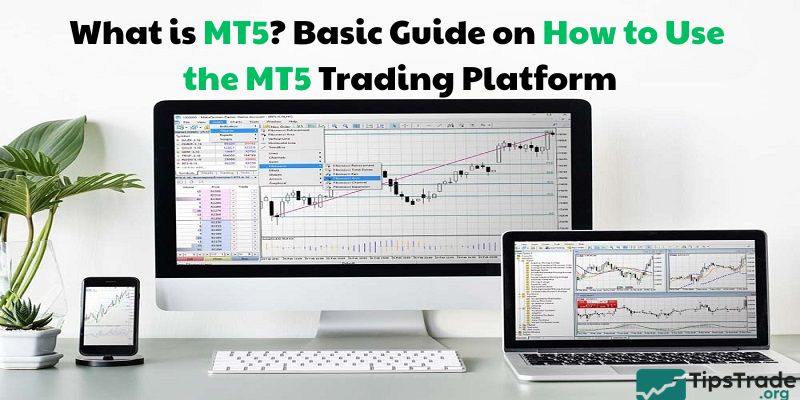
What is MT5? This is one of the most advanced online trading platforms today. Let’s explore what MT5 is and how to use this trading platform in detail in the following article with Tipstrade.org!
What is MT5?
What is MT5? MT5 – fully known as MetaTrader 5 – is an advanced trading platform developed by MetaQuotes Software Corp and released in 2010. Considered a comprehensive upgrade of its predecessor MetaTrader 4 (MT4), MT5 offers superior features and a wider range of analytical tools.
One of the platform’s standout advantages is its multi-asset trading capability. It not only supports Forex and CFD (Contracts for Difference) trading but also expands to other markets such as precious metals, agricultural commodities, energy, indices, stocks, and especially futures contracts – a widely used instrument in derivatives and commodities trading. This makes MetaTrader 5 an attractive choice for investors looking to diversify their portfolios and access more opportunities across global markets.
>>See more:
- What is MT4? All things you need to know
- MT4 vs MT5 Which One Is BEST FOR YOU?
- How To Install EA Into MT4? A Step-By-Step Guide
- Discover the top 6 indicators in MT4 that are widely used
Functions of the MT5 trading platform
The MT5 software is designed to meet the ever-increasing demands of modern traders, from individual to professional, especially in the field of derivative commodities trading.
Functions of the MT5 software:
- Comprehensive trading platform: MT5 provides a complete environment for investors to place buy/sell orders for products such as commodity futures, manage accounts, and effectively track positions.
- Powerful technical analysis tools: With 38 built-in technical indicators and 44 graphical objects, the MT5 software is a powerful tool for technical analysis of price charts. Investors can customize and combine indicators to identify trends, support/resistance levels, and make informed trading decisions.
- Algorithmic trading support: MT5 integrates the powerful MQL5 (MetaQuotes Language 5) programming language, allowing investors to develop, test, and use automated trading robots (Expert Advisors – EAs) and custom scripts. This is a significant advantage for those who want to automate their trading strategies.

- Multi-asset trading: As mentioned, MT5 allows trading of various assets on the same platform, including commodity futures such as agricultural products (corn, soybeans), metals (gold, silver, copper), and energy (crude oil, natural gas).
- Displaying Depth of Market (DOM): An important feature, especially for professional traders, DOM allows you to see the best current bid and ask prices available in the market, providing deeper insight into liquidity.
- Built-in economic calendar: The MT5 software provides a built-in economic calendar, helping investors stay updated on important economic events that could affect market prices without switching to another application or website.
Outstanding advantages of the MT5 trading platform
Some outstanding advantages of the MT5 trading platform:
- Responsive and flexible trading system: MT5 provides multiple order types, including market orders and six advanced pending orders, allowing traders to execute their strategies with precision.
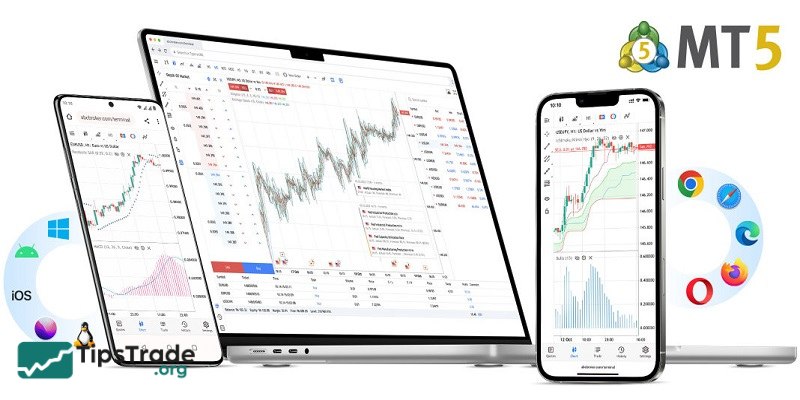
- Multi-platform access: MT5 is available on various devices: desktop (Windows, MacOS, Linux), web browser (WebTrader), and mobile devices (iOS, Android) ensuring traders never miss an opportunity, no matter where they are.
- Ability to open multiple charts: The platform allows opening up to 100 price charts simultaneously, enabling traders to monitor multiple instruments or different timeframes at the same time.
- Hedging system: MT5 supports hedging, allowing traders to open multiple positions (including opposing positions) on the same instrument, an effective tool for risk management.
- Multi-threaded strategy testing: MT5’s multi-threaded strategy tester enables faster and more efficient backtesting of EA robots compared to MT4, helping optimize trading strategies.
- MQL5 Market and Code Base: The MQL5 Market allows traders to buy or rent EAs, technical indicators, scripts, and other trading applications. The Code Base offers thousands of free tools.
- Security and reliability: MetaQuotes continuously updates the platform to ensure stability, safety, and robust performance.
The difference between MT5 and MT4
Both MetaTrader 4 and MetaTrader 5 software are developed by the same company, MetaQuotes Software Corp, and are popular trading platforms. However, MT5 was released later with significant improvements, making it particularly suitable for professional investors and those who want to access a wider range of markets, including trading in derivative commodities.
Main feature differences between the MT4 and MT5 platforms:
| Feature | MetaTrader 4 (MT4) | MetaTrader 5 (MT5) |
| Tradable assets | Currency pairs | Currency pairs, CFDs, metals, futures, ETFs, indices, stocks |
| Charting tools | Provides 24 analytical drawing tools | Provides 44 analytical drawing tools |
| Programming language | MQL4 – more limited in functionality compared to MT5 | MQL5 – allows coders to create advanced custom indicators, EAs, and scripts for enhanced trading automation |
| Number of timeframes | 9 timeframes | 21 timeframes |
| Types of pending orders | 6 types (Buy Stop, Sell Stop, Buy Limit, Sell Limit) | 9 types (Buy Stop, Sell Stop, Buy Limit, Sell Limit, Buy Stop Limit, Sell Stop Limit) |
How to use the MT5 platform for trading
MetaTrader 5 (MT5) is a trading platform trusted by many investors for analyzing financial markets and executing trades. MetaTrader 5 software allows investors to quickly and safely access advanced trading features.
How to use the MT5 platform on desktop
Installing and logging in to MT5 on desktop:
- Step 1: Visit the website of your chosen broker (or the official MetaQuotes website) to download the MT5 installation file for Windows or MacOS.
- Step 2: Open the downloaded file and follow the on-screen instructions to complete the installation.
- Step 3: Once the installation is complete, launch MetaTrader 5 and log in using your trading account credentials (provided by your broker) to start exploring and trading various instruments.
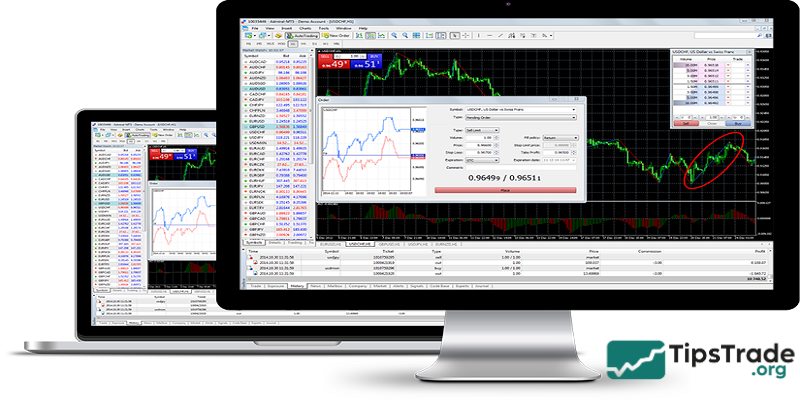
Opening panels in MetaTrader 5
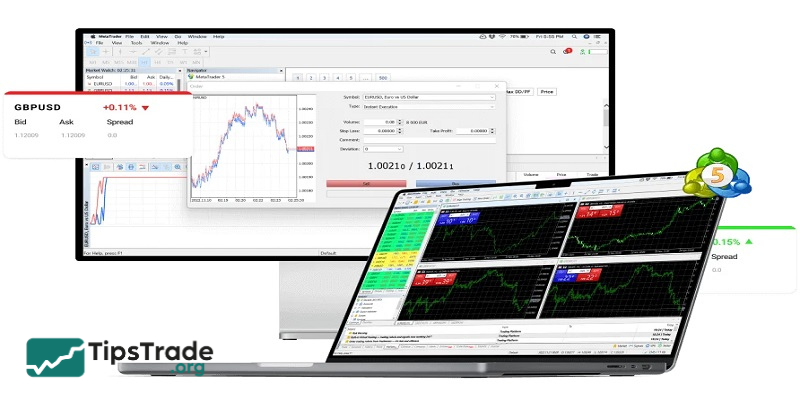
Market Watch Area (Ctrl+M): Displays a list of tradable products (e.g., corn futures, crude oil, gold) along with their Bid (selling price) and Ask (buying price). You can customize the display of the derivative commodity codes you are interested in.
Navigator Window (Ctrl+N): Allows you to manage accounts, access technical indicators to add to price charts, manage automated trading robots (Expert Advisors), and Scripts.
Toolbox Area (Ctrl+T): Includes many important tabs:
- Trade: Displays open trading orders and account status (Balance, Equity, Margin).
- History: Stores the history of all closed transactions, deposit/withdrawal information.
- News: Market news update.
- Calendar: An economic calendar is built-in with events and macroeconomic news that can impact commodity prices. This is a convenient and rare attribute of MT5.
- Alerts: Set price alerts.
- Codebase, Experts, VPS: Links to the MQL5 community, where you can find or purchase trading support tools.
Price chart area: Displays the price chart of commodity codes. You can open multiple charts, customize the chart type (candles, lines, bars), add technical indicators, and draw tools for technical analysis.
Menu and Toolbar Area: Contains functional commands, drawing tools, options for adding technical indicators, trading robots, and adjusting the timeframes for charts.
How to open, close, and modify orders on MT5
How to open an order:
- Click “New Order” on the toolbar.
- Double-click the commodity code in Market Watch.
- Right-click on the price chart, select “Trading” -> “New Order”.
- In the order window, you need to select:
– Symbol: The commodity code you want to trade (e.g., ZCEF24 – Corn Futures).
– Type: Order type (Market Execution or Pending Order).
– Volume: Trading volume (number of lots).
– Stop Loss: The automatic stop-loss price level.
– Take Profit: The price level at which profits are automatically closed.
- The MT5 software offers 6 flexible pending order types: Buy Limit, Sell Limit, Buy Stop, Sell Stop, Buy Stop Limit, Sell Stop Limit.
How to close an order:
- In the “Trade” tab of the Toolbox area, click the “X” at the end of the running order line.
- Right-click on the running order and select “Close Position”.
How to adjust orders:
- Drag and drop Stop Loss or Take Profit levels directly on the price chart.
- Right-click the order you want to modify in the “Trade” tab, select “Modify or Delete Order”, and then enter the new values.
Other operations on MT5
- Customize trade history display on the chart: You can enable or disable the display of entry/exit arrows on the price chart in the Options menu.
- Insert a chart within a chart (Chart in Chart): A useful feature that allows you to view a small chart of another instrument or a different timeframe directly on the main chart.
How to use the MT5 platform on mobile
Installing and logging in to the MT5 app
- Download the MetaTrader 5 application from the App Store (for iOS) or CH Play (for Android) published by MetaQuotes Software Corp.
- After installation, open the app and log in using your trading account information. If you don’t have one already, you’ll need to register an account through a broker that supports MT5 software.
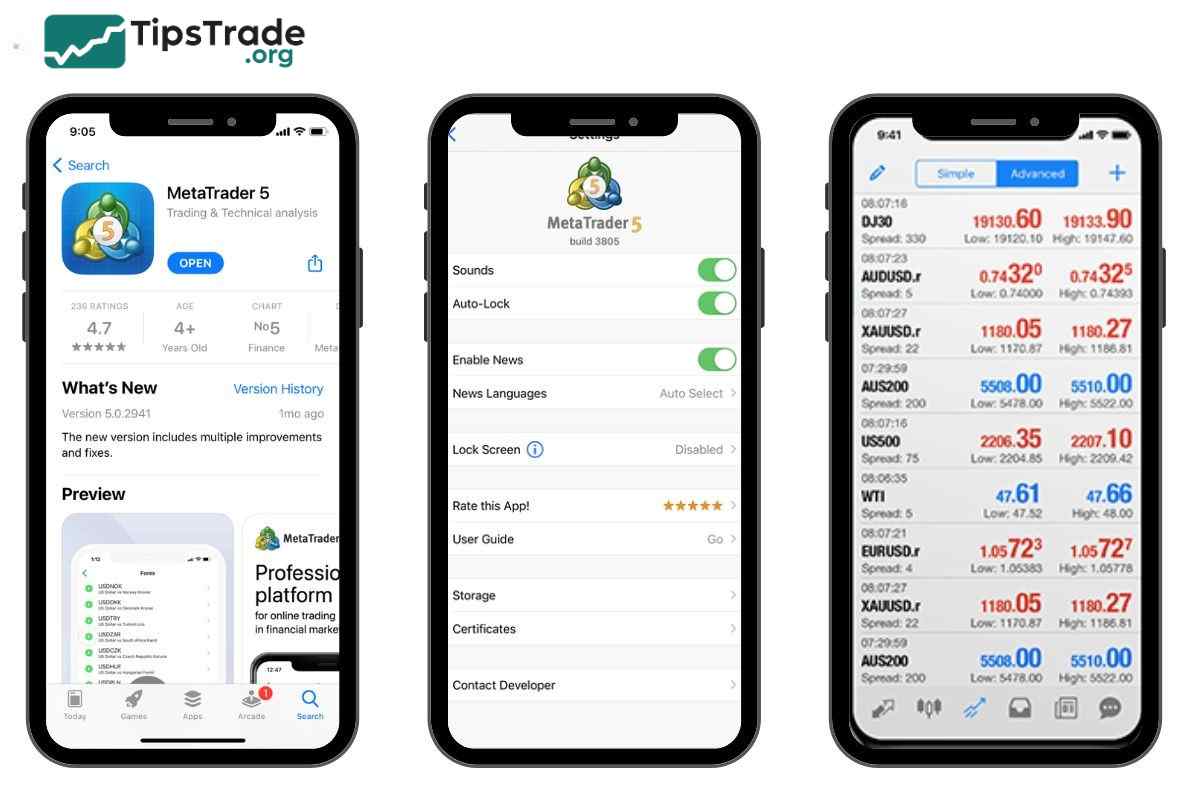
Familiarizing yourself with MT5 mobile options
- Quotes: Displays real-time quotes of the instruments you are tracking.
- Chart: View price charts, change timeframes, add technical indicators, and draw objects.
- Trade: Manage open orders, view account balance, place new trades, set Stop Loss and Take Profit.
- History: Review the history of completed trades.
- Settings: Manage your account, change password, language, and customize display options.
How to open, place, close orders, and set SL/TP on MT5 mobile
- Open an order: From the Quotes tab, tap the instrument you want to trade and select “New Order.”
- Place an order: Choose the order type, enter volume, Stop Loss, and Take Profit levels, then select “Sell by Market” or “Buy by Market”, or place a pending order.
- Close/modify an order: In the Trade tab, long-press the open order to access “Close Order” or “Modify Order” to adjust Stop Loss/Take Profit.
FAQs about MT5 trading platform
Here are some frequently asked questions about MT5 trading platform:
Can I use an Expert Advisor (EA) on MT5?
Yes, MT5 supports Expert Advisors (EAs), which allow for the automation of trading strategies. Users can create or download EAs from the MT5 market.
Is MT5 safe?
MT5 uses high-security protocols to protect user data and transactions. However, the level of safety also depends on the broker you choose. Make sure to choose a reputable broker.
Can I trade on multiple MT5 accounts?
Yes, MT5 allows you to trade on multiple accounts simultaneously. You can open multiple accounts with one broker or with different brokers and manage them from a single MT5 platform.
The above is some interesting information about “what is MT5”. I’m sure that it will be helpful to you on your journey to conquer the financial markets. Wishing you success, and see you next time!