
What is MT4? MT4 is one of the world’s most popular trading platforms, widely used by investors in forex, stocks, commodities, and cryptocurrencies. With its user-friendly interface, powerful features, and flexible customization options, MT4 has become an indispensable tool for both new and professional traders. In this article, we will explore what MT4 is, its outstanding features, and a detailed guide on how to use the MT4 software so you can start trading effectively. Let’s get started!
What is MT4?
What is MT4? MT4, also known as Metatrader 4, is an electronic trading software developed by MetaQuotes Software in 2005. This platform is designed primarily for foreign exchange (forex) trading, but it also supports trading other assets such as CFDs (contracts for difference), precious metals, stock indices, and cryptocurrencies, depending on the broker.
MT4 stands out for its ability to provide real-time price charts, diverse technical analysis tools, and support for automated trading through Expert Advisors (EAs). This software can be downloaded for free from forex platforms or on the official MetaQuotes website, is compatible with Windows and MacOS operating systems, and has full mobile versions for iOS and Android.
Key feature of MT4 trading software
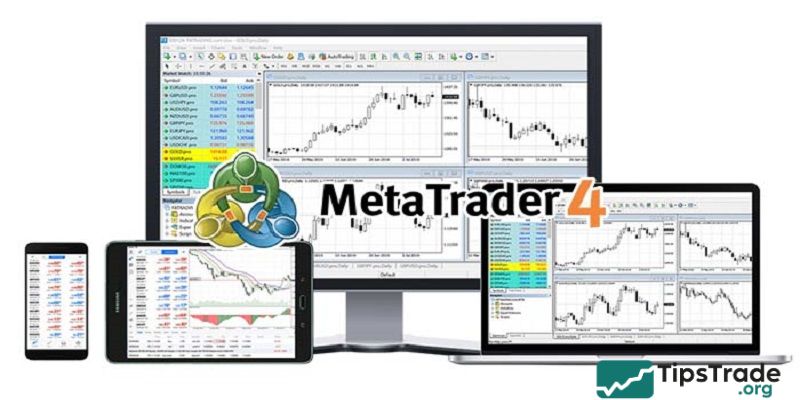
Before we get into the user guide, let’s explore the key features that make MT4 a top choice:
- Real-time price charts: MT4 provides continuously updated price charts with 9 timeframes (M1, M5, M15, M30, H1, H4, D1, W1, MN), helping traders analyze the market from multiple perspectives.
- Technical analysis tools: Includes popular indicators such as RSI, MACD, Bollinger Bands, and the ability to add custom indicators.
- Expert advisors (EA): Allows programming automated trading strategies using the MQL4 language.
- Flexible order management: Supports order types such as Market Order, Limit Order, Stop Order, and Trailing Stop.
- Customize the interface: Users can change colors, chart layouts, and save their favorite templates.
Instruments traded on MT4
Instruments traded on MT4 include a variety of financial markets, allowing traders to diversify their portfolios. The key instruments available are:
- Forex (Foreign Exchange): Trade currency pairs like EUR/USD, GBP/JPY, and more.
- Commodities: Includes metals like gold and silver, as well as oil and agricultural products.
- Indices: Major stock indices such as the S&P 500, NASDAQ, and FTSE 100.
- Stocks: Individual company shares from global markets, depending on the broker.
- Cryptocurrencies: Popular digital currencies like Bitcoin, Ethereum, and Litecoin.
- Futures: Contract-based trading for commodities, indices, and other assets.

Instructions for downloading MT4 for beginners
Below’s a detailed step-by-step guide for beginners on how to download and install MT4:
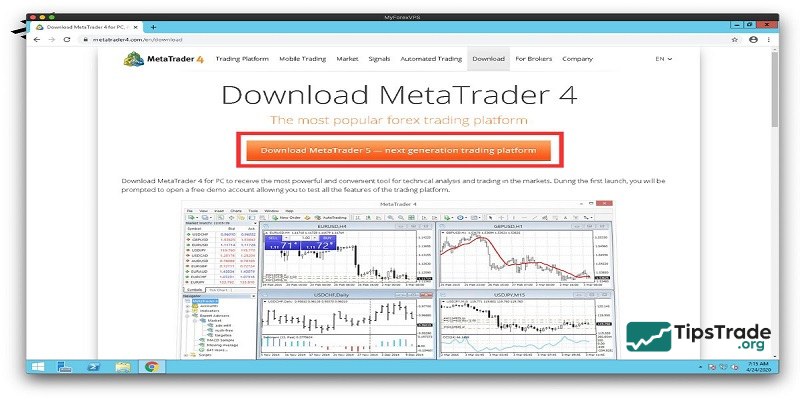
- Step 1: Visit the website of the forex broker where you opened your account (e.g., Exness, XM, IC Markets, etc.) or the MetaQuotes homepage (https://www.metaquotes.net/).
- Step 2: Download the MT4 installation file (usually in .exe format for Windows).
- Step 3: Open the file and follow the installation instructions. Once completed, MT4 will launch automatically.
How to log in to an MT4 account
To log in to your MT4 account, select File -> Login to Trade Account.
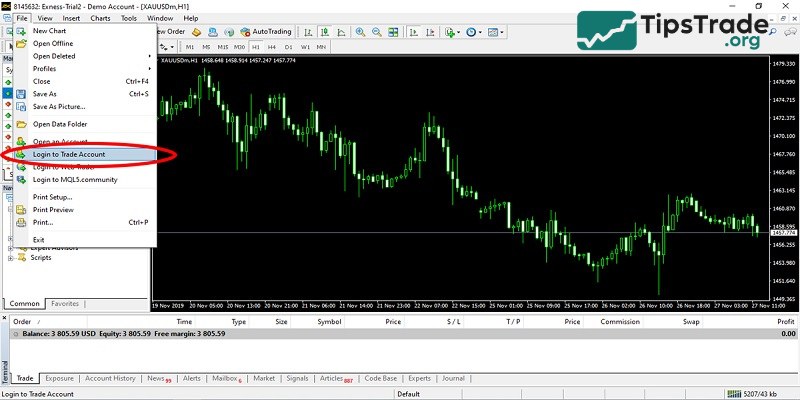
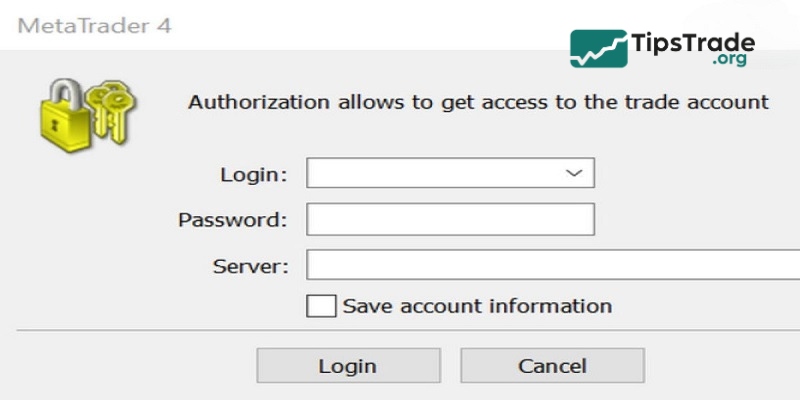
A table appears, where you enter the MT4 account information you opened on the platform, including: your MT4 account number, password, and server.
Note: In case you download MT4 from a different broker, the broker’s server you are trading with will not be available by default. Therefore, you can add a new server by: Selecting File -> choosing Open an account. Scroll down to the bottom of the server list, and you will see the line “add new broker like Brokername…” as shown in the image below:
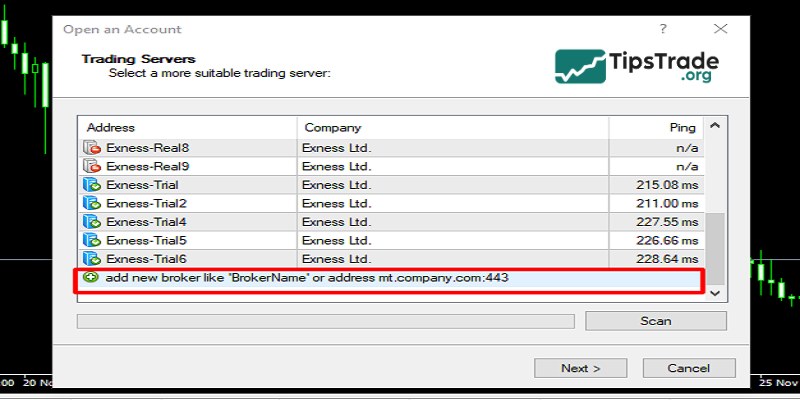
Enter the BrokerName, for example “XMGlobal”, and click Scan. After the server you need to find appears, you go back to Login to Trade Account to log in to your account as usual.
The MT4 interface and its main components
The MT4 interface is divided into main areas: Toolbars, Market Watch, Chart Window, Navigator, Terminal.
Toolbar
- Located at the very top, it contains commands such as opening a new chart, placing a trade order, or adding an indicator.
- You can customize the toolbar by right-clicking and selecting “Customize.”
Market Watch
- Display a list of currency pairs with real-time Bid/Ask prices.
- Right-click to open a trading order or add a new currency pair.
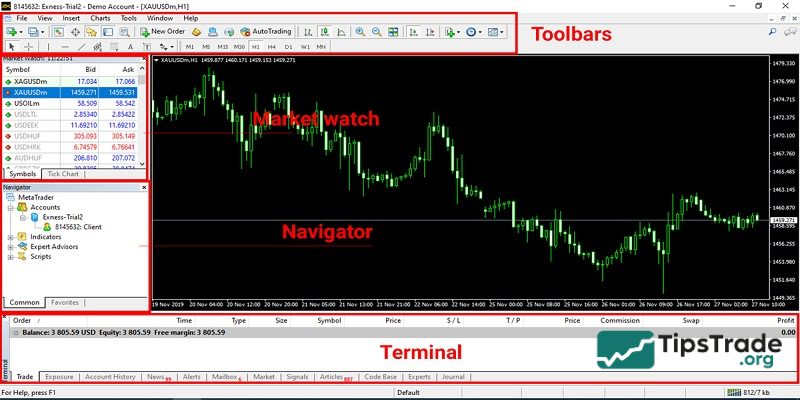
Chart
- The main area for price analysis, displaying candlestick, line, or bar charts.
- You can change the timeframes (M1, H1, D1, etc.) and add technical indicators.
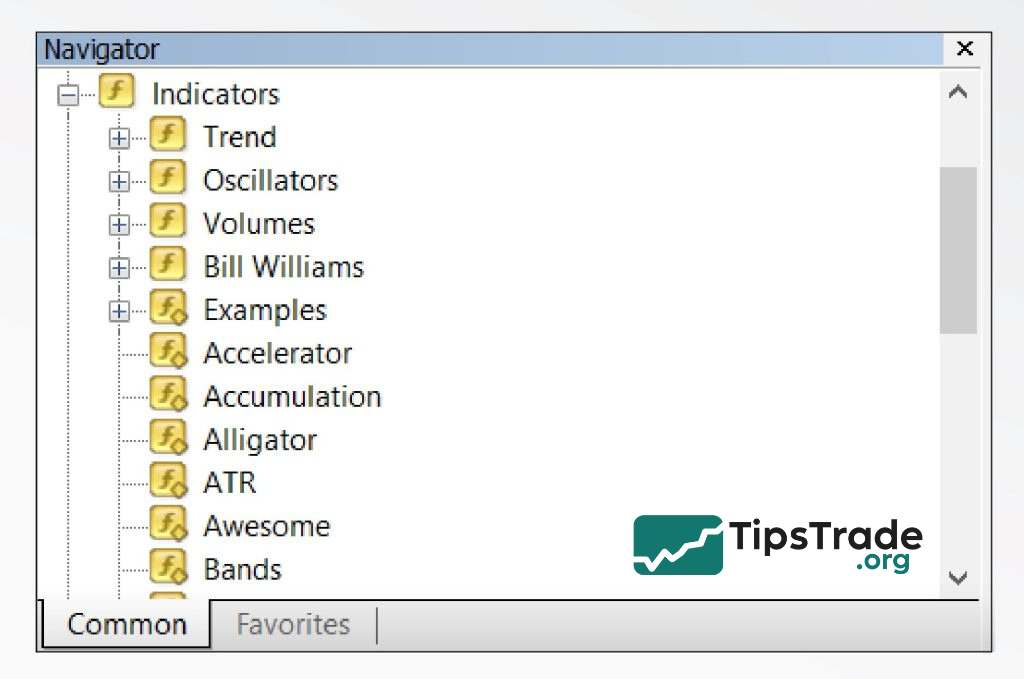
Navigator: Located in the bottom left, it displays the accounts, indicators, EAs, and scripts you have installed.
Terminal: At the bottom, it shows the account status (balance, profit), transaction history, and notifications from the exchange.
Detailed MT4 user guide
How to open a trading order on MT4
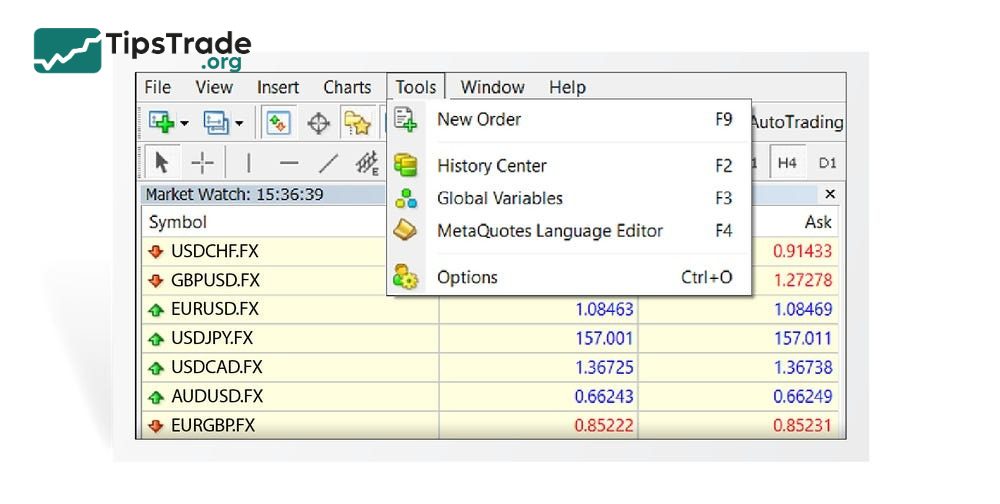
– Open a new order: Press F9 or right-click on the chart and select New Order.
– Select order type:
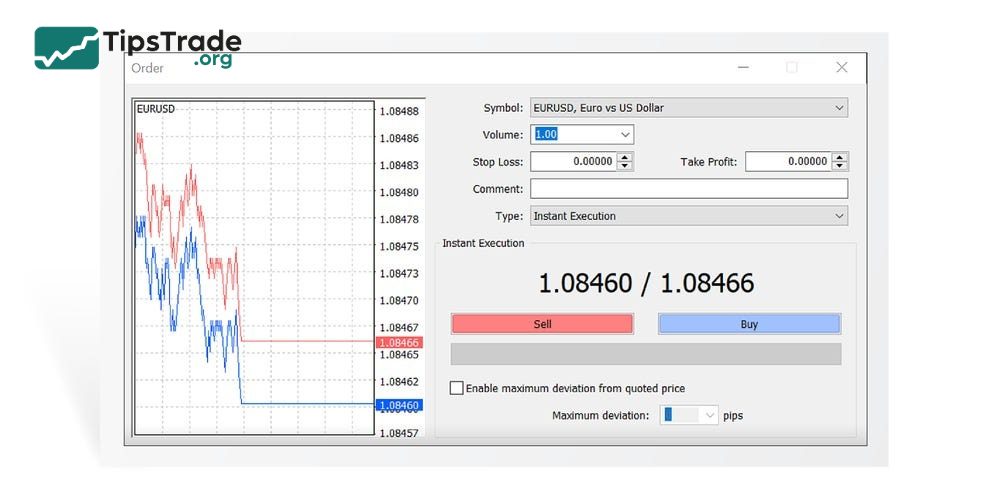
- Market Order: Buy/sell immediately at the current price.
- Pending Order: Pending order (Buy Limit, Sell Limit, Buy Stop, Sell Stop).
– Set the volume: For example, 1 lot.
– Set Stop Loss/Take Profit: Enter the price level for cutting losses or taking profits.
– Press Buy or Sell to execute the order.
Manage and close orders on MT4
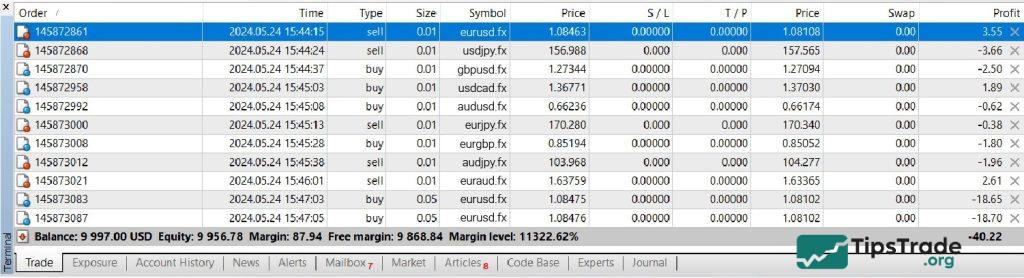
- Go to the Trade tab in the Terminal to view open orders.
- To close an order, right-click on the order and select Close Order.
- To modify the Stop Loss/Take Profit, select Modify Order.
Add a technical indicator on MT4
- Go to “Insert” on the toolbar > Select “Indicators”.
- Choose a popular indicator like RSI, MACD, or Moving Average > Adjust the parameters > Click “OK”.
- The indicator will appear on the chart.
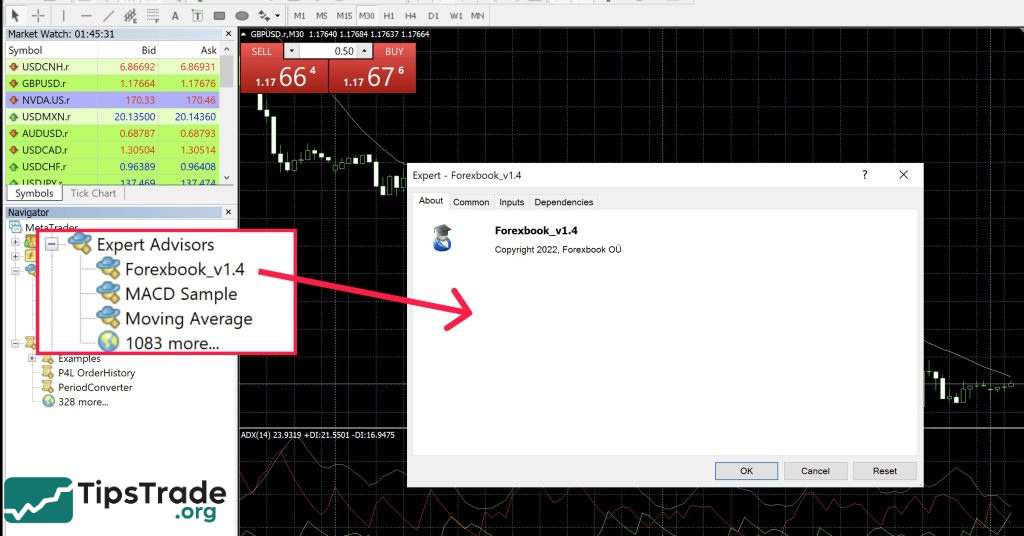
How to use Expert Advisors (EAs or Forex Robots) on MT4
- Installing the EA: Download the EA file (.ex4 or . mq4), copy it to the MQL4 > Experts folder in MT4.
- Activating the EA: Drag the EA from the Navigator and drop it onto the chart, then enable the AutoTrading button on the toolbar.
- Check: Monitor the EA’s performance in the Experts tab of the Terminal.
Save and download template on MT4
- After setting up the chart as desired, go to “Charts” > “Template” > “Save Template”.
- To apply the template to a different chart, select “Load Template”.
Tips for using MT4 effectively
- Use a demo account: Before trading with real money, practice on a demo account to get familiar with the software.
- Check connection: Ensure a stable internet connection to avoid interruptions.
- Update MT4: Always use the latest version to avoid technical errors.
- Data backup: Save EAs, indicators, and templates for use on other computers.
Comparing Metatrader 4 and Metatrader 5
Many investors wonder whether to choose MT4 or MT5. Here’s a brief comparison table:
| Criteria | MetaTrader 4 (MT4) | MetaTrader 5 (MT5) |
| Release Year | 2005 | 2010 |
| Timeframes | 9 | 21 |
| Asset Types | Mainly Forex, CFD | Forex, stocks, futures |
| Programming Language | MQL4 | MQL5 |
| Processing Speed | Fast | Faster |
MT4 remains popular thanks to its simplicity and large support community, while MT5 is more suitable for multi-asset trading.
Conclusion
What is MT4? Hopefully, the above article has helped you answer this question. MetaTrader 4 is not just trading software; it’s also a valuable assistant that helps traders analyze the market and execute strategies effectively. With the detailed MT4 user guide above, you can confidently begin your trading journey. Take the time to explore the features, test strategies, and leverage the MT4 community to enhance your skills.
If you’re just starting out, don’t forget to practice on a demo account before investing real money. Good luck!