

MT5 is a widely used Forex and CFD trading platform, trusted by both beginner and professional traders. Understanding how to MT5 login is the first but extremely important step in managing your account, executing trades accurately, and avoiding common technical issues. In this article, Tipstrade.org will provide a detailed guide to MT5 login on different devices, as well as instructions on how to troubleshoot common problems when you are unable to log in to MT5.
What is MT5 and why you need to login
MT5 (MetaTrader 5) is a powerful multi-asset trading platform developed by MetaQuotes, widely used by traders around the world to trade Forex, stocks, indices, commodities, and cryptocurrencies. It offers advanced charting tools, multiple order types, technical indicators, automated trading via Expert Advisors (EAs), and support for both desktop and mobile devices.

Why you need to login to MT5
Logging in to MT5 is essential because it allows you to:
- Access your trading account – You need to log in with your account number, password, and broker’s server to trade with real or demo funds.
- View real-time market data – Without logging in, price quotes may be delayed or unavailable.
- Execute and manage trades – Opening, modifying, or closing orders requires an authenticated account.
- Sync across devices – Logging in lets you access the same account on desktop, web, or mobile versions of MT5.
- Use broker-specific features – Such as leverage settings, spreads, trading instruments, and account history.
In short, MT5 is the platform, but logging in is the key that unlocks its full trading functionality. Without logging in, you can explore the interface, but you cannot trade or monitor your account effectively.
>>See more:
- Top 10 best MT5 technical indicator for successful trading
- How to Install MT5 on Any Device: Complete Guide 2026
- How to Place MT5 Orders: A Step-by-Step Guide for Traders
- What is MT5 EA? Guide on how to install and use MT5 EA in detail
Preparing for MT5 login
To ensure a smooth login process on the MetaTrader 5 platform, you need to have three key pieces of information ready. These details are typically provided by your broker via email immediately after you open an account.
Login ID (Account number)
This is a unique string of numbers assigned to your specific trading account.
- Note: Your MT5 Login ID is often different from the ID used to log into your broker’s client portal (the Member Area on their website).
- Where to find it: Check your “Account Created” confirmation email or look under the “Accounts” section in your broker’s dashboard.
Account password
In MT5, there are two types of passwords. Understanding the difference is crucial to avoid confusion:
- Master password: This grants full access to your account, allowing you to place, modify, and close trades. This is the password you need for active trading.
- Investor password (Read-Only): This allows you to view the account’s charts and active trades but prevents any trading activity. It is used for sharing your performance with others without giving them control over your funds.
- Quick tip: Always copy and paste your password directly from the source to avoid common errors like mistyping case-sensitive characters or including accidental spaces.
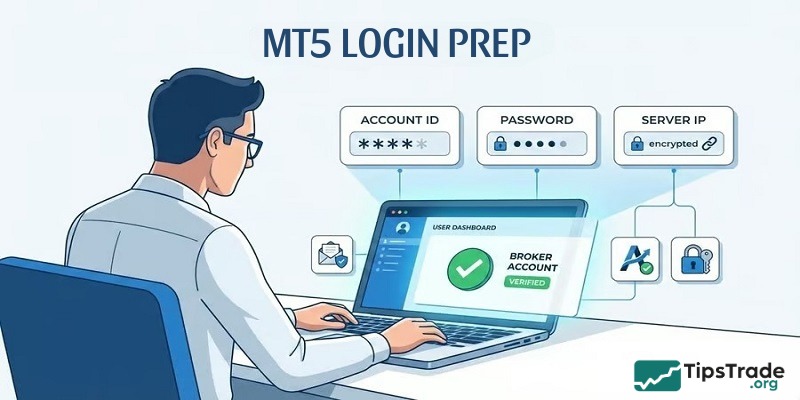
Server name
Selecting the wrong server is the most common reason for login failures. A single broker may operate multiple servers:
- Demo Server: Used for practice accounts with virtual money.
- Real/Live Server: Used for actual trading with real capital.
- Important: You must select the exact server name assigned to your account. If the server does not appear in the dropdown menu, you may need to type the broker’s name or their IP address into the search bar to find it.
Verify internet connection and software version
- Ensure you have a stable internet connection to prevent frequent disconnections.
- Confirm that you have downloaded the MetaTrader 5 software. Keep in mind that MT5 credentials are not compatible with the MetaTrader 4 (MT4) platform.
Step-by-step guide to MT5 login on different devices
How to login to MT5 on desktop
To achieve maximum stability, the MT5 software should be downloaded directly from the broker’s official portal. This helps ensure the server configuration files (.srv) are preloaded in the /config directory, while also optimizing the platform to correctly recognize the exchange’s specific technical infrastructure. Here’s the process for logging into MT5 on the desktop version:
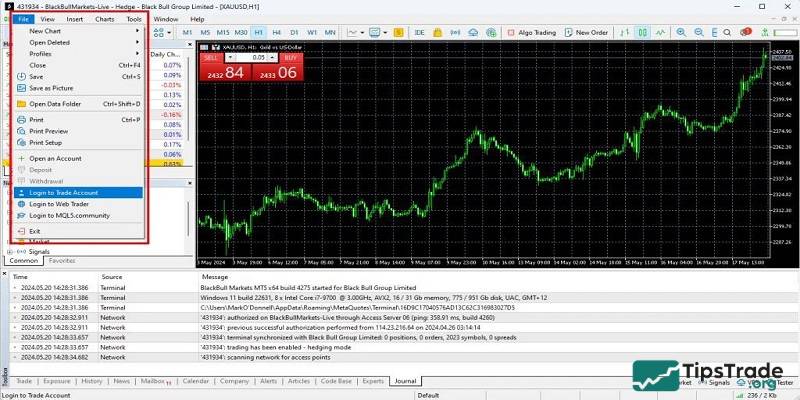
- Step 1: Open MetaTrader 5 (MT5). Click File in the top menu and select Login to Trade Account.
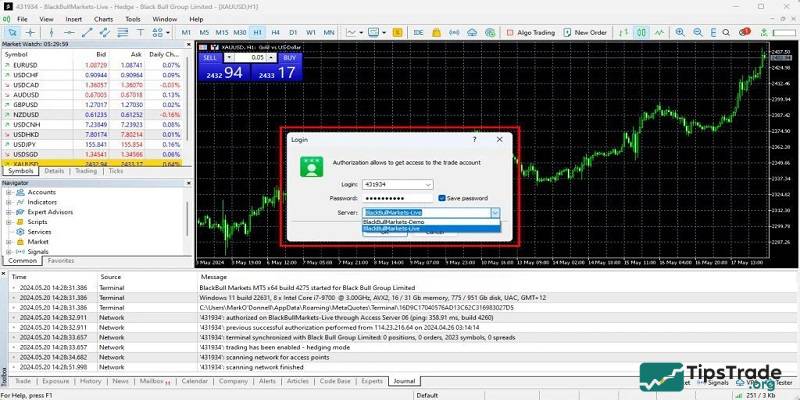
- Step 2: Input your MT5 account number and password. Select the appropriate server (either demo or live). Then click Login.
How to login to MT5 on mobile (iOS and Android)
The mobile version of MT5 is available for both Android and iOS devices. To log in to your account on mobile, follow these steps:
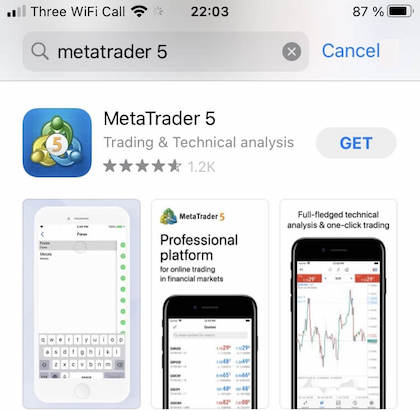
- Install the MT5 app: Download and install the MetaTrader 5 application from Google Play (Android) or the App Store (iOS).
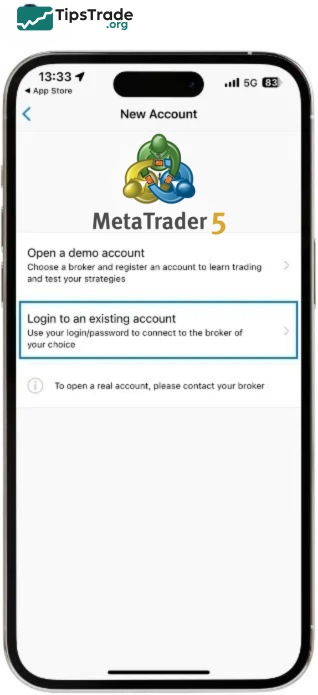
- Open the accounts section: Launch the MT5 app. Then, from the bottom navigation bar or the side menu (usually indicated by a menu icon or three horizontal lines), tap on Manage Accounts or Accounts and select Login to an existing account.
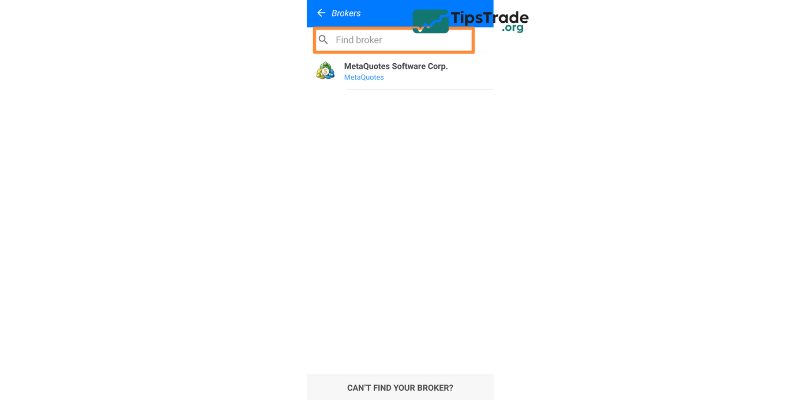
- Search for your broker: In the search field, enter the name of your broker (for example, the brokerage company name). After searching, a list of servers associated with your broker will appear. Select the appropriate server for your live or demo account.
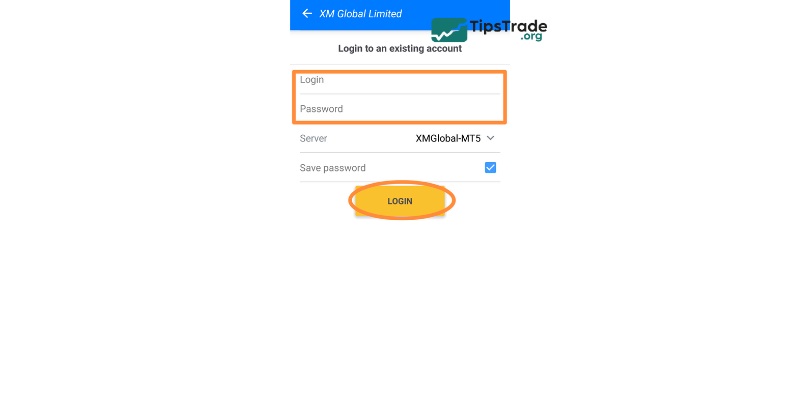
- Enter account details: Enter your MT5 account number (Login ID) and password, then tap Sign In or Login.
How to login to MT5 web platform
Some brokerage platforms offer a web-based version of MT5 (WebTrader). In this case, you don’t need to install any software and can access your account from any web browser. To use MT5 WebTrader, you simply need to visit the broker’s website and find a link such as MT5 WebTrader or Login to MT5 Web. When you open this page, the online MT5 interface will load directly in your browser. Then, similar to the previous steps, you enter your account number, password, and server to connect.
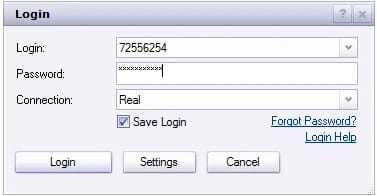
Note: Due to the nature of browser-based access, it is not recommended to select the “Save Password” option when using public or shared computers, as this could pose a risk to account security.
MT5 login issues & troubleshooting guide
Failure to log in to the MT5 platform is usually accompanied by specific error messages, each indicating a technical issue at a different layer of the connection process.
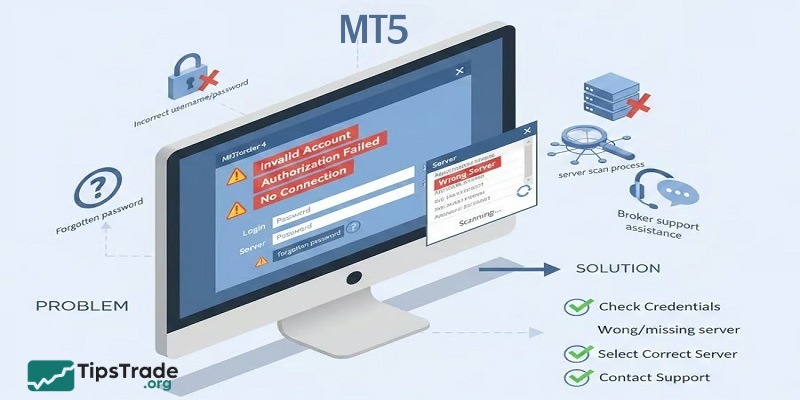
Common MT5 login issues
- Cannot connect to the trading account
- Incorrect account number or password
- Server unavailable or connection timeout
- Wrong trading server selected
- Account locked or disabled
- Security authentication failure (e.g., two-factor authentication)
How to resolve MT5 login problems
Verify account number & password
- Account Number: Enter your exact MT5 trading account number.
- Password: Case-sensitive – ensure no typos or missing characters.
- If forgotten, reset via your client portal or control panel, or contact support.
Select the correct server
- On the login screen, open the Server dropdown.
- Choose the server provided by your broker.
- If unsure, ask your broker’s support team for the exact server name.
Check your network connection
- Ensure your device is online and connection is stable.
- For “timeout” or “cannot connect” errors, try switching networks (e.g., mobile data or another Wi-Fi).
Restart the MT5 platform
- Close all MT5 windows completely.
- Reopen MT5 and attempt to log in again.
Adjust firewall & security software
- Add MetaTrader 5 to your firewall’s and antivirus software’s “allowed” or “trusted” applications.
- Temporarily disable any security tools that might block MT5 network access, then retry.
Update to the latest version
- Download and install the newest MT5 build from the [official MetaTrader 5 site] or your broker’s website to resolve compatibility issues.
Check account status
- If you see “Account disabled” or “Account locked,” your account may be frozen or pending verification.
- Contact your broker’s support to confirm any required identity checks or reactivation steps.
Resolve two-factor authentication (2FA) errors
- Ensure your authentication app (e.g., Google Authenticator) code is current.
- Confirm your mobile device’s clock is correctly synced, as time drift can invalidate codes.
Conclusion
Mastering MT5 login not only helps traders get started quickly but also minimizes risks caused by connection issues or incorrect login details. Whether you are using a mobile device or a computer, carefully checking your account ID, password, and server will ensure a smooth and stable login process. In addition, understanding the common causes of MT5 login problems and how to fix them will help you maintain uninterrupted trading and avoid missing important opportunities in the market.