
How to install EA into MT4? Expert Advisors (EAs) enable traders to customize trading strategies and execute automatic trades based on predefined rules. In this article, we will discuss how to install EA into MT4. Let’s get started!
What is an Expert Advisor (EA)?
EA (short for Expert Advisor) is considered an automated trading robot used in many markets. Specifically, the majority is used in the Forex market on the Metaquotes platform. EAs execute trades using algorithms pre-programmed by traders.
Based on pre-set parameters, the system will always automatically seek opportunities to execute trades after detecting positive market signals or when significant opportunities arise.
Expert Advisors allow traders to automatically, quickly, and efficiently search for signals, monitor, and track orders. Traders don’t need to spend too much time monitoring the real-time market.

Some key functions of EAs
Some key functions of an Expert Advisor include:
- Open automatic trading
- Manage open positions
- Escape automatic trading
- Implement dollar-cost averaging (DCA) or Maringale.
- Copy trade
- 24/5 Automated Trading
How EA works
As mentioned in the definition section, EA operates on the principle of automation, allowing you to create a variety of trading strategies from simple to complex. You can combine multiple technical indicators, use different risk management methods, and customize the parameters to suit your trading style.
You only need to set up the trading rules once, and then the EA will automatically monitor the market and execute buy/sell orders without your intervention. This helps you save time and eliminate the emotional factor in the trading process.
How to install EA into MT4
To install EA into MT4 software, there are two methods. One way is to install the EA from the official MQL5 website, which will directly link it to your trading software account and install it very quickly. Another way is to install the EA from other sources.
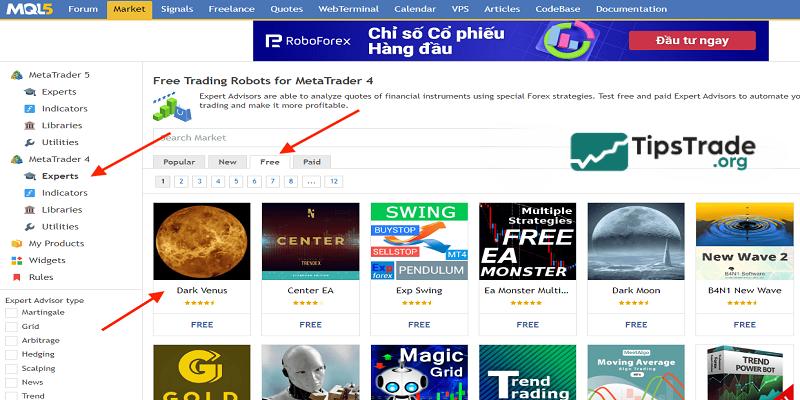
Let’s take the example of an EA called “Dark Venus” to install it into the MT4 software.
Installing an EA from MQL5
To install EA into MT4 trading software from MQL5, we first need to log in to our MQL5 account on MT4.
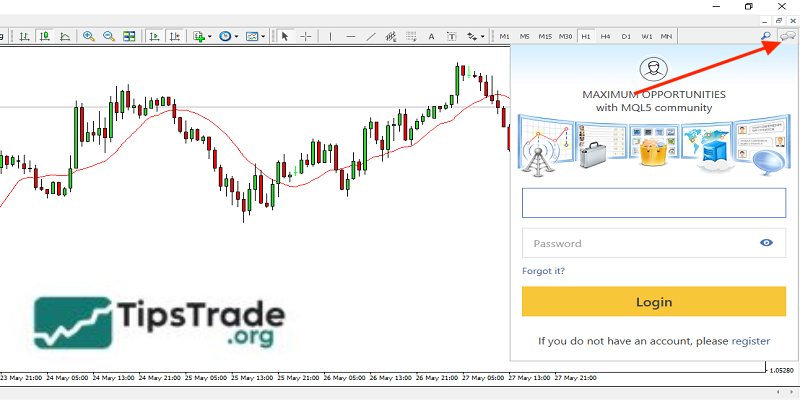
Go to the section marked with the red arrow above. The login section for your MQL5 account will appear. Enter your username and password, then click Login to finish.
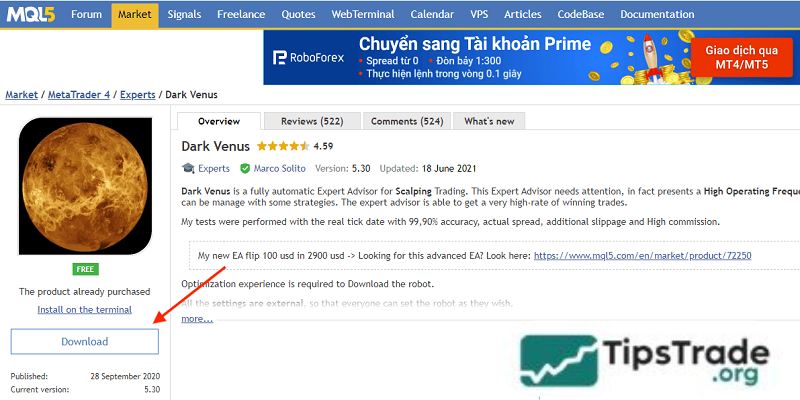
Then we go back to MQL5 with the EA “Dark Venus” that we chose earlier.
We click the Download button.
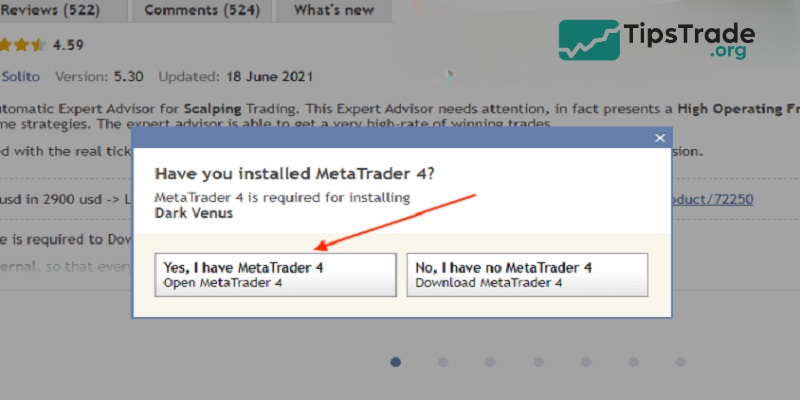
Then click on “Yes, I have MetaTrader 4“.
Next, we select “Open MetaTrader“.
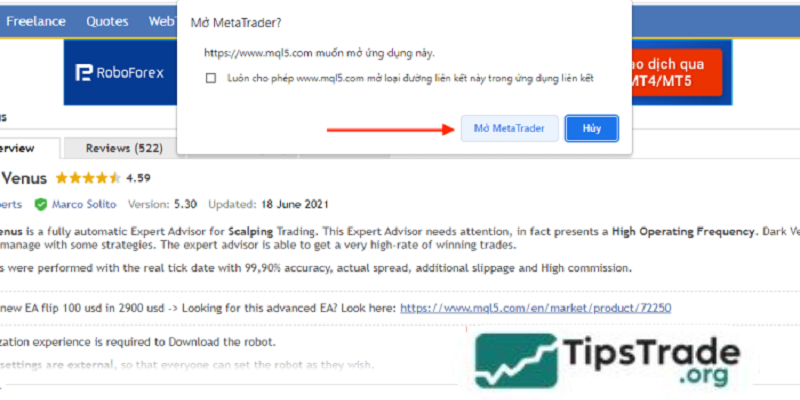
Then the MT4 software will open and you will see that the EA “Dark Venus” has been successfully installed and is present in the EA list in the Navigator window.
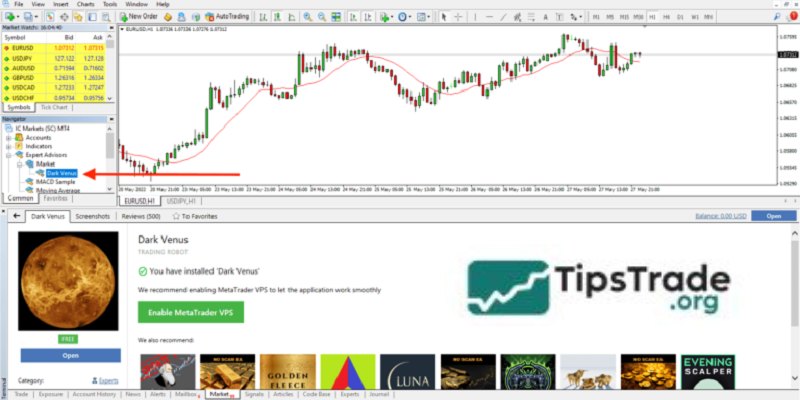
Install the EA directly on the MT4 software from the MQL5
You can also access it directly within the MT4 software on the Market tab, which also contains EAs just like on the MQL5.com website.
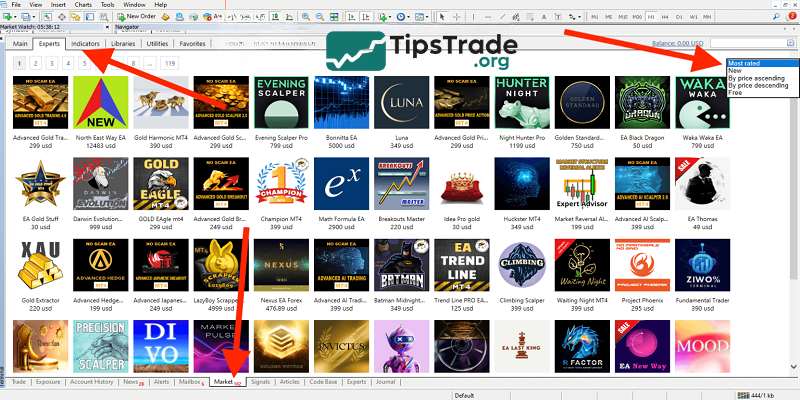
You tap the Market tab on the toolbar at the bottom. Then you can select the Expert tab to install the EA.
Additionally, you can filter according to your preferences using the options in the top right corner. It will include:
- Most Rated: These are the most highly rated EAs.
- New: These are the new EAs.
- By Price Ascending: Sort by price in ascending order.
- By Price Descending: Sort by price in descending order.
- Free: These are the free EAs that you can freely choose and test.
Installing the EA from other sources
If it’s an EA from other sources, we’ll have a file to download to our computer, and then we’ll install it into MT4 as follows:
You click on the File menu and select Open Data Folder.
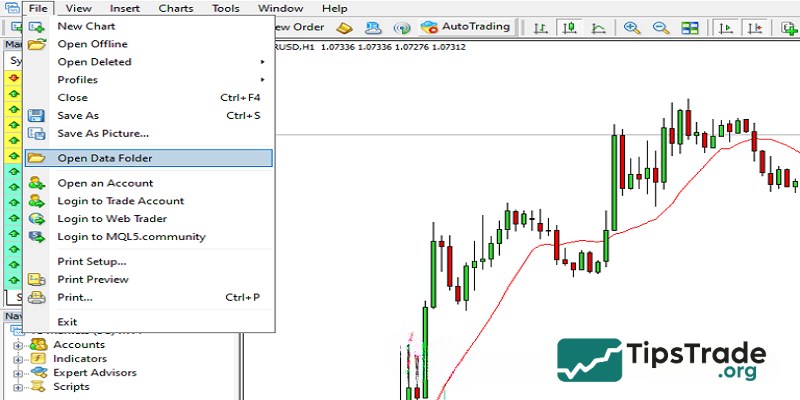
Then it will show the source data file of the MT4 software, and we will continue to select the path MQL4 —> Experts to enter the file where MT4’s EAs are stored.
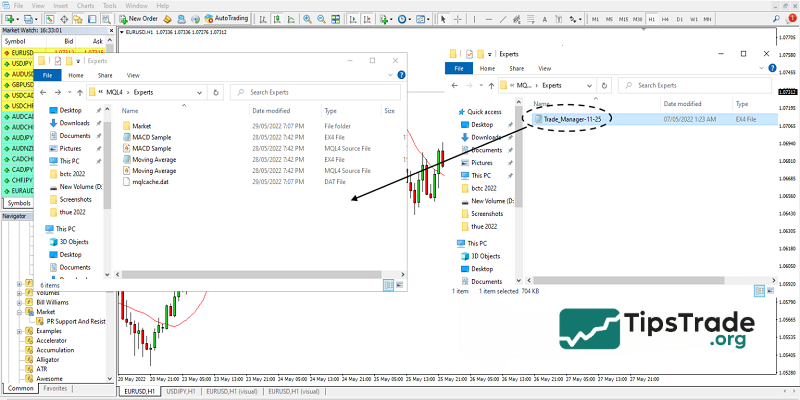
Then we open the folder containing the newly downloaded EA and drag it into the root folder of MT4.
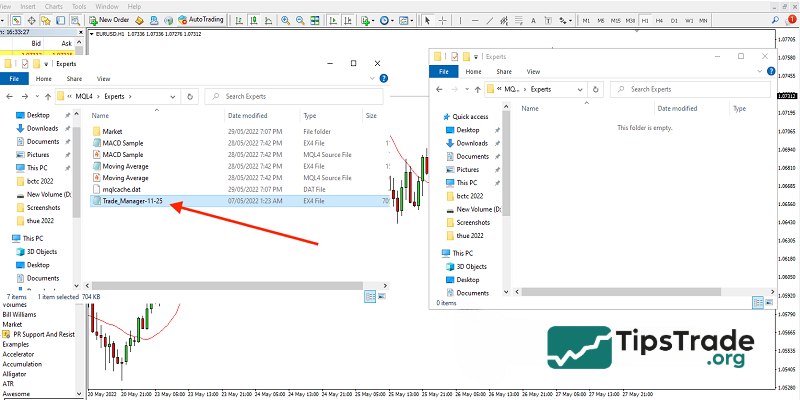
When it’s finished, it will look like the picture above.
Then we will restart the MT4 software, or we can right-click on the Expert Advisor item and select Refresh to update the newly installed EA.
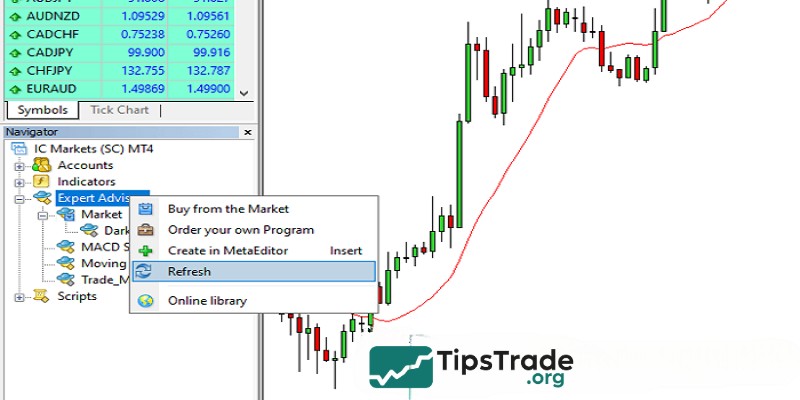
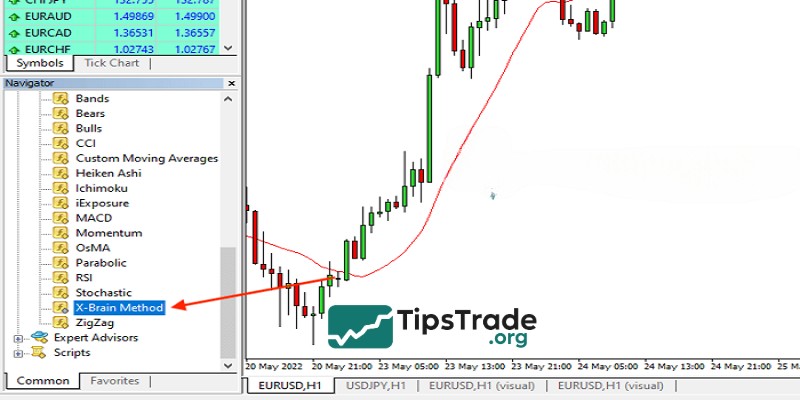
Then we saw that EA had just been installed and appeared in the EA category in the Navigator window.
Where can you download EAs?
It’s not difficult for traders to find reputable EA robot providers in the market. In this regard, many traders often choose to download free EAs from the MQL5.com website. Here’s how to buy free EAs on MQL5:
- Step 1: Trader accesses the MQL5 website, then selects the Market section, and then the Free section. Here, traders will have a wide variety of automated trading EAs to choose from, ranging from simple to complex.
- Step 2: Carefully read the descriptions, operating methods, and reviews from previous users about the Robot EA.
- Step 3: Click on the Download section to download the EA.
Things to know before installing EA into MT4
To effectively install EA into MT4, traders need to master the following rules:
Data importance level
To get good backtest results, the data information must be of high quality. Because inaccurate input data will produce skewed results. The default data on the MT4 platforms often achieves a modeling quality of up to 90%, indicating a positive signal for backtest results.
However, it can still cause some differences between backtesting and the trader’s actual experience, especially on smaller timeframes.
Check connection with Metatrader
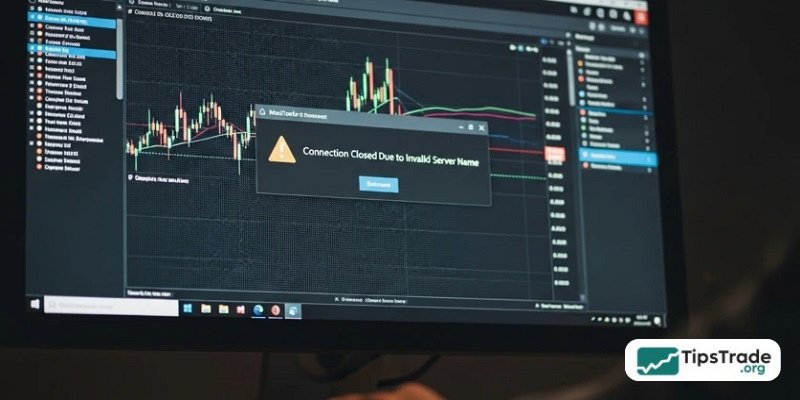
Before trading with an EA, traders need to ensure a stable connection to MetaTrader at all times. The trading platform needs to be turned on and directly connected to the broker’s server to launch the Expert Advisor.
In the case where a trader owns multiple MetaTrader accounts, it’s easy to make a login error during connection, which can interrupt the EA’s operation. Therefore, traders should remove unused accounts from the “Navigation” window.
Learn about the trader’s order execution speed
Typically, the MT4 platform will operate within a trading session lasting 30 seconds. For Expert Advisor, trading will automatically stop when there is no trading activity within the specified timeframe.
At this point, the IP address will automatically re-authenticate using the login information and password that were provided. The verification process will take a little time, perhaps 2 to 3 seconds depending on the brokerage platform. Although this is only a short period of time, in a volatile market, it can still lead to skewed trading results.
Debugging
Debugging code on a complex transaction will be very difficult. Normally, Debugging will not be listed among the available tools.
However, there are still some other methods that support traders, such as directly entering print orders into the code. So, this method is very difficult to manage. If there are thousands of lines of code, it’s not easy to identify where the problem lies.
Conclusion
Above, Tipstrade.org has shared in detail with you how to install EA into MT4 in many different and very simple ways. Thus, we can freely test potential EAs to diversify our trading tools.