
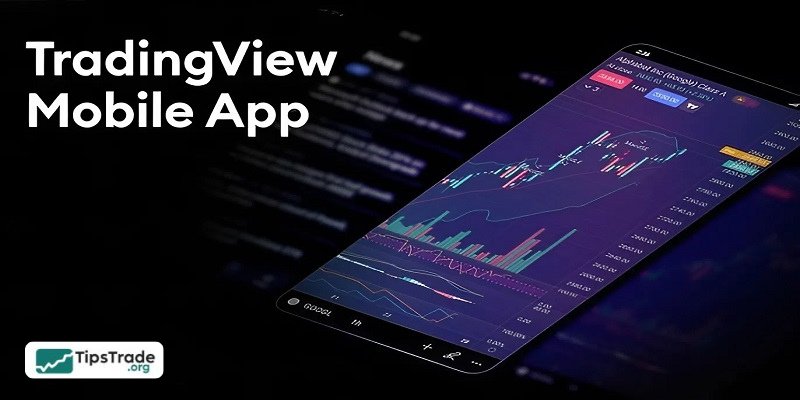
To understand how to use the TradingView mobile, you first need to download the TradingView application to your device. In this article, Tipstrade.org will guide you on how to use the TradingView mobile app in the most detailed way.
What is TradingView mobile?
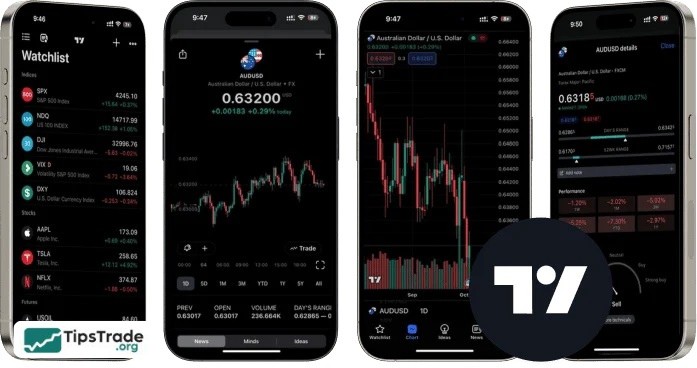
TradingView mobile is the mobile application version of the TradingView technical analysis platform – one of the most widely used charting and market analysis tools today. The app allows traders and investors to monitor market movements, analyze price charts, and manage their trading watchlists directly on their smartphones without relying on a desktop computer.
TradingView mobile supports both Android and iOS, making it easy for users to access major financial markets such as Forex, stocks, cryptocurrencies, commodities, and indices. All data, charts, and personal settings are fully synchronized with the web version, ensuring a seamless experience across multiple devices.
Compared to the web platform, TradingView mobile features a simplified interface optimized for touch interaction, focusing on essential tools that help traders monitor the market quickly and make timely decisions.
See more:
- What is TradingView? A Platform Providing Visual Charts for Traders
- How to Sign Up TradingView Account? Step-by-Step Guide
- Top Powerful TradingView Features Every Trader Should Know
- TradingView vs MT4 in 2026: Which Platform Is Right for You?
Key features of TradingView mobile
Below are some key features of TradingView mobile that you’ll find useful:
Advanced charting
The app supports detailed charting with options to zoom, scroll, and add multiple TradingView indicators (technical tools used to analyse price movements). Whether looking at candlestick patterns or trend lines, chart interaction is smooth and responsive.
Custom watchlists
You can set up and organise multiple watchlists to monitor different markets. You can also sync them across devices, so whatever you set on your desktop appears the same on mobile.
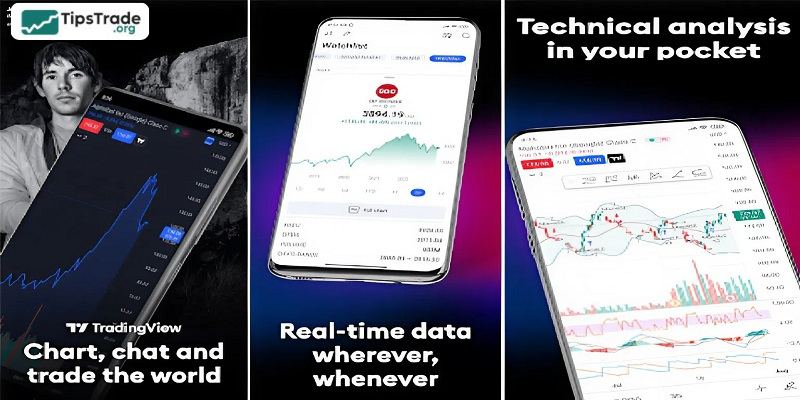
TradingView paper trading on mobile
Paper trading (simulated trading with virtual money) is also available on the mobile app. It’s a helpful way to test your strategy without risking real money, especially if you’re still building confidence.
Alerts and notifications
Set up price alerts directly from the chart. You’ll get notified when a certain condition is met, whether a price crosses a level or a volume change.
Chart types and tools
The app supports several chart types such as line, bar, candlestick, and Heikin Ashi (a variation that smooths out price data). You can also access drawing tools and overlays directly from the chart screen.
Top reasons to use TradingView on your mobile device
The TradingView mobile app gives you access to most of the tools available on the web while adding flexibility and ease of access on the go. Here’s why it makes sense to use TradingView mobile trading:
- Portability: Access your charts and analysis tools anywhere, anytime.
- Real-time updates: Stay informed with live market data and instant alerts.
- Convenience: Place trades or adjust positions on the go (with supported brokers).
- Continuous learning: Access a wealth of educational content and community insights.
- Seamless synchronization: Your settings, watchlists, and analysis sync across all devices.
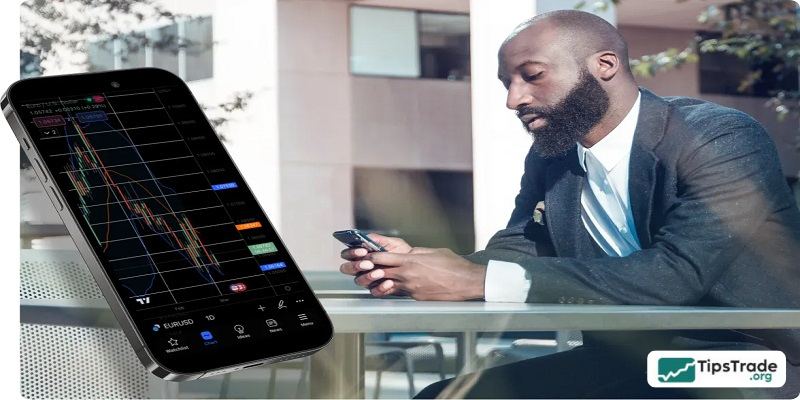
How to use TradingView mobile for beginners
How to download and install TradingView mobile
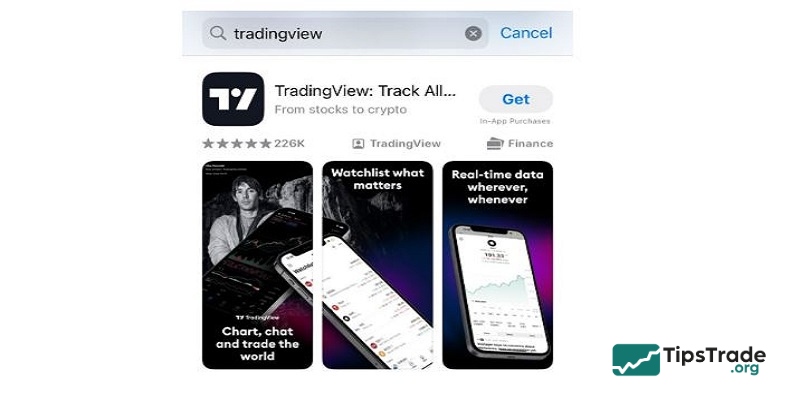
To get started with TradingView mobile, simply visit Google Play (for Android) or the App Store (for iOS), search for “TradingView,” and download the app to your smartphone. The installation process is quick and completely free.
After installation, you can create a new account using your email address, Google account, or Apple ID. If you already have a TradingView account on the web version, simply log in to sync all your data, including charts, watchlists, and personal settings.
Setting up charts and basic indicators
Once you open the app, you can select any financial instrument to view its price chart. TradingView mobile allows users to change chart types such as Candlestick, Line, or Bar, and easily adjust timeframes from short-term to long-term based on their trading strategy.
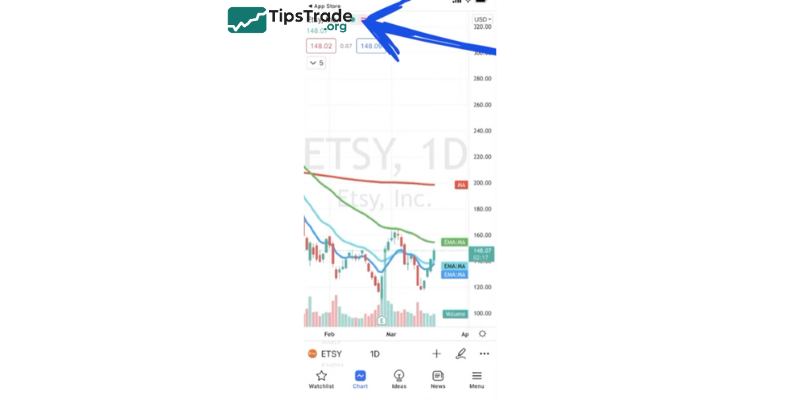
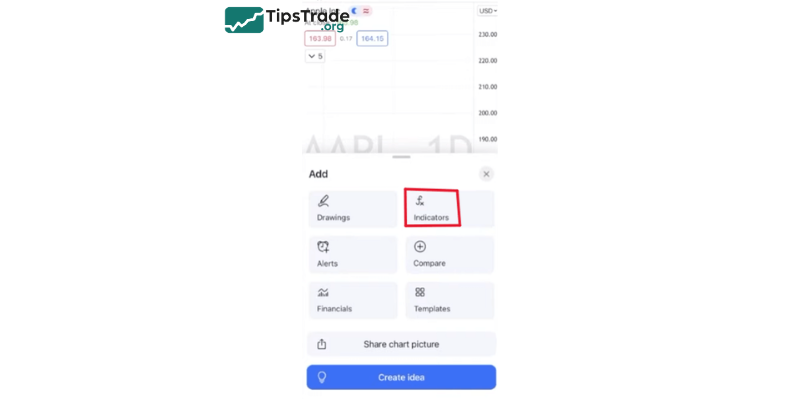
To add technical indicators, tap the Indicators icon and choose popular tools like Moving Averages, RSI, MACD, or Bollinger Bands. Users can also customize indicator settings to match their individual analysis style.
Creating watchlists and setting alerts
TradingView mobile enables users to create custom watchlists, making it easy for beginners to track their favorite currency pairs, stocks, or cryptocurrencies. Simply search for a symbol and add it to your watchlist to monitor price movements efficiently.
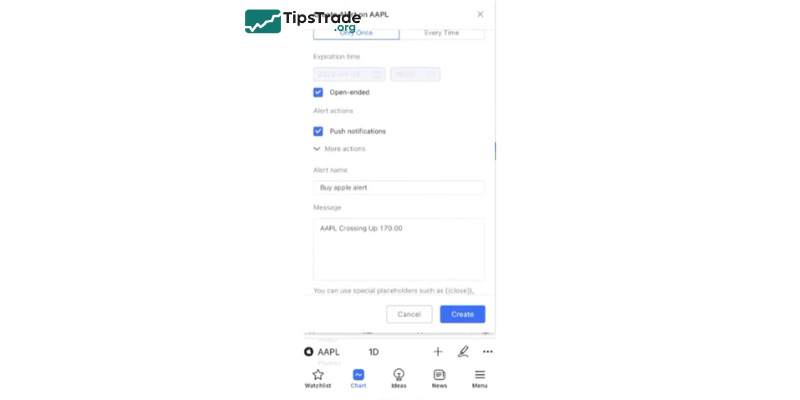
In addition, Price Alerts and Indicator Alerts help traders stay informed without constantly watching the screen. By setting specific price levels or indicator conditions, the app will send real-time notifications as soon as those conditions are met, even when the app is not actively open.
Pros and cons of TradingView mobile
Pros of TradingView mobile
TradingView mobile offers outstanding convenience and flexibility, allowing traders to monitor the markets and analyze price movements anytime and anywhere using just a smartphone. This is a major advantage in fast-moving financial markets where timely decision-making is crucial.
Another key strength is its seamless data synchronization with the web version. Users can switch effortlessly between mobile and desktop without losing their saved charts, indicators, or watchlists.
In addition, TradingView mobile maintains a high standard of chart quality and technical indicators, meeting most needs for technical and basic analysis. It is especially well suited for quick market checks, trend monitoring, and managing open positions on the go.

Cons of TradingView mobile
Despite its many benefits, TradingView mobile has some limitations. Due to the smaller screen size, conducting in-depth analysis with multiple indicators at the same time can be less comfortable and visually restrictive compared to the desktop version.
Moreover, certain advanced features (such as complex strategy customization, Pine Script coding, and detailed backtesting) are either limited or not fully supported on mobile devices. As a result, TradingView mobile is better suited for market monitoring and quick analysis rather than comprehensive, long-term strategy development.
Comparing TradingView mobile vs desktop version
Similarities between TradingView mobile vs desktop version
Both TradingView mobile and the desktop version provide real-time market data and support a wide range of asset classes, including Forex, stocks, cryptocurrencies, commodities, and indices.
They also share the same core charting system, technical indicators, and watchlists, allowing users to maintain a consistent analysis experience across multiple devices through a single TradingView account.
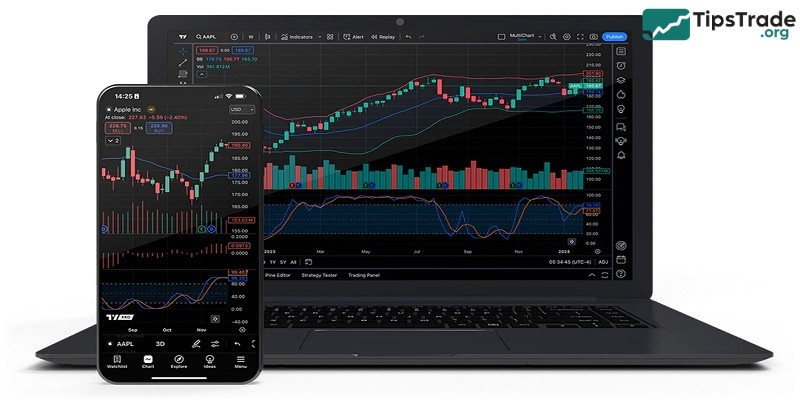
Differences between TradingView mobile vs desktop version
The main difference between TradingView mobile and desktop lies in the user experience and analytical depth. The desktop version benefits from a larger screen, making it easier to conduct multi-chart analysis, apply multiple indicators, and perform advanced technical studies efficiently.
In contrast, TradingView mobile focuses on mobility and speed, enabling traders to quickly check the markets, receive alerts, and react promptly to price movements. While mobile is ideal for market monitoring and trade management, the desktop version remains the preferred choice for in-depth analysis and long-term strategy planning.
Tips for using TradingView mobile effectively
Once you’re comfortable with the basics, you can do quite a bit to customize and speed up your TradingView mobile trading experience. Below are a few practical tips to help you make the most of the app:
- Create custom watchlists: Group stocks, forex pairs, or crypto tokens by theme, sector, or strategy. You can switch between them quickly, which is helpful if you track multiple markets.
- Use fewer but relevant indicators: Overloading your chart with too many TradingView indicators can slow you down. Stick to the few that match your trading style. For example, moving averages with RSI for trend-based strategies.
- Set precise alerts: Use the alert feature for price levels and conditions like crossing indicators (e.g. MACD cross). This lets you step away from the screen while still staying in control.
- Sync with desktop for pre-market planning: Use your desktop to plan your trades, mark levels, track execution or make updates on mobile. This keeps your charts clean and your workflow simple.
- Use drawing tools with two fingers: Long-press and use two fingers to move or adjust trendlines, zones, or annotations more accurately. It takes a few tries to get used to, but it saves time in the long run.
- Bookmark useful community ideas: If you’re new to a particular market or strategy, follow traders who publish regularly and bookmark useful content. You can revisit these ideas even when you’re offline.
Conclusion
The above article is a guide on How to use the TradingView mobile app for beginners. With this article, Tipstrade.org hopes that you can easily get acquainted with this application and use it proficiently.
See more: