
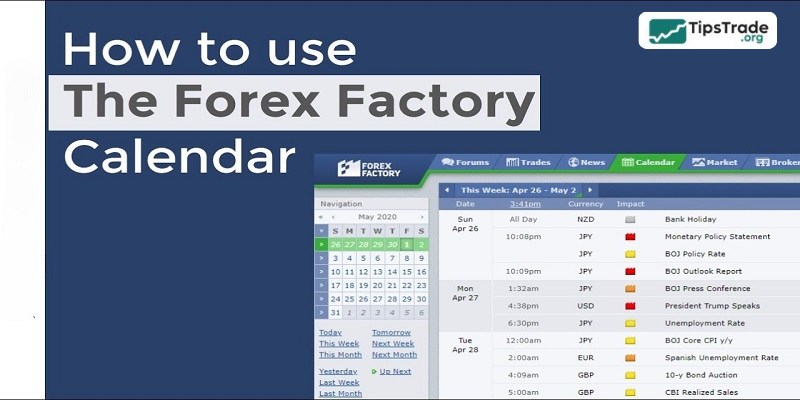
Forex Factory Calendar is considered one of the most important news analysis tools for Forex traders, especially those who follow news-based trading strategies. With its ability to provide real-time updates on economic events, financial indicators, and central bank speeches, this tool helps traders identify periods of high market volatility. So, how to use the Forex Factory Calendar? The answer will be revealed in the article below!
What is the Forex Factory Calendar?
The Forex Factory Calendar in Fundamental Analysis is often regarded as a “compass” for every financial trader. It is one of the most comprehensive online economic calendars, providing detailed information on economic events, political reports, and financial indicators that directly impact currency values.
Therefore, even if you are a trader who relies purely on technical analysis, ignoring the economic calendar can be a fatal mistake. Strong waves of volatility often originate from “Actual” figures that differ significantly from “Forecast” expectations, and Forex Factory Calendar is the platform that helps you stay updated with these data the fastest.
>>See more:
- How to Use Forex Factory for Maximum Success
- Top 5 Important News Events on Forex Factory Every Trader Must Know
- Exploring the Forex Factory Interface: Simple Yet Surprisingly Effective
- What is Forex Factory Trade Explorer? Detailed installation guide in just 4 steps
Creating an account on Forex Factory
In fact, you can still access all the information on Forex Factory without registering an account. However, if you want to customize the platform to suit your personal preferences, registration is required so that all your settings are saved and you won’t need to reconfigure them in future visits.
Previously, traders had to manually adjust the time zone to match their local time. With recent updates, when you register an account based on your IP address, Forex Factory will automatically adjust the time zone to correspond to your location.
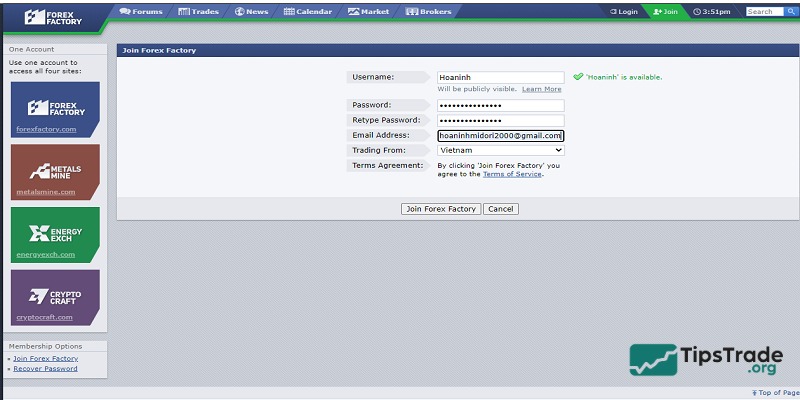
Once you decide to register, simply click on “Join” and fill in the required information as instructed below. Forex Factory does not require account verification, so after completing the registration, you just need to click “Login” next to it to sign in.
After logging in successfully, check whether the time displayed on Forex Factory matches your local time zone by looking at the clock shown right next to your username.
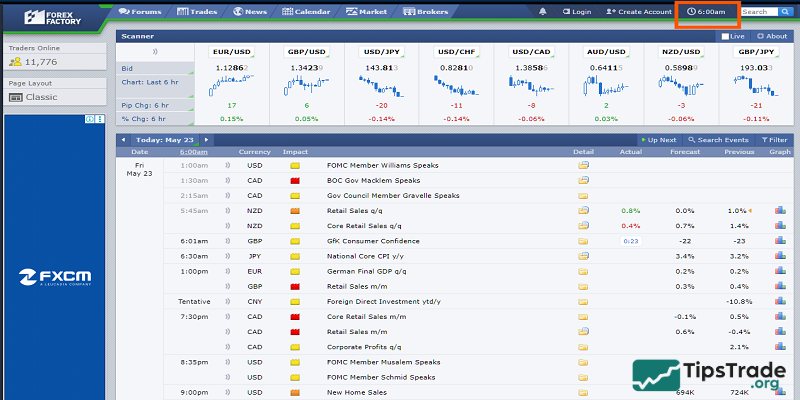
If it is not correct, simply click on the time, adjust it, and then click “Save Settings” to finish.
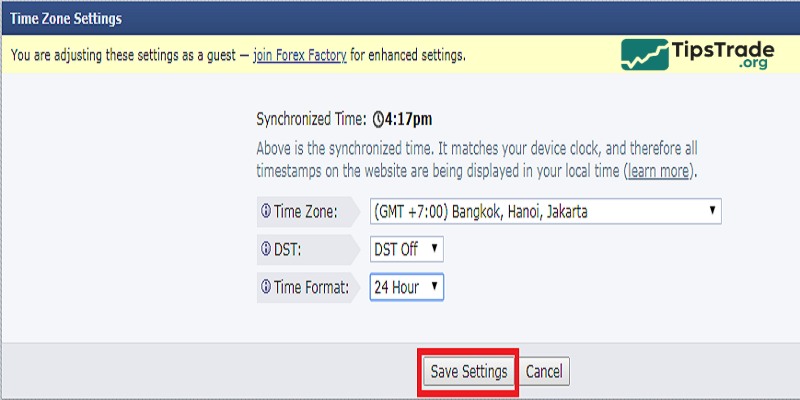
Adjusting the time zone is extremely important so that you can view the economic calendar in real time. Since Forex Factory’s default time zone is GMT-5, failing to set the correct local time can easily lead to confusion about the timing of upcoming economic events.
Once this step is completed, click on “Calendar” at the top, and the full economic calendar information will be displayed as shown below.
How to use Forex Factory Calendar
The economic calendar is considered the most outstanding tool of the Forex Factory. Many other websites also provide this feature; however, Forex Factory is widely regarded as the best among them.
This is a useful feature that helps you keep track of economic news updated continuously on a daily basis. However, traders usually follow the news more to avoid risks than to seize trading opportunities.
First, click on “Calendar” on the toolbar.
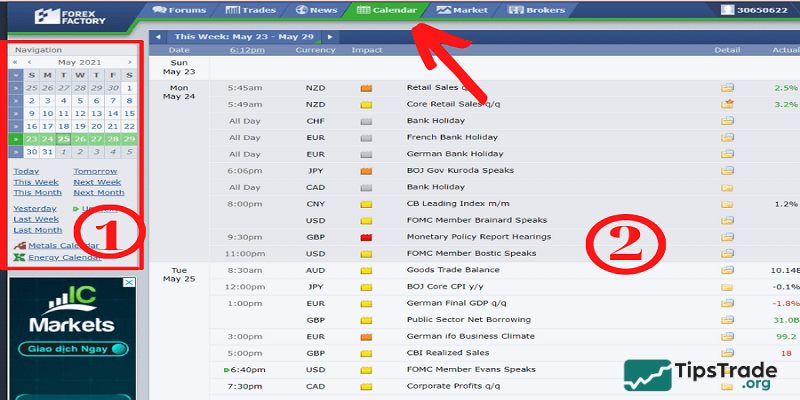
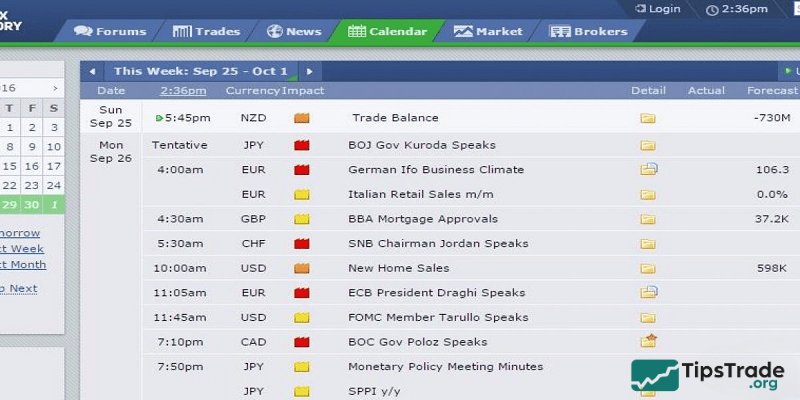
The Forex Factory Calendar interface is divided into two main sections: the Sidebar and the main table, which provides information on past, current, and upcoming events.
Sidebar interface
This section is divided into three smaller parts arranged from top to bottom.
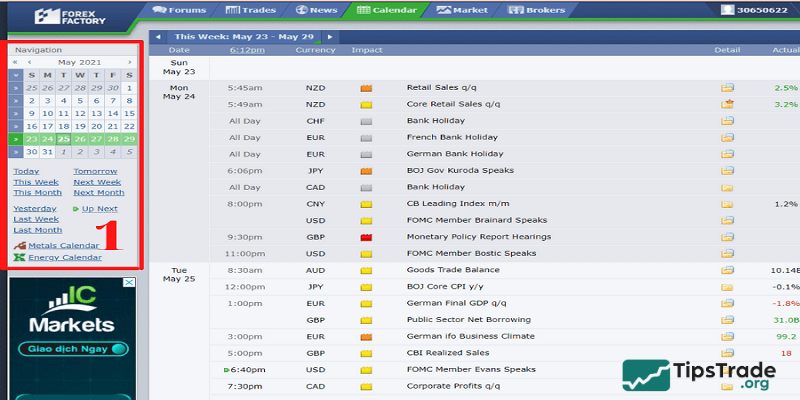
Part 1: The time selection panel, which allows events to be displayed by week (default setting).
We can also view the data according to other time information such as: Today , yesterday, last week , last month, tomorrow, next week, next month, this week , this month, up next.
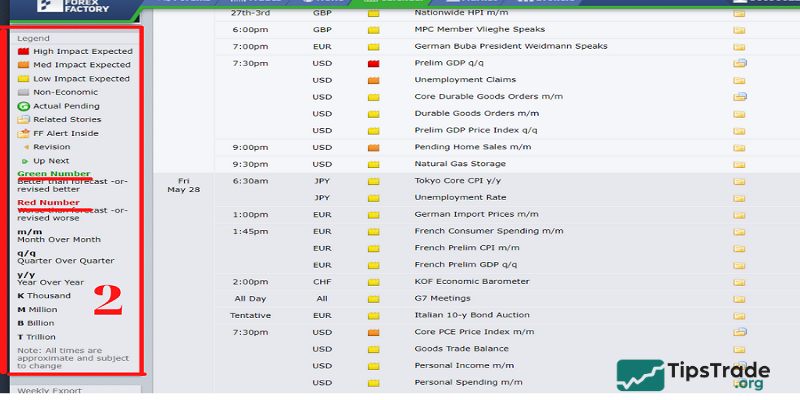
Part 2: A legend explaining some abbreviated symbols and the colors displayed in the data table.
For example:
- Blue: indicates published indicators that are better than the expected indicator.
- Red: Published data is worse than expected.
Part 3: Interest rates of Central Banks in the world’s 8 largest countries.
There are two main display colors: green and red.
- Green: indicates that the interest rate has been cut compared to the previous period.
- Red: indicates that the interest rate remains unchanged.
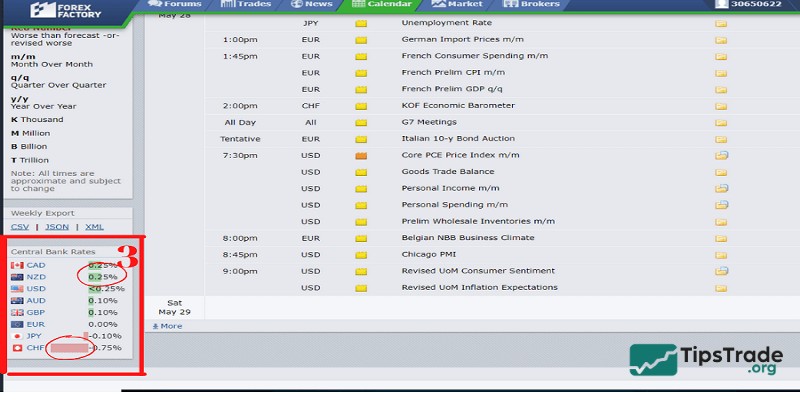
Event calendar interface (main section)
This is where all important economic events that have occurred are displayed. There are countless events taking place each day; however, not all of them are relevant to Forex trading. Therefore, we need to filter out unnecessary information by using the filters provided by Forex Factory.
First, click on “Filter” to display the filtering options:
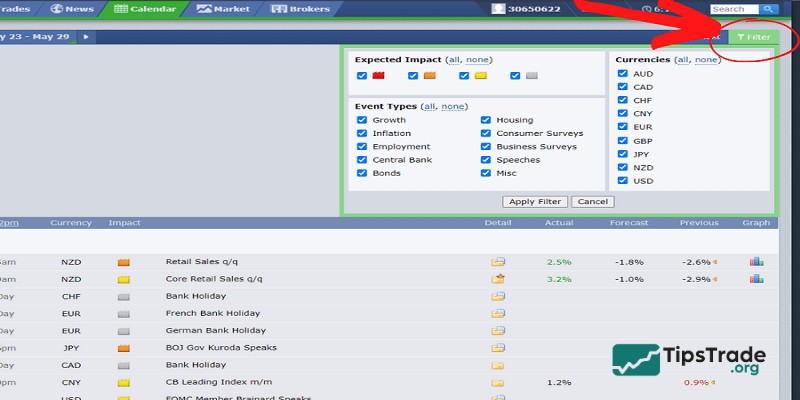
The filter displays three important elements:
- Expected Impact:
- This factor uses three colors (red, orange, and yellow) to indicate events by their level of impact, from the highest to the lowest. You can choose to display only the most important events marked in red to better anticipate the market’s direction. As a result, the other two colors will be hidden.
- Gray color represents other non-economic events, such as national holidays.
- Currencies: This section lists all events related to nine currency pairs. You can keep the currency pairs you are interested in and remove the others.
- Event Types: This section lists different types of important economic events that may affect currency pairs. Forex Factory categorizes events by color, so you simply need to remove the unnecessary colors (gray, yellow, and orange) while keeping the remaining ones.
Finally, click “Apply Filter”, and the relevant information will be filtered and displayed.
How to read an event in the Forex Factory Calendar
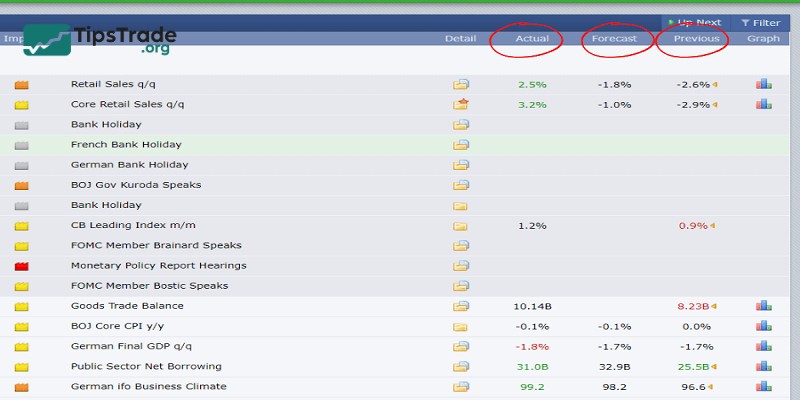
To understand an economic event, we need to pay close attention to the following three factors:
- Previous: the data that were released in the previous announcement.
- Forecast: the data predicted in advance by analysts and experts.
- Actual: the data that are about to be released, also known as the actual figures.
Typically, at the time of the news release, traders focus primarily on the Actual data. They compare these figures with the Forecast to assess whether a currency pair is likely to rise or fall, and then decide whether to buy or sell in order to make a profit.
Frequently asked questions about Forex Factory Calendar
- How do I access the calendar? You can access the Calendar by visiting the Forex Factory website and clicking on the “Calendar” tab.
- How do I filter events on the calendar? You can filter events by currency and impact level using the filter options to focus on relevant economic data for your trading strategy.
- What do the colors on the calendar mean? The colors on the Calendar indicate the expected impact of an event: red for high impact, orange for medium impact, and yellow for low impact.
- How can I use the forex factory calendar in my trading strategy? Use the calendar to plan trades around significant economic events, set alerts, and analyze how actual data compares to forecasts to anticipate market movements.
Conclusion
Understanding and using the Forex Factory Calendar correctly allows traders to stay proactive ahead of major market movements, enabling more accurate and disciplined trading decisions. By learning how to analyze news impact levels, release times, and the relationships between economic indicators, traders can significantly improve their trading performance.
Hopefully, the insights shared in How to use the Forex Factory Calendar for trading above will help you fully leverage the value that the Forex Factory Calendar brings to your Forex trading journey!