
Knowing how to place an order in MT4 is something every trader must understand. In this article, let’s explore how to place an order in MT4 with Tipstrade.org. Follow the guide below!
Overview of order types in MT4
In the MT4 software, there will be the following order types:
Market order
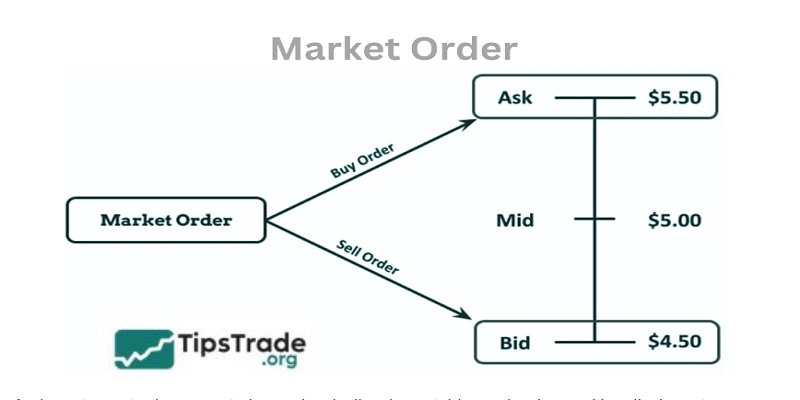
A market order is an order that we will execute to buy or sell immediately at the current market price. Opening and closing orders happen simultaneously.
>>See more:
- How To Install EA Into MT4? A Step-By-Step Guide
- How to backtest on MT4 like a pro: The ultimate guide for beginners
Pending order
A pending order is an order that we will execute in the future at a different price than the current one. The order opening happens first, but the order execution will happen later, or the order may not be executed, in which case we cancel it.
In the aforementioned pending order, it is further divided into two types:
Limit order
That limit order is an order that will take two forms as follows:
- Buy limit order: This is an order we will place to buy at a price lower than the current market price. When the price drops to the level we set, the buy limit order will be executed. And the order we entered was a buy order.
- Sell limit order: This is an order we will place to sell at a price higher than the current market price. And when the price reaches the level we set, the sell limit order will be executed. Our order matched, it was a Sell order.
Stop order
The Stop order also has two forms as follows:
- Buy stop order: This is an order we will place to buy at a price higher than the current price. When the price rises to that level, our order will be executed and the entry will be a buy order.
- Sell stop order: This is an order we place to sell at a price lower than the current market price. When the price drops to the set level, the order will be executed and the position entered will be a sell order.
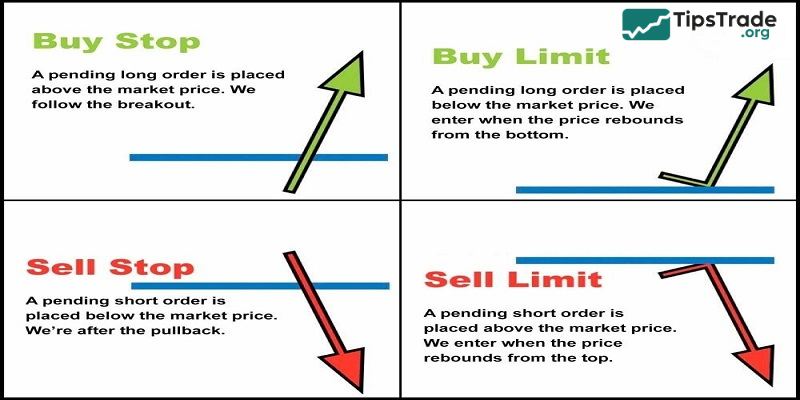
Thus, it can be seen that a Limit order is an order placed in the opposite direction to the price movement before the order is filled, while a Stop order is placed in the same direction as the price movement before the order is filled.
Typically, with the Price Action trading method, we use Stop orders the most and almost never use Limit orders.
Next, we will go into the specifics of placing orders in the MT4 software.
Key terms you need to know when placing an order in MT4
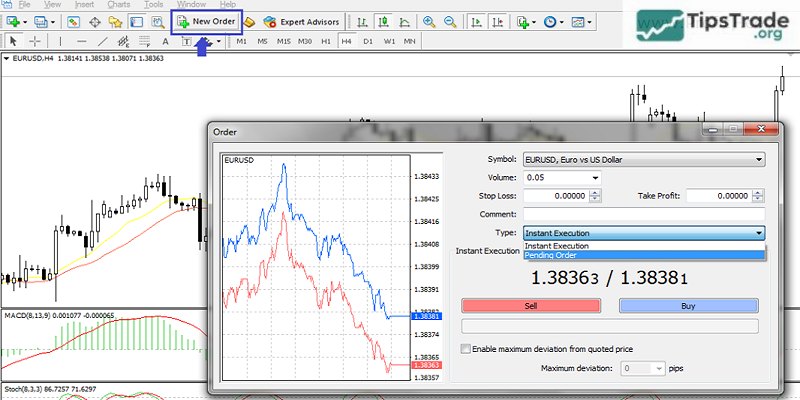
- Symbol: The trading pair. If traders open the chart of the pair they want to trade before clicking New Order, simply leave it as is. If they want to choose a different pair, they can select it in this section.
- Volume: The order size, calculated in lots. The smallest size is 0.01 lot, while the maximum depends on each broker’s regulations.
- Stop Loss: The stop-loss level. This is the price at which your order will automatically close once the market reaches it, helping you exit the trade with a predetermined loss.
- Take Profit: The take-profit level. This is the price at which your order will automatically be executed once reached, closing your trade with the predetermined profit.
- Comment: Notes or remarks. You can ignore this section.
- Type: The order type. There are two main types:
– Instant Execution (Market Execution): Executes immediately at the current market price (click Buy or Sell to enter the trade instantly).
– Pending Order: Executes only when the market price reaches the level you have preset. When you choose a Pending Order, an additional window will appear allowing you to enter further parameters. After filling in the details, click Place to submit the order.
How to place an order in MT4
Steps to place an order in MT4
There are several ways on how to place an order in MT4, specifically as follows:
- Method 1: Click on the ‘New Order’ icon on the tool bar, which opens up the MT4 order window.
- Method 2: Right-click on the chart, select ‘Trading’ and choose the appropriate selection.
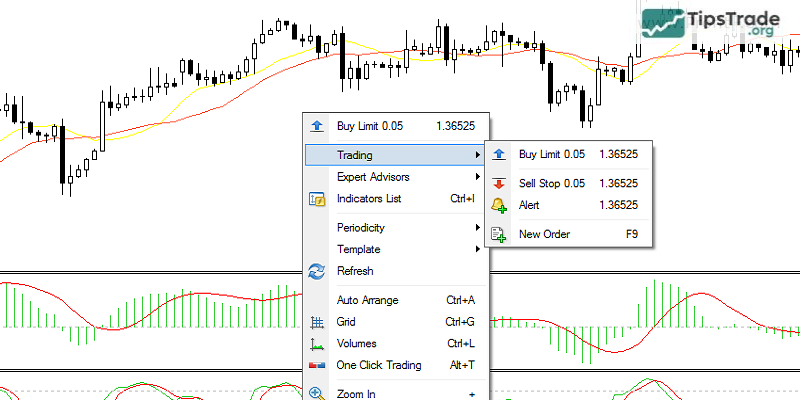
- Method 3 is a keyboard shortcut key ‘F9’ which opens the order window. This is very quick and once you remember the hotkey ‘F9’ it makes it a lot easier to bring up the order window.
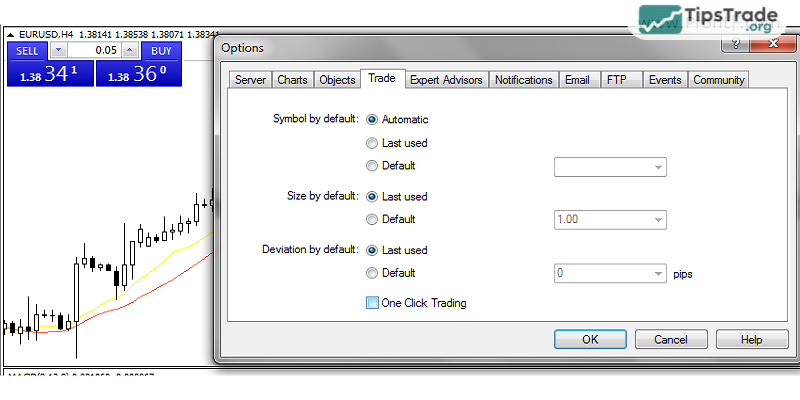
- Method 4: And finally, the fourth method is to make use of the MT4 (build 600) ‘One Click Trading’ feature which displays the Buy/Sell button directly on the top left corner of the chart. To enable this feature, you must first go to Tools>Options>Trade and select ‘One Click Trading’ When you select this the first time, you will have to accept the terms and conditions before you can make use of this feature. Note that this feature allows you to place orders with just a click and therefore should not be used unless you really know what you are doing.
Placing market orders with MT4
To place a market order, you can press ‘F9’ from your keyboard to bring up the order management window. Here, you can select
- Lot size (What is a LOT?)
- Stop Loss
- Take Profit
And click on ‘Buy’ or ‘Sell’
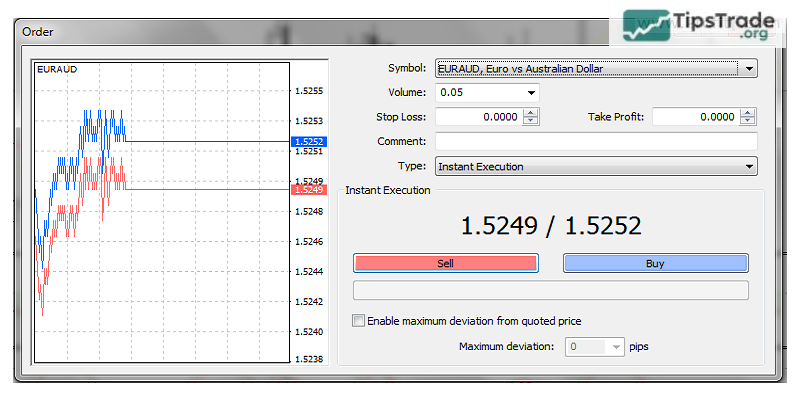
You can also check the ‘Enable maximum deviation from quoted price’ option and select up to 10 pips deviation from the market quoted price. This ensures that there are no re-quotes or when the market price moves away too much from your price level of interest. Once an order is placed, you will see a confirmation message in the order management window.
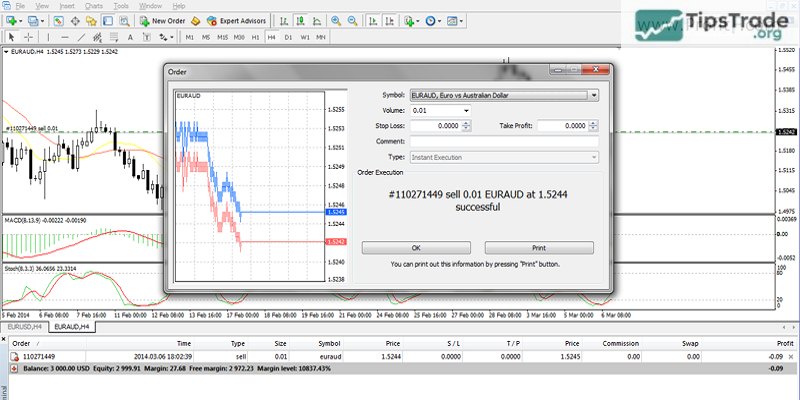
You can also view your executed order in the ‘Terminal’ section of MT4.
Placing pending orders with MT4
For example – Placing Limit orders with MT4:
To place pending or limit orders with MT4, follow the same procedure as above and type in the Entry/Stop/Target price. So, you press ‘F9’, change ‘Instant Execution’ to ‘Pending order’ and fill in the price levels. Select Buy or Sell Limit or Stop orders.
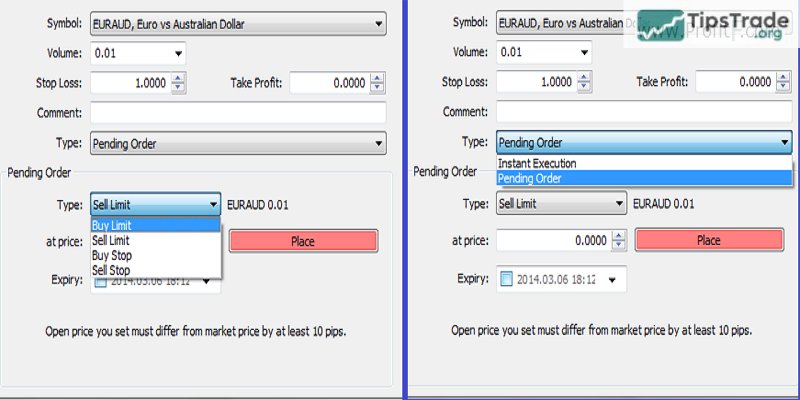
You can also set the expiry time for the limit orders, or leave it unchecked to keep the pending limit order open with no expiry time. Upon successful placement of the limit order, the order management window will show you a confirmation on the screen.
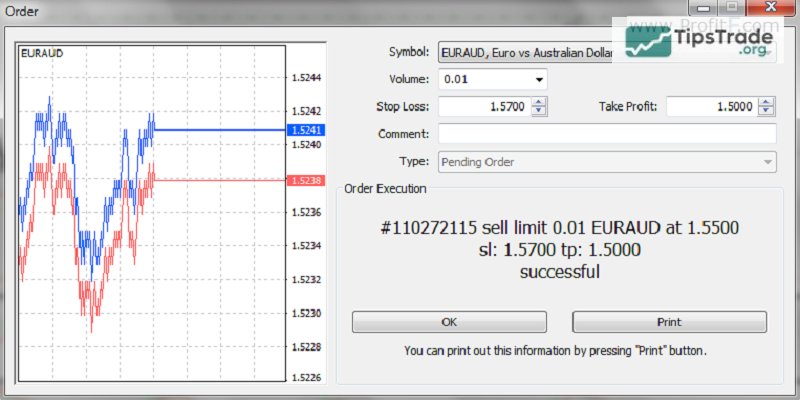
If you want to modify the pending limit order, you can right click on the pending order and click on follow the same procedure mentioned earlier for managing open trades.
How to manage open trades in MT4
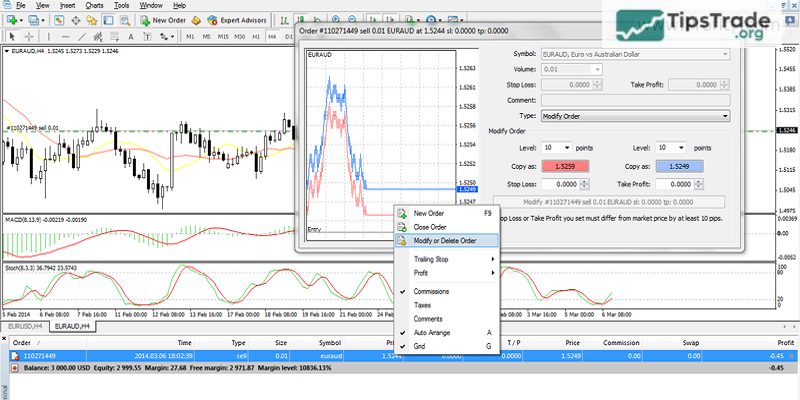
Open trades can be managed such that you can change the Stop Loss and Take profit levels as well as close your trades partially (if you trade more than 0.01 lots).
To manage open trades, right click on the open trade in the ‘Terminal’ section of MT4 and select ‘Modify or Delete Order’ from the menu. This will open up the ‘Order management window’ which allows you to change the stop loss and target profit levels.
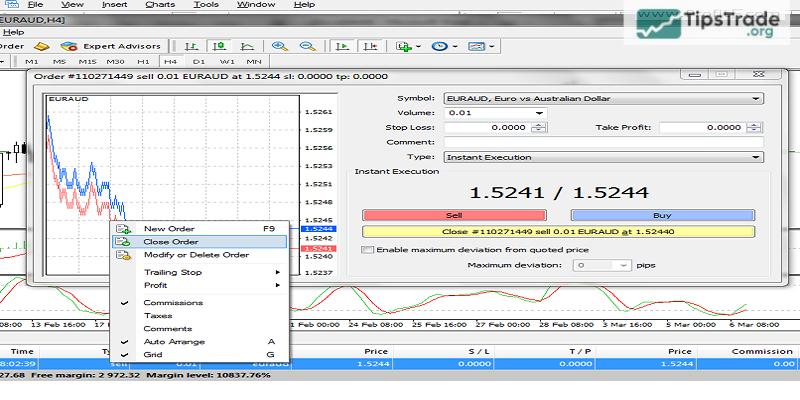
To close an open trade at market order, click on the ‘X’ next to the open order or right click on the order and select ‘Close order’ (which works when one-click trading is enabled) which opens the order management window with the option to ‘Close’ the trade at market.
Common mistakes when placing an order in MT4
Common mistakes when entering a trade with too large a volume, not setting stop-loss and take-profit orders. Some investors don’t even monitor their orders when they enter them. To avoid these mistakes, always double-check before placing an order and regularly monitor your orders for effective trading.
Conclusion
How to place an order in MT4 are basic yet essential skills for every trader. Hopefully, through this article, you now understand how to place an order in MT4 platform to take full control of your trades. Don’t forget to follow Tipstrade.org to stay updated with valuable knowledge about investing and finance!