
How to install MT5 is a common question among investors, as there are not many guides covering this topic. MT5 is a popular trading platform following MT4, designed for a specific group of traders. If you haven’t yet figured out how to install MT5, let’s explore it in detail in today’s article.
Why choose MetaTrader 5?
- Multi-asset trading: Supports forex, stocks, commodities, and indices.
- Advanced charting tools: Provides multiple timeframes, technical indicators, and graphical objects.
- Automated trading: Allows traders to use Expert Advisors (EAs) for algorithmic trading.
- Fast order execution: Ensures minimal slippage with real-time price updates.
- Customisable interface: Offers flexibility in arranging charts and windows.
>>See more:
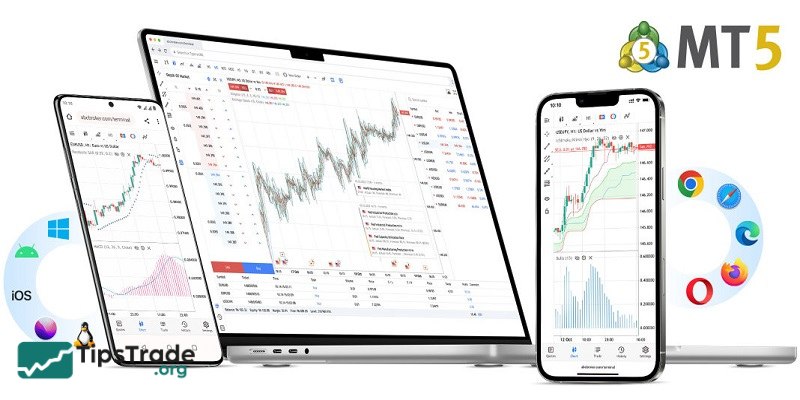
- What is MT5? Basic Guide on How to Use the MT5 Trading Platform
- What is MT4? A detailed guide on how to download and use MT4
- Detailed guide on how to install MT4 on Macbook (MacOS)
- How to Place an Order in MT4: A Detailed and Easy-to-Understand Guide
How to install MT5 on desktop (Windows and MacOS)
Step 1: Download the MT5 software
- Visit the official MetaQuotes website or the website of your broker. Choose to download the MT5 software for Windows or MacOS.

Step 2: Install MT5
- Open the installation file you just downloaded and follow the on-screen installation steps.
- Choose the installation folder (or keep the default), then click Next to start the installation.
- Wait for the installation process to complete and click Finish to launch the software.
Step 3: Log in to your MT5 trading account
- Open MT5 and select File > Login to Trade Account.
- Enter your login information, including your account ID, password, and server provided by your broker.
- Select OK to log in and start trading.
How to install MT5 on mobile devices (iOS and Android)
Step 1: Download the MT5 application
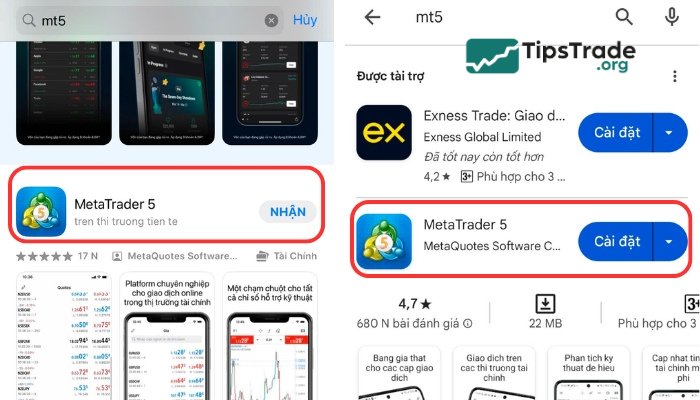
- Go to the App Store (for iOS) or Google Play Store (for Android).
- Search for the MetaTrader 5 app and tap Install.
Step 2: Open the app and log in
- Open the MT5 app on your mobile device and tap Get Started.
- Select Login to an existing account.
- Search for your broker’s name in the list or enter it in the search box.
- Enter your account ID, password, and server, then tap Sign In.
Step 3: Start trading
- Once you have successfully logged in, you can start trading, view charts and indicators, and set alerts and notifications on your mobile device.
How to install MT5 on Linux using Wine
Step 1: Install Wine
- Open the Terminal and run the following commands to install Wine:
sudo apt update
sudo apt install wine

Step 2: Download MT5 for Windows
- Download the Windows version of MT5 from the official MetaTrader website.
Step 3: Install MT5
- Open the Terminal, navigate to the download folder, and run the command:
wine mt5setup.exe
- Then follow the installation instructions to complete the process.
Step 4: Launch MT5
- After installation is complete, you can open MT5 from the application list or launch it directly using Wine.
Important notes for MT5 installation
Getting your broker account sorted: You can’t just install MT5 and start making money. So, you’ll need a trading account with a forex broker first. Most brokers hand you three pieces of info: server address, login number, and password.
Here’s the smart move: start with a demo account. It lets you practice without risking real cash while you figure out how everything works. Demo accounts feel identical to live trading, but your mistakes won’t cost you anything.
Learning the platform: MT5 packs serious firepower: charting tools, indicators, automated trading capabilities,…but don’t expect to master it overnight. Spend time customizing the interface colors and workspace layout to match how you actually want to trade, not the default setup.
Most new traders dive straight into live trading and regret it later. Take a week with the demo account. Learn where everything is, practice placing different order types, and get comfortable with the platform’s quirks. Your future self will thank you.
For Mac users specifically, understanding how to install MetaTrader on Mac properly prevents most compatibility headaches that plagued earlier versions. Desktop and mobile setups work identically, so knowing how to download MetaTrader 5 on laptop systems transfers directly to any portable trading setup.
Common MT5 installation issues and fixes
Here are common issues when traders learn how to install MT5 and tips to fix them:
|
Problem |
What’s Really Happening |
The Fix That Works |
|
Antivirus blocks installation |
Your security software thinks MT5 looks suspicious |
Add MT5 folder to exclusions before installing, not after |
|
“Missing MSVCR100.dll” error |
Windows lacks Microsoft Visual C++ libraries |
Download Visual C++ 2010 Redistributable from Microsoft directly |
|
Installation freezes at 90% |
Usually a permissions or disk space issue |
Close everything, run installer as admin, check you have 500MB free |
|
Can’t connect after install |
Server settings wrong or firewall interference |
Double-check server name matches broker exactly—case sensitive |
Above are all the different ways you can learn on how to install MT5 trading platform. Hopefully, this will be useful knowledge to help investors’ trading process go more smoothly!