
MT4 is one of the most popular trading platforms today. However, learning how to install MT4 on Macbook is not always easy, and many users find it quite challenging. That’s why today’s article on Tipstrade.org will guide you through the process of installing MT4 on a MacBook in the simplest and most easy-to-understand way. Let’s get started!
Key features of MT4 on Macbook
To enhance the trading experience for users, the MT4 software on macOS provides many useful features. Here are some key features:
- User-friendly interface: MT4 on macOS maintains a clean and intuitive interface, making it easy for both beginners and experienced traders to navigate the platform.
- Advanced charting tools: Users can access a variety of different charts, timeframes, and technical indicators. Customizable charts help traders effectively analyze market trends.

- Multiple order types: MT4 supports a variety of order types, including market orders, limit orders, stop orders, and trailing stop orders, allowing traders to implement diverse strategies.
- Automated trading: Users can leverage Expert Advisors (EAs) to automate trading strategies. This feature allows for algorithmic trading and order execution based on pre-set criteria.
- Strong security features: The platform uses advanced encryption technology to ensure secure transactions and protect user data, providing peace of mind when transacting online.
>>See more:
- How To Install EA Into MT4? A Step-By-Step Guide
- How to backtest on MT4 like a pro: The ultimate guide for beginners
- How to Place an Order in MT4: A Detailed and Easy-to-Understand Guide
How to download MT4 for Macbook (MacOS)
Investors have two options to download and install MT4 on MacBook (macOS) as follows:
- Option 1: Visit the official MetaTrader 4 website and follow the installation instructions.
- Option 2: Traders can download MT4 from their broker. However, each Forex broker usually provides a customized version of MetaTrader tailored mainly to their servers, so users do not need to search for the broker’s name, as the server parameters are already preconfigured.
Instructions on how to install MT4 on Macbook
To install MT4 on MacBook, users must first download Wine, a program that allows MT4 to run on macOS. This free software supports the execution of “.exe” files and other file extensions on a Mac system.
To run Windows applications on macOS, traders can use Wine or other third-party programs based on Wine, such as PlayOnMac.
How to install PlayOnMac
To install PlayOnMac, traders follow these steps:
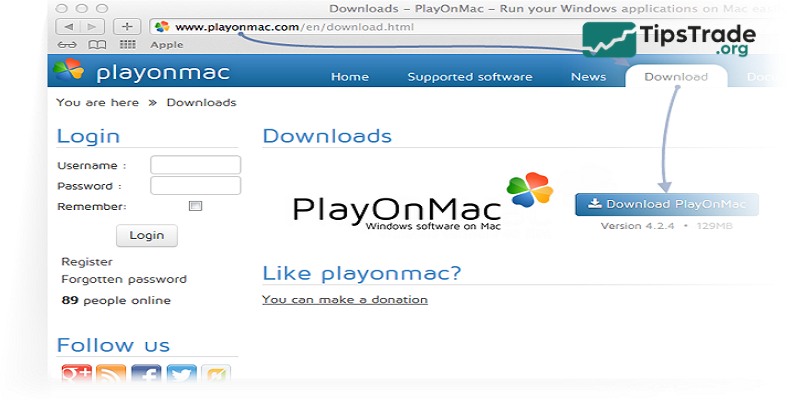
- Step 1: Go to the official PlayOnMac website >> Click on the “Downloads” section >> Click on the link to download the latest version of the application.
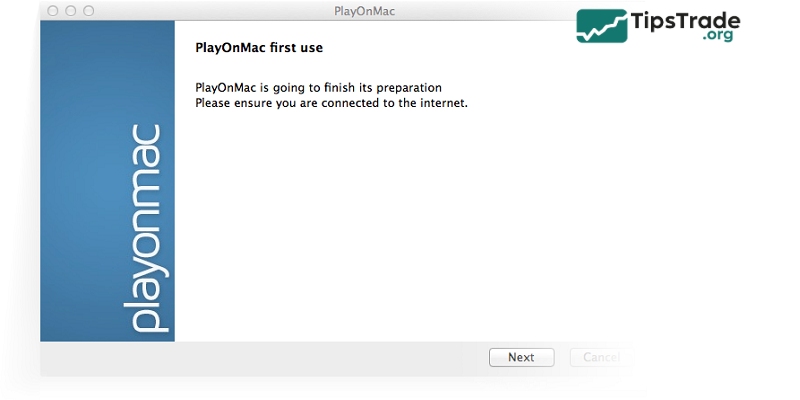
- Step 2: The PlayOnMac launch window will appear >> Click “Next” again.
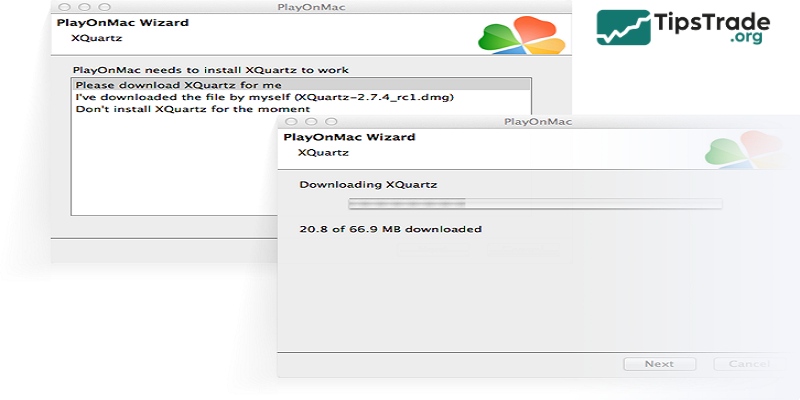
- Step 3: XQuartz is the first software to be installed – This is the program for using the Windows X System (X11) in OS X. It also provides standard tools and protocols for creating graphical user interfaces in Unix/BSD operating systems like OS X.
Note: Traders can choose whether or not to install XQuartz by clicking on “Don’t install XQuartz for the moment” or “I’ve downloaded the file myself.”
- Step 4: Traders carefully read the important information (Read Me) and accept the licensing terms after successfully downloading XQuartz.
Note: Wait for the installation process to finish. Users must restart their Macbooks for the changes to take effect.
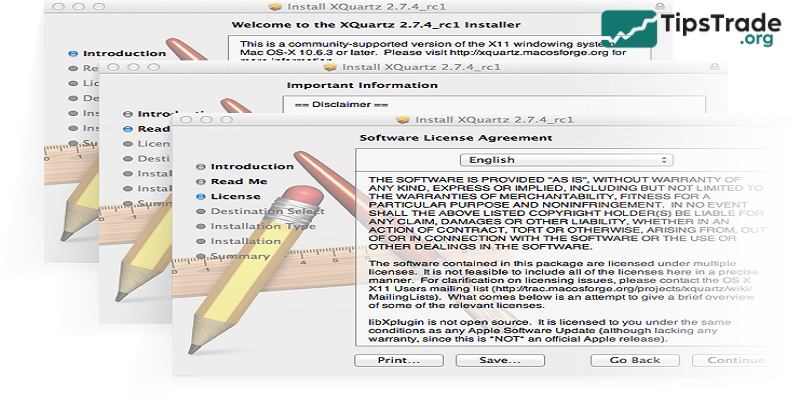
- Step 5: Restart PlayOnMac from the setup file in the “Download” folder after restarting the system. The first launch window will appear again. At this time, the installer will automatically set up important MS Windows fonts for normal operation.
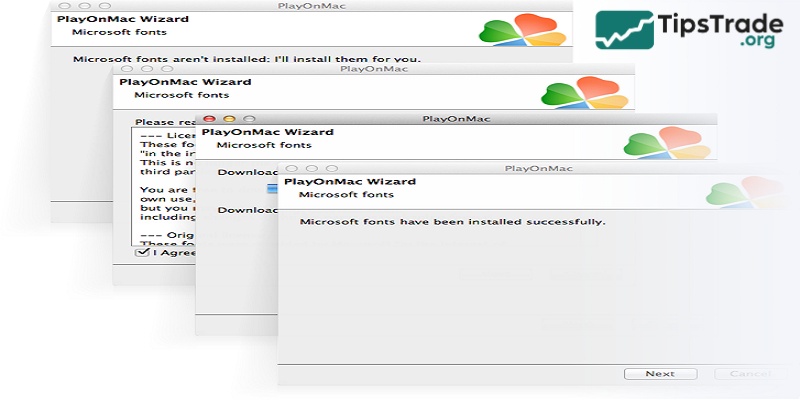
- Step 6: Traders accept the terms of the agreement and wait for the installation process to finish. PlayOnMac is now ready to use.
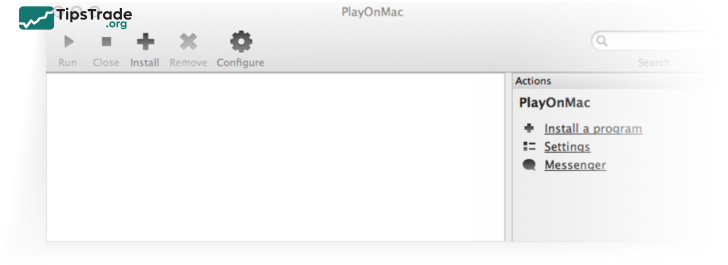
Update Wine MT4 software for Macbook
Wine is a free program that allows users to run Windows applications. With a Mac OS version among the Wine versions. To upgrade the Wine software, users can follow these steps:
- Step 1: Traders open the Menu on PlayOnMac and select “Manage Wine versions.”
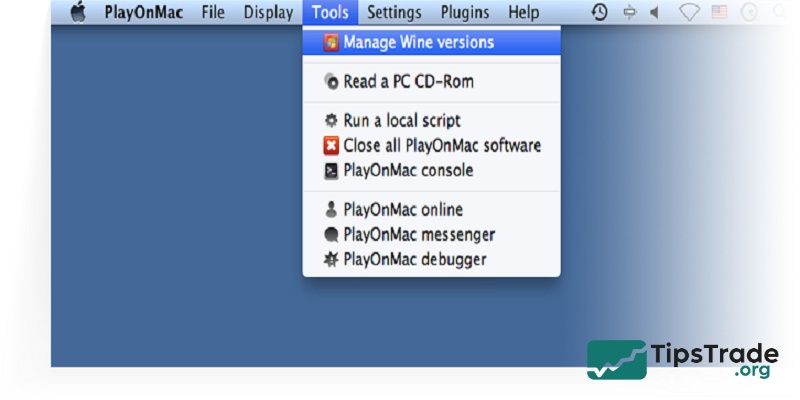
- Step 2: The window displays the available Wine versions for installation. Users should choose the latest version, which is 1.5.21.
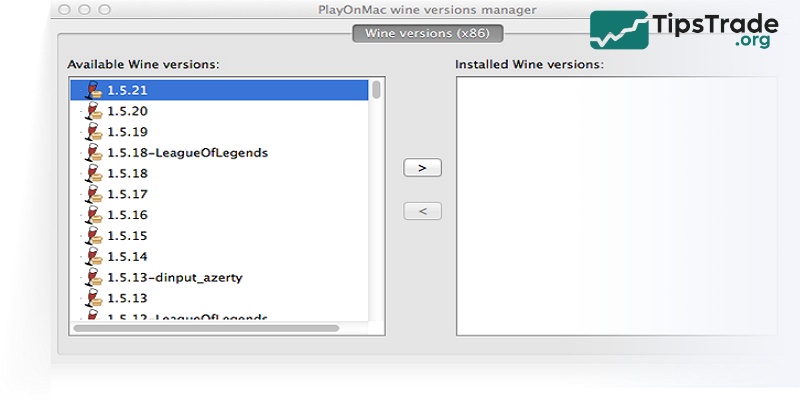
- Step 3: Move the latest version of Wine to the right side of the window. The installation process will begin.
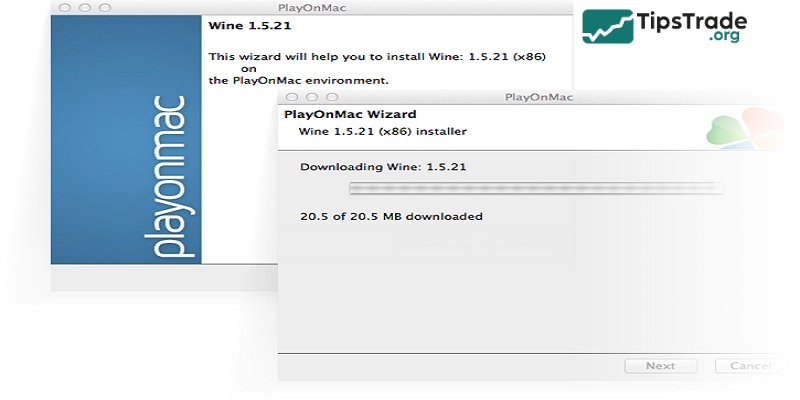
- Step 4: After installation, the new Wine version will be displayed on the left side of the Wine version management window in PlayOnMac. Close the window and then install the MT4 terminal.
Download and install MT4 on Macbook
The process of downloading Metatrader 4 for a Macbook is quite simple as follows:
- Step 1: Visit the official MetaTrader website >> Select the “Mac OS” option under the PC section by clicking the “X” icon.
- Step 2: Download the “mt4setup.exe” installer to install the Terminal. Once the download is complete, run the installer and use PlayOnMac to open the terminal.
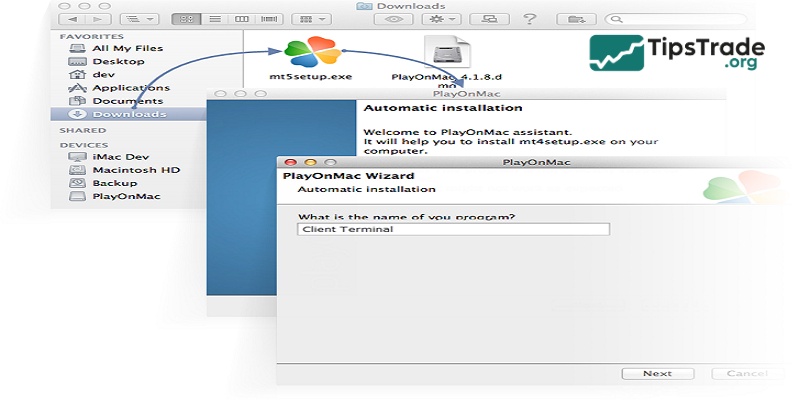
- Step 3: The installation of the standard terminal will go through the following stages.
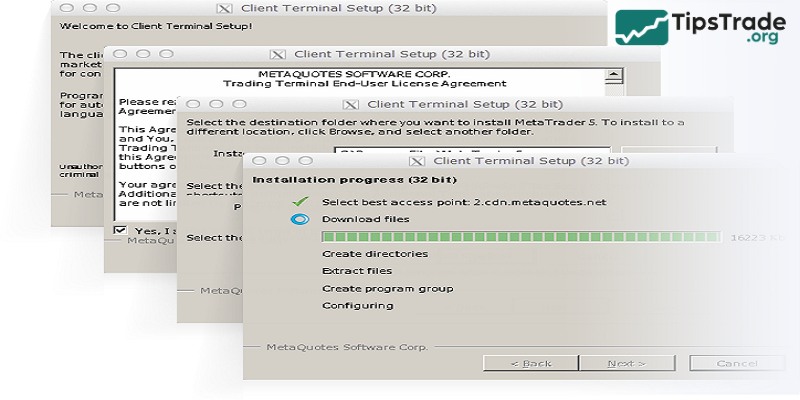
- Step 4: After installation, PlayOnMac will prompt the user to create shortcuts for the client terminal and MetaEditor.
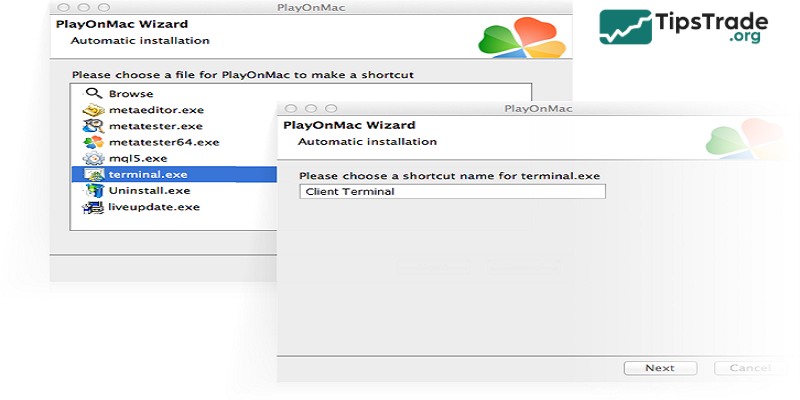
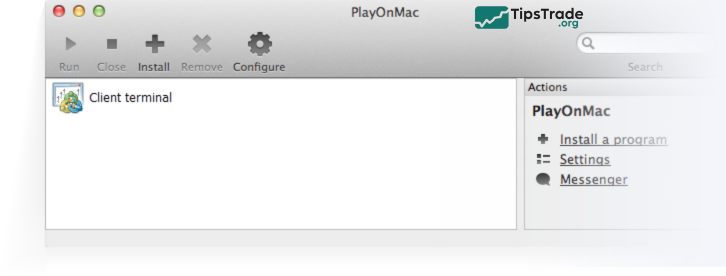
- Step 5: Traders can use the client terminal after creating the necessary shortcuts. To open the terminal, double-click the terminal in the PlayOnMac window.
How to log in and log out of MT4 on a Macbook
Logging in to MT4
- Open the MT4 application.
- Select “File” > “Login to Trade Account”.
- Enter your account information:
– Login: Your trading account number
– Password: Your password
– Server: Choose the appropriate server (e.g., FXCM-Real01 or FXCM-Demo01)
- Click “Login” to access your account.
Logging out of MT4
MT4 does not have a specific “Log Out” button. To log out, you can either close the application or go to “File” > “Login to Trade Account” and uncheck “Save Account Information” to remove the saved login credentials.
Conclusion
The above is a guide on how to install MT4 on Macbook for investors. As you can see, the process is straightforward and easy to follow. Traders can log into their accounts and start trading once MT4 has been successfully downloaded. Wishing all traders success!