
How to install EA on MT4 is a topic that attracts a great deal of attention from traders, especially as automated trading becomes more popular. Installing an Expert Advisor correctly not only helps you maximize the power of your trading robot but also improves performance, reduces errors, and ensures your strategy is executed accurately. In this article, we’ll walk you through a clear and detailed step-by-step process so you can set up your EA quickly and effectively.
What is an EA?
EA (short for Expert Advisor) are software programs specifically programmed for the MetaTrader platform (MT4/MT5). They are also commonly referred to by traders as Forex Robots.
Unlike humans, the Expert Advisor MT4 operates based on absolute logical algorithms:
- Automatic analysis: 24/5 market monitoring without interruption.
- Automatic execution: Automatically enter Buy/Sell orders, set Take Profit (TP) and Stop Loss (SL) as soon as the market meets the program conditions.
- Emotionless: Completely eliminate the psychology of fear or greed.

See more:
- What is MT4? A detailed guide on how to download and use MT4
- What is MT5 EA? Guide on how to install and use MT5 EA in detail
- How to backtest on MT4 like a pro: The ultimate guide for beginners
- MT4 vs MT5: A Detailed Comparison – Which Platform Should Traders Choose?
Things to prepare before installing EA on MT4
To ensure a smooth process of installing the EA on MT4, traders need to prepare:
- File Robot: The file extension must be .ex4 (Executable file) or .mq4 (Source code file).
- VPS (Recommended): If you want the bot to run 24/7 even when your computer is off, you should rent a virtual private server (VPS). If you’re just running tests, you can use a personal computer, but you need to make sure you don’t lose internet connection or have a power outage.
How to install EA on MT4
To install an EA on MT4, traders follow these steps:
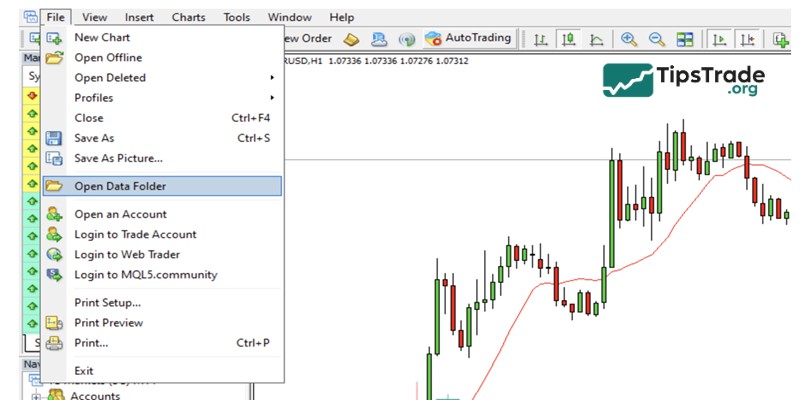
Step 1: Open the Data Folder
- Open the MT4 software: On the menu bar in the top left corner, select File
- Open Data Folder.
Step 2: Copy the EA file to the correct location
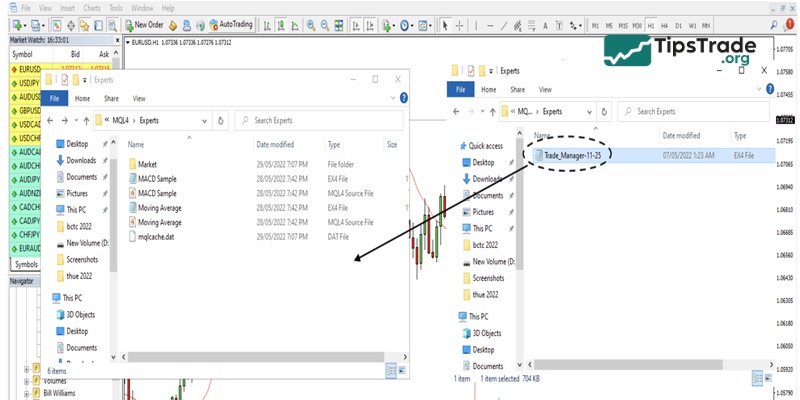
A folder window will appear; access the following path:
👉 MQL4
Experts
Action: Copy your EA file (with the extension .ex4 or .mq4) and paste it into this Experts folder.
Step 3: Refresh the MT4 interface
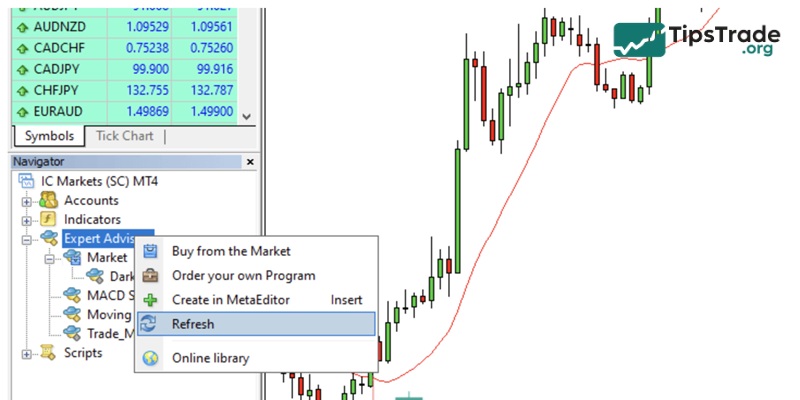
- Return to the MT4 software interface.
- Look at the Navigator column (usually on the left).
- Find the Expert Advisors section, right-click and select Refresh.
- The name of the bot you just pasted will now appear in the list.
Step 4: Activate Trading Permissions (Most important)
Usually, this step is overlooked by many traders. However, doing so will cause the Bot not to run.
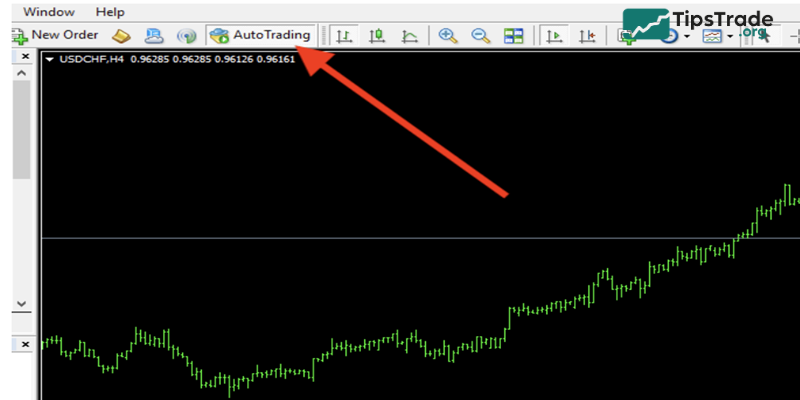
- On the toolbar, find the Auto Trading button and click it until it turns green (Play icon).
Step 5: Drag and drop the Bot onto the chart
- Open the chart of the currency pair you want to trade (e.g., XAUUSD or EURUSD).
- From the Navigator column, drag and drop the EA name into the center of the chart.
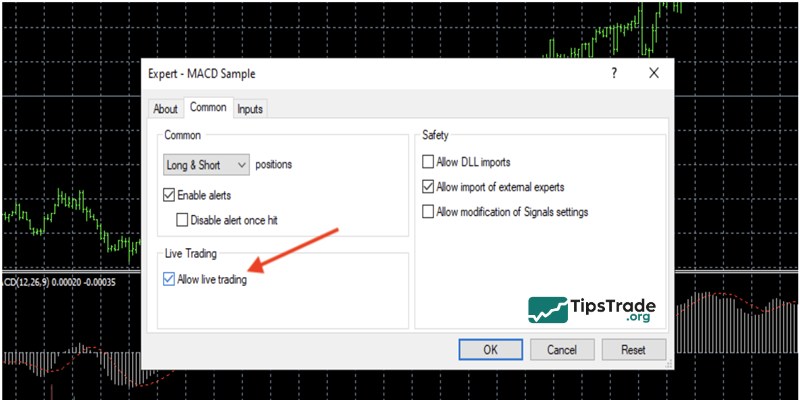
- A parameters panel will appear; pay attention to two tabs:
– Common tab: Check the boxes “Allow live trading” and “Allow DLL imports”.
– Inputs tab: Fill in the capital management parameters (Lot size, Max spread, etc.) according to the bot’s instructions.
- Click OK.
How to check whether your EA has been successfully installed
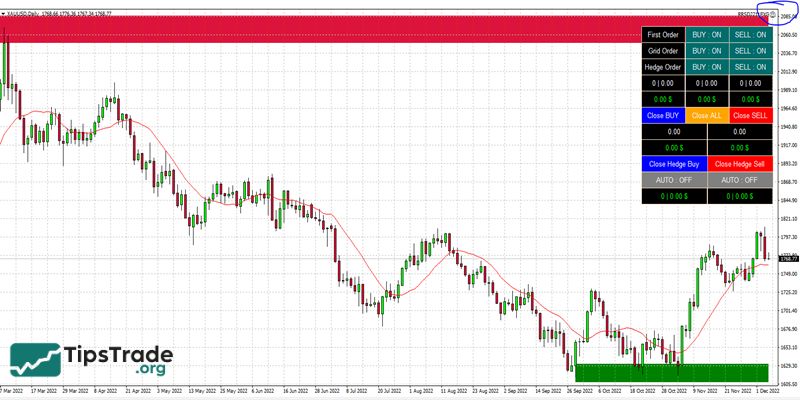
After clicking OK, look at the top right corner of the chart:
- 🙂 Smiley Face: Congratulations! You have successfully installed and the bot is working.
- ☹️ Sad Face: The bot is malfunctioning or has not been granted permission.
Tips for handling the “Sad Face”:
- Check if the Auto Trading button is green.
- Press F7, check if the Common tab has “Allow live trading” checked.
Useful tips for installing EA on MT4 effectively from experts
Learning how to install EA on MT4 is not too complicated, but to actually make money and keep your profits, you need the mindset of a professional trader:
- Backtesting is a must: Before letting the bot trade with real money, always use the Strategy Tester on MT4 to evaluate its performance using historical data. Don’t rely on marketing claims, trust the numbers.
- Capital management: Any robot can experience a losing streak. Set a small and reasonable lot size (Volume) that matches your account balance so it can withstand market volatility and drawdowns.
- Avoid unnecessary intervention: Once you trust your Expert Advisor on MT4, limit manual intervention (such as closing trades by hand) unless there’s major news or a technical issue. Doing so can disrupt the bot’s algorithm and reduce its effectiveness.
Final thoughts
How to install EA on MT4 may seem simple, but it directly affects the performance and stability of your trading robot. Once you understand the installation steps, know how to verify the EA’s operation, and pay attention to key factors before running it on a live account, automated trading becomes much safer and more efficient. Apply the instructions correctly and manage risk wisely to ensure your EA becomes a powerful tool in your trading strategy.
See more: