
How to download MT5? MetaTrader 5 (MT5) is one of the top choices for traders, offering advanced technical analysis tools and automated trading capabilities. In this article, we will explore how to download MT5 and install it easily on computers, mobile devices, and directly on the web.
How to download M5 on different devices
Before you can start using MetaTrader 5 on the forex broker, you need to download and install the software on your device. Accordingly, MetaTrader 5 can be used flexibly on computers, web browsers, and mobile devices.
- What is MT5? Basic Guide on How to Use the MT5 Trading Platform
- What is a VPS for MT5? Criteria for evaluating and choosing an MT5 VPS
- MT5 Login: Detailed Guide on Connecting to Your MT5 Account
- Draw Trendline MT5: A Detailed A–Z Guide to Help Traders Capture Price Trends
How to download MT5 on PC
MT5 runs smoothly on computers using Windows 7 or later. To install MetaTrader 5 on your PC, follow these steps:
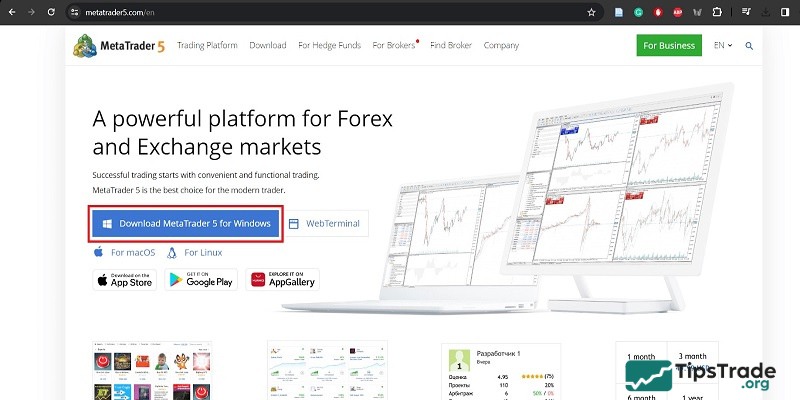
- Step 1: Visit the official MetaTrader 5 download page and select “Download MetaTrader 5 for Windows”.
- Step 2: Open the downloaded file and proceed with the installation by choosing “Run – Yes – Next”, then wait for the system to complete the installation.
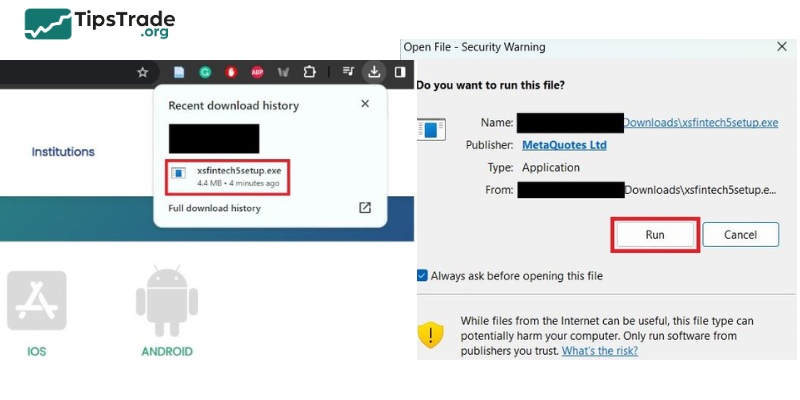
- Step 3: Once the installation is finished, the MT5 icon will appear on your desktop. Launch the platform by clicking on this icon.
How to download MT5 on mobile
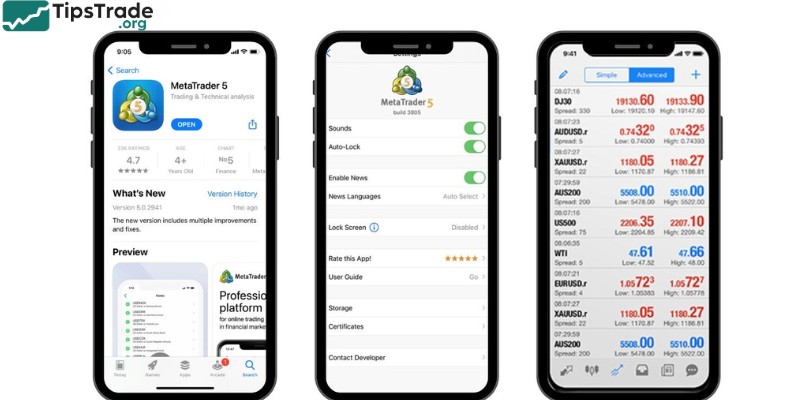
In addition to using it on a computer, investors can easily monitor the market and place trades by installing MetaTrader 5 on their mobile phones. This allows traders to stay connected to the market and operate anytime, anywhere. To download MT5 on mobile, follow these steps:
- For Android: Open the Google Play Store, search for “MetaTrader 5”, then select “Install” to download and install the app automatically.
- For iOS: Open the App Store, search for “MetaTrader 5”, then select “Get” to download and install the app automatically.
However, this application may not be available in some countries. To overcome this issue, you can download the app directly from the website of the trading broker you are using.
How to download MT5 on MacBook
Since MT5 is not officially supported on macOS, you need to use an emulation method to install it. You can then proceed with the installation by following the instructions below:
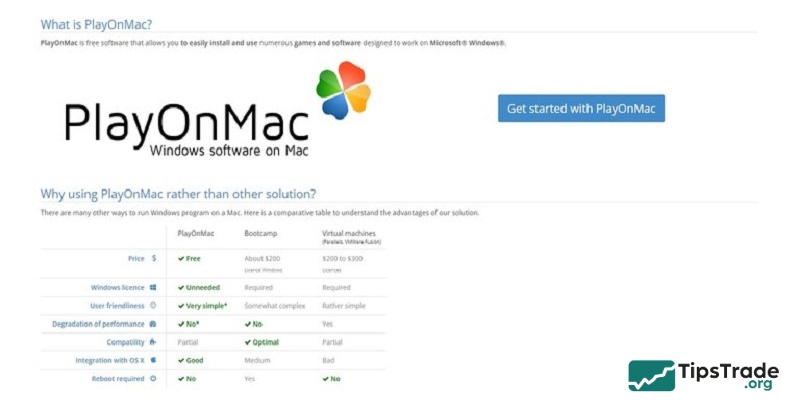
Method 1: Install via PlayOnMac
This is a relatively simple emulation method and, importantly, it is free and does not harm your personal data or your MacBook’s hardware/software. However, some advanced features may not run as smoothly. The installation steps are as follows:
- Step 1: Download PlayOnMac from the official website: www.playonmac.com
- Step 2: Install PlayOnMac on your MacBook like a regular application.
- Step 3: Save the file to your hard drive > double-click the PlayOnMac_X.XX.dmg file after the download is complete to begin the installation.
- Step 4: Drag PlayOnMac into the Applications folder on your MacBook.
- Step 5: Double-click PlayOnMac > select Open > Install a Program.
- Step 6: Find the application you want to run in the list > select Next and follow the on-screen instructions until the installation is complete.
Method 2: Download MT5 via Parallels (Running Windows on Mac)
This method provides the most complete MT5 experience on a MacBook. Parallels allows you to run the Windows operating system on macOS, enabling you to use a wider range of software. The installation steps are as follows:
- Step 1: Download Parallels from the official website at https://www.parallels.com/ and click Install.
- Step 2: Click Accept and follow the on-screen instructions until the installation is complete.
- Step 3: Open the application and sign in using your existing account or log in with Facebook, Google, or Apple.
- Step 4: Enter the license key you purchased from the official website and activate it successfully, as shown below, to start using it.
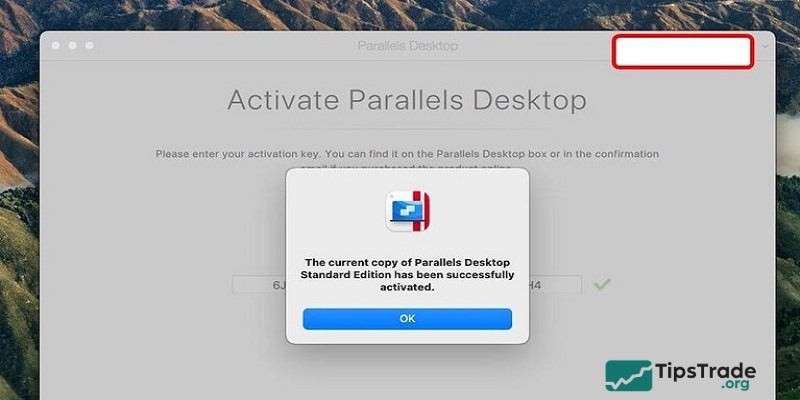
The advantage of this software is that it delivers a full and smooth experience of the installed application. However, it requires a MacBook with strong hardware specifications and a purchased Parallels license. You may use a cracked version, but this can lead to many potential issues during use.
How to download MT5 on Web Browser (No installation required)
For those who find installing software complicated or space-consuming on their computer, you can use MetaTrader 5 directly on its web-based platform, which is very convenient and fast:
- Step 1: Log in to your account on the official website at https://web.metatrader.app/terminal
- Step 2: Start using the platform as usual.
However, the web-based version may have some feature limitations compared to the desktop software, depending on your usage needs.
Some tips for download MT5 safely
Downloading MT5 on a computer is a relatively simple process, but it should be done carefully to ensure safety and efficiency.
- Step 1: Before downloading MetaTrader 5, you need to open an account with the broker you have chosen. This usually involves providing personal information and verifying your account.
- Step 2: After opening an account, download the MetaTrader 5 installation file from the broker’s website. Choose the version compatible with your operating system and download it to your computer.
- Step 3: Open the installation file and click “Next” to start the installation process. Select the appropriate installation options and wait for the installation to complete. Once finished, click “Finish” to finalize the setup.
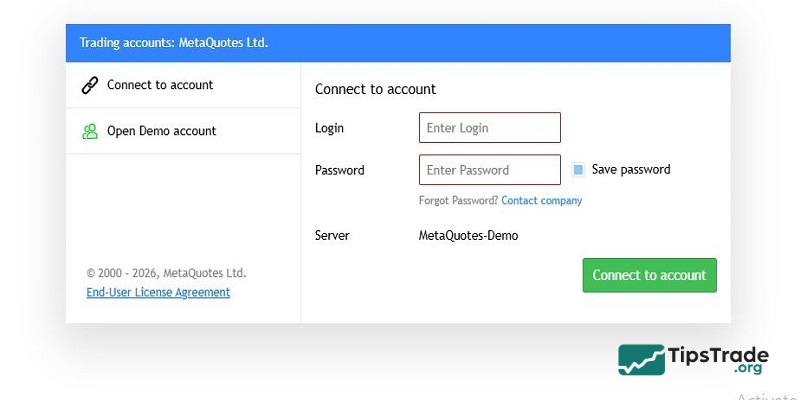
- Step 4: Open MetaTrader 5 and select “File” > “Login to Trade Account.” Enter your username, password, and select the appropriate server. Check “Save password” if you want to store your login details, then click “Login” to complete the login process.
Common issues when downloading MT5 and how to fix them
During the process of downloading MT5, you may encounter some issues that prevent the download from being completed. There are several possible reasons for this, and below we will help you identify the problem and provide quick solutions.
Unable to download MT5
This issue is usually caused by an unstable internet connection or because your firewall and antivirus software are blocking the download file.
To resolve this issue, you should:
- Ensure that your internet connection is stable.
- Temporarily disable the firewall and antivirus software.
- Download MT5 only from the official MetaTrader 5 website to avoid malware.
Unable to install MT5
This error may occur because the installation file is not compatible with your operating system or because you did not run the file with administrator privileges.
To fix this issue, try the following:
- Check whether the downloaded version is compatible with your operating system.
- Run the installation file with administrator privileges (right-click > “Run as Administrator”).
- Re-download the file from the official website if the file is still corrupted or faulty.
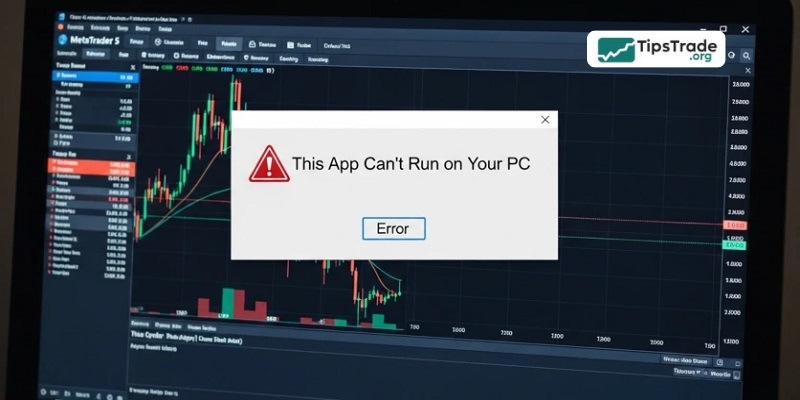
“Cannot connect to server” error after installation
This error occurs when the trading server is unavailable or when you have entered incorrect login details.
To resolve it quickly, check your internet connection, make sure you have entered the correct server address and trading account information. If the issue persists, contact your broker to verify the server status.
“Access denied” error when logging in
This is most likely caused by an incorrect password or an account that has not yet been activated. In this case, ensure that you have entered the correct credentials, activate your account if required, or contact your broker for prompt assistance.
Application not compatible with mobile device
In this situation, you need to update your mobile device’s operating system and then re-download the app from Google Play or the App Store.
White screen or app freezing on launch
This usually happens when the application conflicts with other software on your device or when there is insufficient storage space for the app to run properly.
To fix this issue, close or remove unnecessary applications to free up storage, then download MT5 again and reinstall it following the instructions above.
Not receiving push notifications from MetaTrader 5
Check whether notifications are enabled on your mobile device, especially if you are using an iPhone.
Advantages and disadvantages of downloading MT5 for trading
Each trading tool or method has its own advantages and limitations. Understanding these two aspects of MT5 will help you be more proactive in your trading.
| Advantages of downloading MT5 | Disadvantages of downloading MT5 |
|---|---|
|
|
|
|
|
|
|
|
|
|
|
|
|
|
|
These are the advantages and disadvantages of downloading MT5. It can be seen that the advantages far outweigh the disadvantages, demonstrating that MetaTrader 5 is a useful application for investors.
Some effective ways to use MetaTrader 5
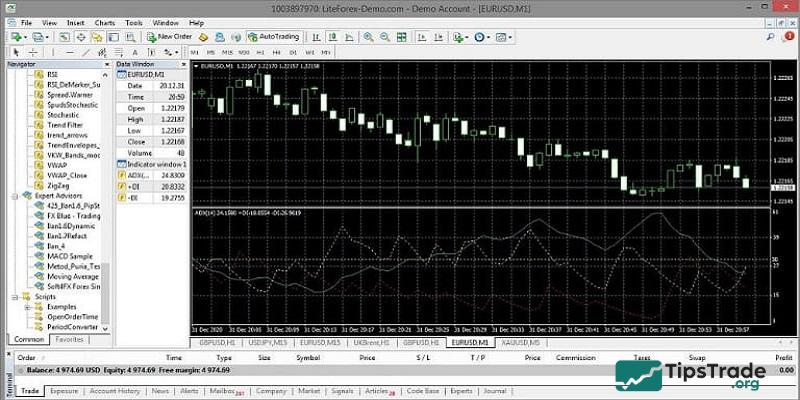
Below are some effective ways to use MetaTrader 5 for newly registered users, helping you personalize your interface and get familiar with the platform’s key features:
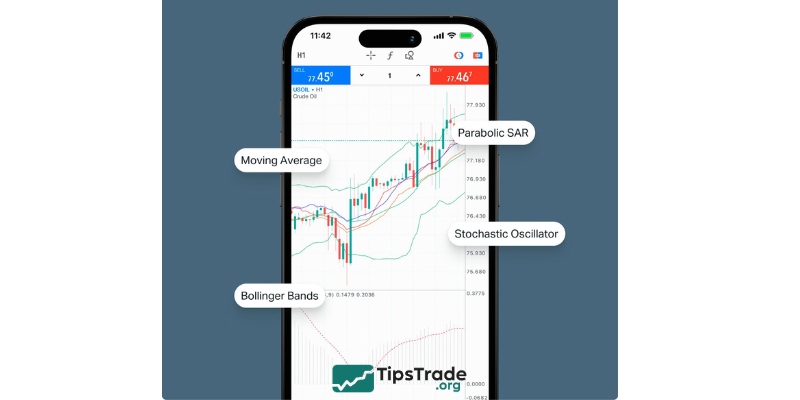
- Charts and indicators: Tap on the chart to display the menu, then select “Indicators” to add technical indicators to your chart.
- Placing orders: Use the order functions, including market orders, pending orders, and stop-loss orders.
- Market monitoring: Utilize technical analysis tools and financial news to monitor market movements.
- Interface customization: Adjust the interface colors and choose candlestick types that match your trading style.
- Chat feature: Use chat and notification features to stay connected with the trading community and keep up with important market events.
- Adding or removing indicators: Select the desired chart and add technical indicators by choosing “Indicators” and selecting the indicator you want. To remove an indicator, long-press on the screen and select the indicator to delete.
- Closing trades: Double-tap on the screen and select “Close trade position” to close an open order.
Conclusion
Downloading MetaTrader 5 allows you to easily get started and optimize trading of financial assets across different devices. We hope that with the detailed instructions above, you can download MT5 and then use it effectively. Wishing all traders great success on their investment journey!
See more: