
Are you looking for a way to download MT4 to start your forex trading journey? In this article, Tipstrade.org will provide a detailed guide on how to download MT4. From there, helping you quickly get familiar with and master this popular trading platform.
Why should traders use the MT4 trading platform?
MetaTrader 4 (MT4) is a trading platform developed by MetaQuotes Software to support trading in the forex market, Contracts for Difference (CFDs), and futures contracts. In addition, MT4 allows users to set up automated trading systems and trading robots (Expert Advisors). Currently, MT4 is available on Windows PCs, as well as Android and iOS mobile devices.
- MT4 VPS and Its Significant Benefits for Traders
- How To Install EA Into MT4? A Step-By-Step Guide
- MT4 vs MT5: Which Platform Should Traders Choose?
- Discover the top 6 indicators in MT4 that are widely used

MetaTrader 4 (MT4) has gradually become an indispensable tool for forex traders thanks to the following features:
- User-friendly and intuitive interface: MT4 offers a visual, user-friendly interface that is easy to access for both beginners and experienced traders. Its functions are straightforward and simple to operate.
- Powerful technical analysis tools: MT4 integrates a wide range of technical analysis tools, including more than 30 built-in indicators and the ability to customize indicators. In addition, the platform supports various analytical methods.
- Automated trading: MT4 enables automated trading through Expert Advisors (EAs), helping traders save time and optimize their trading strategies.
- High stability and security: With advanced data encryption systems and multi-layer authentication mechanisms, MT4 not only ensures maximum security for traders’ accounts but also effectively prevents and minimizes risks from cyberattacks.
- Multi-platform support: MT4 supports trading on PCs, smartphones, and tablets. Traders can install MetaTrader 4 on multiple devices, allowing them to monitor the market and trade flexibly anytime, anywhere.
How to download MT4 on your computer
Download MT4 on Windows
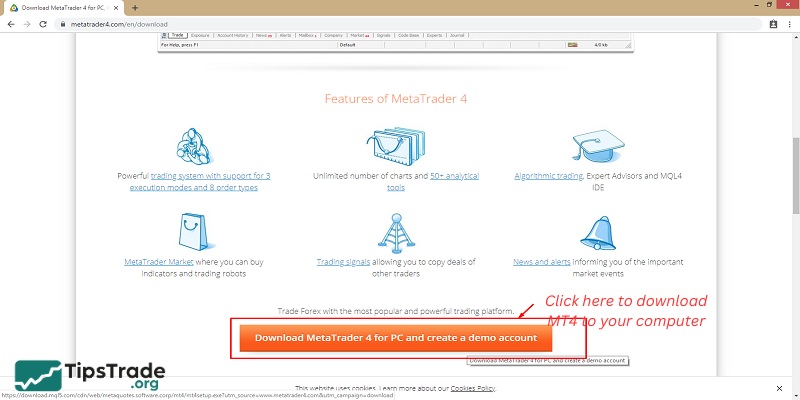
Step 1: To download the latest version of MT4, visit the official homepage here: https://www.metatrader4.com/en/download.
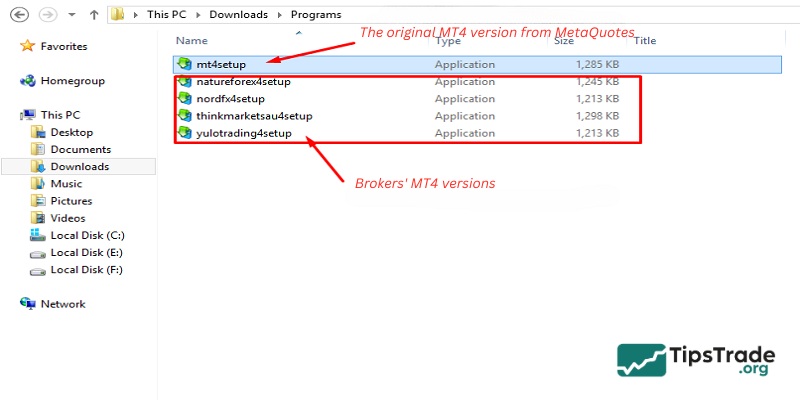
Brokers usually provide their own MT4 versions when you open an account with them. These versions are basically the same as the original MT4, with only minor differences such as the logo and preconfigured broker server settings.
Step 2: After downloading, proceed to install it like a normal software program. The installation process is shown in the illustration below.
First, open the mt4setup.exe file and start the installation. Select Run → Yes → Next.


Wait for the MT4 installation software to complete on your computer in a few minutes, then click Finish.

So, you have completed the installation of MetaTrader 4 on your Windows computer. Open MT4, log in to your account (if you already have an account) or register a new account to experience the trading platform.
Download MT4 on Mac
Although MetaTrader 4 was developed for Windows and there is no MT4 version for MAC OS yet, you can easily download the trading terminal to your computer using third-party software from the official MetaTrader 4 website. The process is described in detail. The software presented there is not fully stable and some MT4 features may not work correctly.
How to download MT4 on mobile devices
On iPhone/iPad, open the App Store and search for MetaTrader 4. On Android phones, do the same in Google Play Store, or visit the website: https://www.metatrader4.com/en/download
Download and install MT4 on iOS
- Step 1: Open the App Store on your iOS device.
- Step 2: Tap the search icon and type “MetaTrader 4.”
- Step 3: Select Download to install the application.

Download and install MT4 on Android
- Step 1: Open the Google Play Store on your Android phone.
- Step 2: In the search bar, type “MetaTrader 4.”
- Step 3: Tap Install to download MetaTrader 4.
After that, wait a few minutes for the installation to complete. This process usually takes about 2–3 minutes, depending on your internet connection speed.
Once the download is complete, open the MetaTrader application and start using it right away. When you open the app for the first time, you will be guided to log in to an existing account or create a new demo account.
Common errors when downloading MT4 and how to fix them
During the installation and usage process, users may encounter some common issues. Below are the solutions:
- Installation does not run: This is usually caused by the firewall or antivirus software blocking the installation. Try temporarily disabling your antivirus software, or right-click the installation file and select Run as Administrator.
- “Invalid Account” error: This error occurs when you enter an incorrect account number, password, or select the wrong server. Carefully check the confirmation email from your broker and make sure to enter each character correctly (pay attention to uppercase and lowercase letters).
- “No Connection” error: This may be due to an unstable internet connection or the broker’s server being under maintenance. Check your internet connection or try clicking the bottom-right corner and selecting Rescan Servers.
How to uninstall MT4 when necessary
If you want to remove MT4 to reinstall a newer version or switch to another platform, follow the standard Windows procedure to ensure that no residual data is left behind:
- First, press the Windows key, type Control Panel, and open the application.
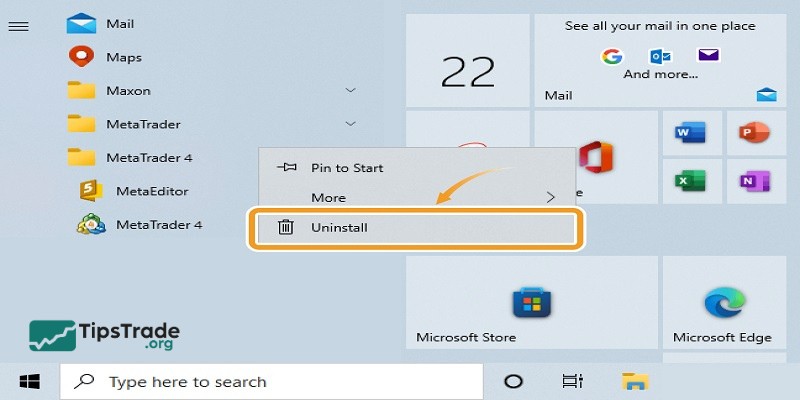
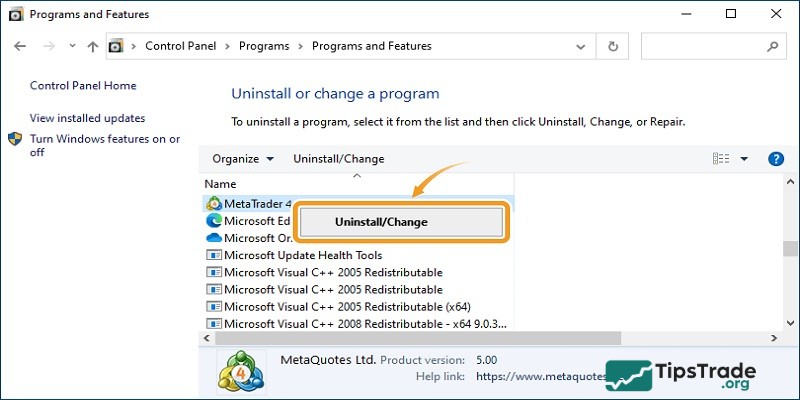
- Next, select Programs or Programs and Features.
- In the list of installed software, find MetaTrader 4, right-click on it, and choose Uninstall.
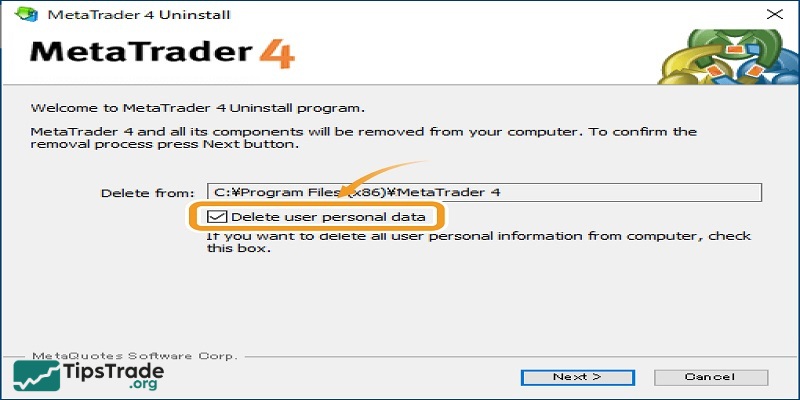
- When a confirmation window appears, check Delete user personal data if you want to completely remove all history, personal settings, and added indicators.
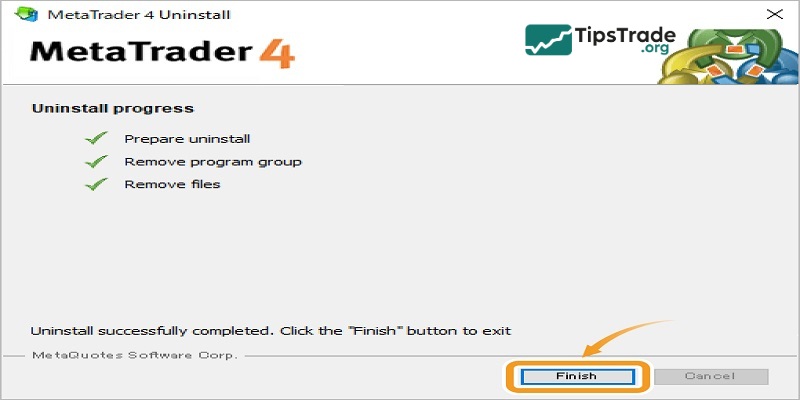
- Finally, click Next to complete the uninstallation process.
Conclusion
MetaTrader 4 (MT4) is an indispensable tool for any Forex trader. Hopefully, through this article, you have gained a solid understanding of how to download MT4 to begin your investment journey. Wishing you successful trading!
See more: