

For new traders, learning how to draw trendline MT5 accurately to “catch the pulse” of the market is a challenge. In this article, Tipstrade.org will guide you step-by-step on how to draw trendline MT5 correctly, thereby minimizing risks and optimizing profits in your trading!
The importance of trendline on the MT5 platform
In technical analysis, “Trend is your friend” is a classic mantra. However, to identify this “friend,” traders need a visual tool. And that tool is the trendline.
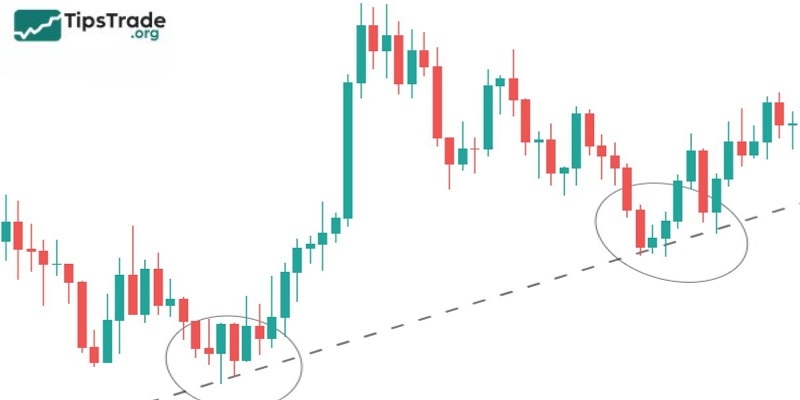
On the MetaTrader 5 (MT5) platform, a trendline is not merely a simple line connecting highs or lows. For professional traders, it serves as:
- Dynamic support/resistance: Unlike fixed horizontal lines, trendlines move with price, indicating potential reaction zones in the future.
- Breakout identification tool: Helps determine when the market structure shifts (from bullish to bearish or vice versa).
- Noise filter: Assists traders in avoiding trades that go against the dominant trend.
>>See more:
- What is MT5? Basic Guide on How to Use the MT5 Trading Platform
- How to Backtest on MT5: The Ultimate Guide for 2026
- How to Place MT5 Orders: A Step-by-Step Guide for Traders
- Top 10 best MT5 technical indicator for successful trading
How to draw trendline MT5 on PC & Laptop
Below are the steps to help traders draw trendline MT5 accurately:
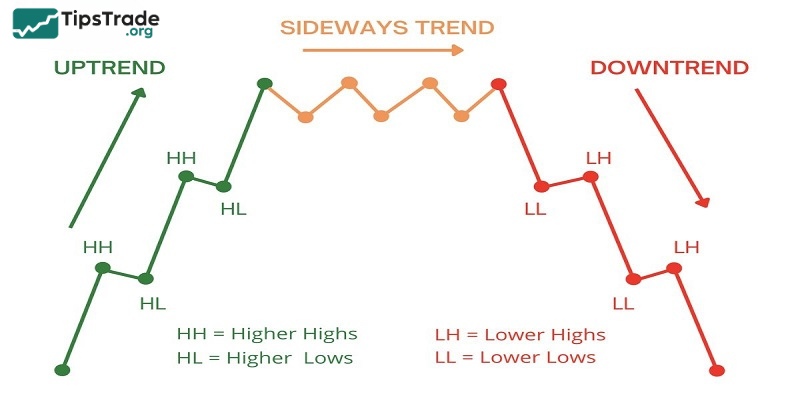
Step 1: Identify swing high and swing low points
Before placing your cursor on the chart, you need to visually identify key price points:
- Uptrend: Requires at least two swing lows, with the second low higher than the first.
- Downtrend: Requires at least two swing highs, with the second high lower than the first.
Step 2: Activate the Trendline tool
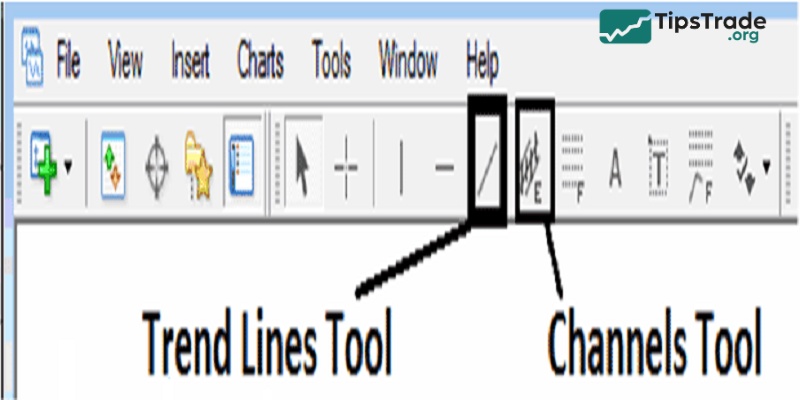
On the MetaTrader 5 interface, there are two ways to select the tool:
- Via Menu: Choose Insert → Objects → Lines → Trendline.
- Via Toolbar: Click directly on the diagonal line icon (/) on the toolbar above the chart.
Step 3: Drawing and adjusting the Trendline
- Left-click on Low 1 (or High 1) and hold the mouse button.
- Drag the cursor to Low 2 (or High 2).
- Release the mouse button. MT5 will automatically display a straight line connecting the two points.
Pro tip: A trendline is considered strong and highly reliable when price touches it at least three times without breaking it.
How to turn off infinitely extending rays in MT5
This is one of the most frustrating issues for new traders. By default, MT5 draws trendlines as an infinite ray extending endlessly to the right, which makes the chart look cluttered.
To disable this feature and turn the trendline into a clean, finite line, follow these steps:
- Double-click on the newly drawn trendline to select it (three small dots will appear at both ends and in the middle).
- Right-click and choose Properties of the trendline.
- Switch to the Parameters tab.
- Uncheck the Ray option.
- Click OK.
From now on, the trendlines you draw will be concise and exactly as you want them to be.
How to draw trendline MT5 on mobile
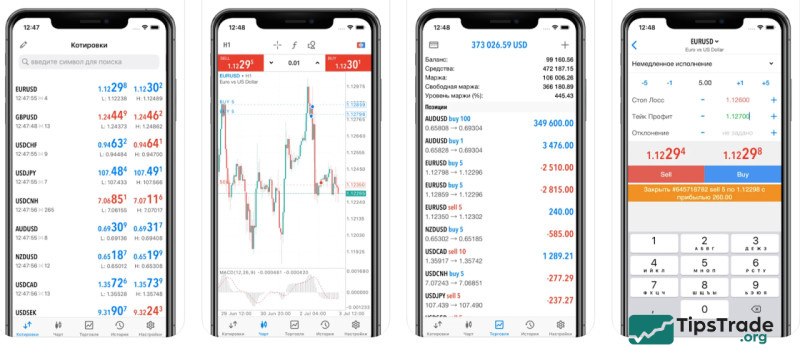
Trading on mobile devices is becoming increasingly popular. So, how to draw trendline MT5 on mobile app (iOS/Android) is also very straightforward:
- Tap once on the chart screen to display the wheel menu.
- Select the shapes icon (Triangle/Circle/Square).
- Tap the plus (+) button to add an object, then choose Trendline.
- Touch the starting point on the chart, drag your finger to the second point, and release.
- To edit the trendline (color, thickness, or disable the Ray), press and hold the trendline and select the pencil icon (Edit).
Pro tips to draw Trendline MT5 shared by professional traders
For professional traders, they don’t just learn how to draw trendline MT5; they also seek ways to optimize their operations for speed and accuracy. Here are some advanced tips you can refer to:
Use the Clone shortcut
Instead of redrawing a parallel line to create a price channel, you can:
- Double-click to select the original trendline.
- Hold the Ctrl key on your keyboard.
- Use the mouse to drag the trendline to a new position.
- Result: You get a perfectly parallel line with the same slope.
Multi-timeframe combination
Don’t just draw on the M15 or H1 timeframe. Let’s start drawing from the large frame (H4, D1) to see the big picture. Trendlines on larger timeframes are always more reliable and act as strong resistance levels.
The rule of “Wick or Body?”
This is a long-standing debate. The experience of professional traders is: Be flexible.
- Drawing through candle wicks (shadows) helps capture the full range of price action.
- Drawing through candle bodies helps filter out noise and false breakouts.
- Tip: Draw the trendline so that it touches as many price points as possible.
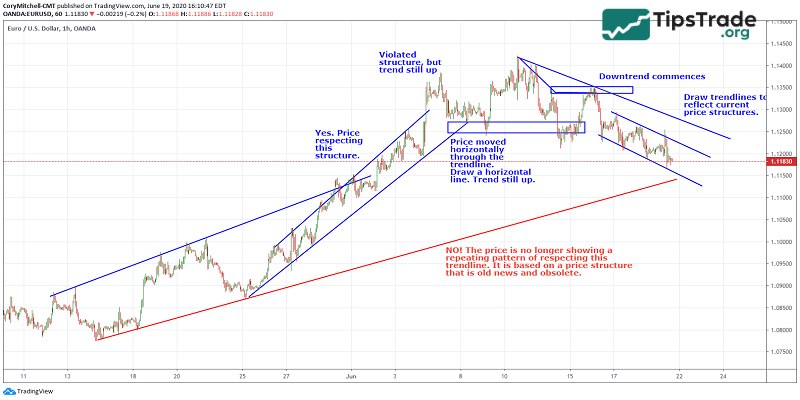
Draw trendline MT5: Common mistakes that traders should avoid
If you find yourself drawing trendlines but the price keeps breaking through and then returning, you may be making the following mistakes:
- Forcing the price onto the line: You try to adjust the trendline so that it passes through the price points in a forced manner. Remember: The market is always right, your line is just a hypothesis.
- Drawing too steeply: A trendline with an angle that is too steep (> 60 degrees) is often unsustainable and easily broken quickly.
- Not updating: When the trend slope changes, you need to redraw or adjust the trendline to match the current developments.
FAQs about how to draw trendline MT5
Below are quick answers to some common questions traders often have when learning how to draw trendline MT5:
- How can I set a default color for trendlines?
After adjusting the color and disabling the Ray in the Properties panel, don’t close it right away. Look for the Set as Default button (if available), or note that MT5 usually remembers your most recent settings for the next trendline you draw.
- Why does my trendline disappear when I change timeframes?
You may have accidentally set the trendline to display on only one specific timeframe. Go to Properties → Visualization tab and make sure All timeframes are checked.
- Is there any tool that automatically draws trendlines on MT5?
Yes, you can find custom indicators on the MQL5 Market. However, professional traders recommend drawing trendlines manually to better develop your market-reading skills.
- Is there a keyboard shortcut to draw trendline MT5?
By default, MT5 does not have a single shortcut key (such as the L key) to instantly draw a trendline. You need to install additional scripts or use a customized toolbar for the fastest access.
Final thoughts
Above are detailed instructions on how to draw trendline MT5. Tipstrade.org hopes this information can help you understand and best utilize trendlines in trading, bringing high profits when investing.