

Understanding how to customize TradingView charts is an essential skill that helps traders optimize their charts, improve technical analysis accuracy, and enhance overall trading performance. In this article, we will guide you step by step on how to customize TradingView charts from A-Z, helping you build a charting system tailored to your personal trading style and maximize efficiency in financial markets!
What is a TradingView chart?
A TradingView chart is an online price charting system provided by the TradingView platform, helping traders and investors analyze financial markets such as Forex, cryptocurrencies, stocks, commodities, and indices.
TradingView charts display real-time price data in multiple formats, including candlestick charts, line charts, Heikin Ashi, Renko, and Kagi. The platform also integrates hundreds of technical indicators, drawing tools, and advanced market data features, enabling traders to make more accurate and data-driven trading decisions.

See more:
- What is TradingView? A Platform Providing Visual Charts for Traders
- Top Powerful TradingView Features Every Trader Should Know
- How to Sign Up TradingView Account? Step-by-Step Guide
- How to Use TradingView Mobile App for Beginners
Why customizing TradingView charts matters
Before diving into the technicalities, let’s understand why professional traders spend hours “modding” their interfaces:
- Personalize your trading style: Every trader has a unique strategy, such as scalping, day trading, or swing trading. Customize TradingView charts settings allow you to tailor timeframes, indicators, and layouts to match your personal trading approach.
- Speed up market analysis: With a well-optimized chart setup, you can quickly identify trends, support and resistance levels, and trading signals. This is especially important in fast-moving markets like crypto and forex.
- Reduce noise and focus on key data: TradingView offers a wide range of indicators and tools, but too much information can be overwhelming. Customizing your chart helps remove unnecessary elements and focus on core data such as price action, volume, and trend indicators.
- Improve trading accuracy: A properly customized chart makes it easier to identify entry points, stop-loss levels, and take-profit targets, helping reduce risk and increase your win rate.
- Build a professional trading workflow: By saving templates, layouts, and indicator presets, you can analyze the market faster without setting up your chart from scratch every time. This creates a consistent and professional trading workflow.
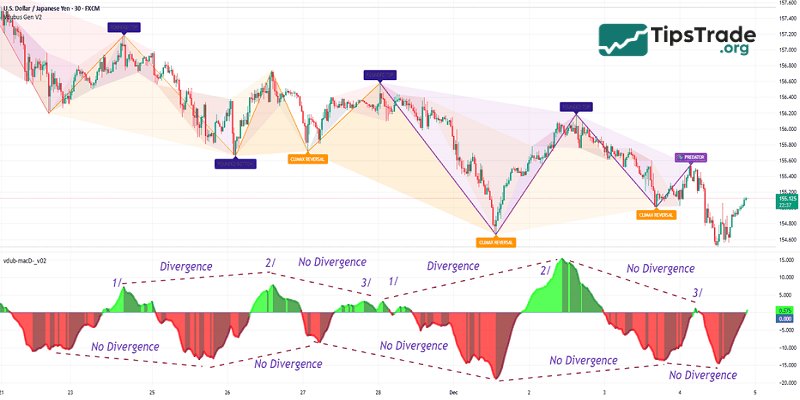
Guide on how to customize TradingView charts
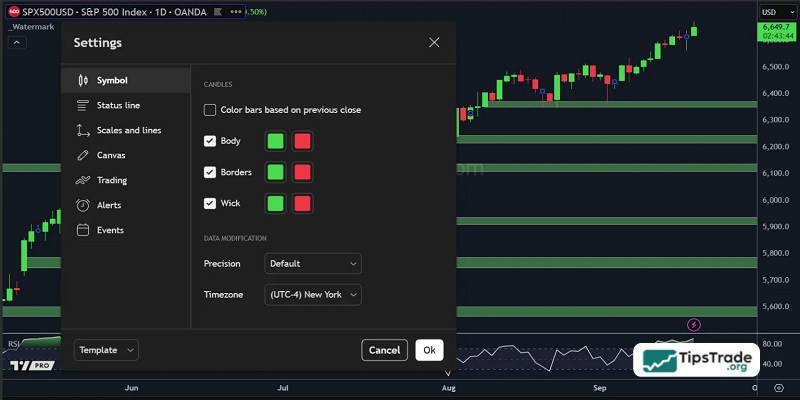
Step 1: Choosing your color theme
TradingView makes it easy to customize the look of your charts.
- Candlestick colors: You can change the body, wick, and border colors. Many traders stick to green for bullish candles and red for bearish ones, but you can use softer tones or high-contrast themes depending on your preference.
- Background color: Light or dark, matte or gradient, this comes down to personal comfort. Many traders prefer dark themes to reduce eye strain.
- Saving your theme: Once you’ve chosen your setup, right-click your chart, select Color Theme > Save, and give it a name (e.g., “Dark Mode”).
That way, you can return to your preferred look with just one click.
Step 2: Saving templates for indicators
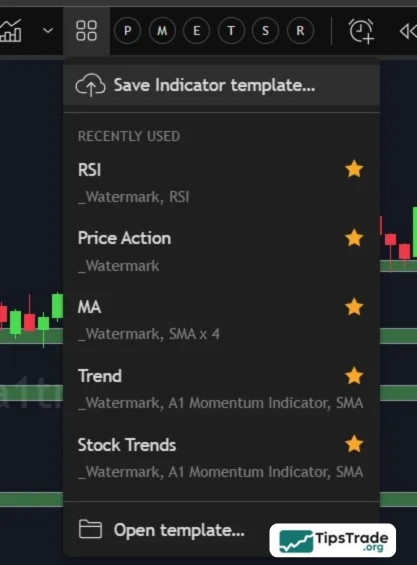
If you use indicators like moving averages, RSI, or custom scripts, you don’t want to add them manually every time you open a chart.
- Apply your indicators to the chart.
- Click Indicator Templates and save your setup.
- Create multiple templates for different strategies (e.g., Price Action Only, Options Strategy, Mean Reversion).
This feature allows you to switch instantly between chart styles without rebuilding them each time.
Step 3: Setting margins and layout preferences
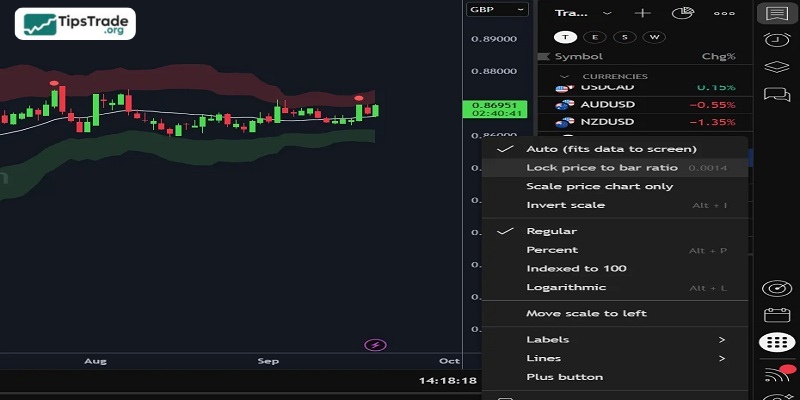
In TradingView settings, you can also adjust how far your price action sits from the edge of the chart. For example, you may prefer leaving a margin of 10 bars to make room for drawing analysis.
Other useful settings include:
- Displaying orders and positions on the chart.
- Choosing between percentage, money, or pips for open positions.
- Zooming in or out with CTRL + Plus/Minus (Windows) or CMD + Plus/Minus (Mac).
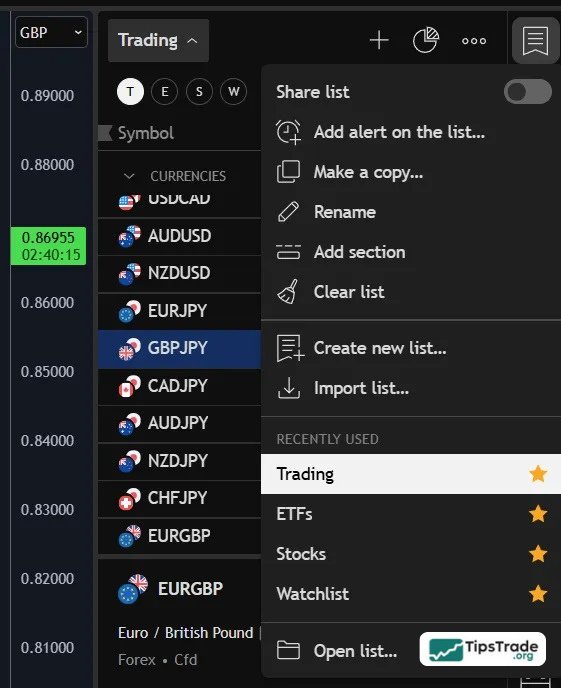
Step 4: Creating and organizing watchlists
One of the most powerful features of TradingView is the ability to organize all the markets you trade in one place.
- Open the Watchlist tab on the right side of the screen.
- Add instruments (stocks, forex, crypto, indices, bonds, etc.) by clicking the Add button.
- Create sections inside your watchlist (e.g., Indices, Forex, Commodities, Meme Stocks) so you can expand or collapse them as needed.
- Customize columns to display data like Last Price, % Change, or Volume.
If you’re using the free version of TradingView, you can create one watchlist. Paid plans allow multiple.
Step 5: Trading directly on TradingView
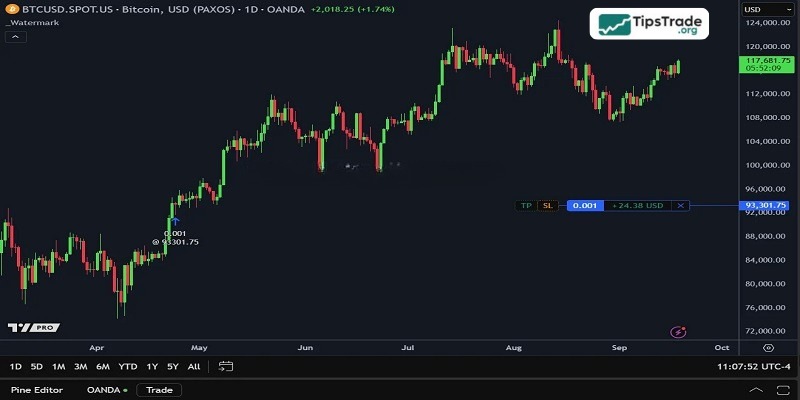
Did you know you can place trades directly from TradingView if your broker is supported?
- Connect your brokerage account (popular options include Webull, OANDA, and others).
- Place orders directly from the chart without needing to switch between platforms.
- Track open positions seamlessly.
This integration helps streamline your workflow, especially if you prefer to keep everything in one platform.
Step 6: Switching between chart layouts
If you experiment with different looks, don’t be afraid to try multiple setups. Some traders prefer light charts during the day and dark charts at night. Others stick to one consistent theme. The important thing is that your charts remain clear, readable, and comfortable for the long hours you’ll be spending on them.
Conclusion
Learning how to customize TradingView charts not only gives you a visually appealing chart layout but also significantly improves your ability to read market trends, identify entry points, and manage risk effectively. By applying professional customization techniques from basic to advanced levels, you can turn TradingView into a powerful analysis tool that perfectly fits your trading strategy. Start personalizing your charts today to upgrade your trading experience and gain a competitive edge in the market.
See more: