
TradingView alerts setup is an essential feature that helps traders stay updated on market movements without constantly watching charts. By setting up alerts, you can receive real-time notifications when price levels, indicators, or custom conditions are met, allowing you to react quickly to trading opportunities. This guide is going to explain exactly how you can get TradingView alerts set up!
What are TradingView alerts and why they matter
TradingView alerts are automated notifications integrated into the TradingView platform. When the market meets predefined conditions (price, indicators, or strategies), TradingView sends alerts via:
- On-screen pop-ups
- Email notifications
- SMS alerts (available in paid plans)
- Webhooks (for automated trading bots)
So, why do traders need TradingView alerts setup? Setting up alerts provides multiple benefits, including:
- Saving time monitoring charts
- Never missing key trading opportunities
- Reducing trading stress
- Supporting automated trading systems
- Improving trading discipline and risk management
Types of TradingView alerts setup
Understanding different types of TradingView alerts setup will help traders choose the right tool for their trading strategy. Accordingly, TradingView offers several categories, each designed for specific trading scenarios.
- Top TradingView crypto indicators for traders
- How to Use TradingView Mobile App for Beginners
- TradingView for Beginners: A Complete Step-by-Step Guide
- How to draw trendline TradingView to analyze market trends in 5 minutes!
Price-based alerts
This is the simplest type of alert but often the most effective in financial trading. Accordingly, Price-based alerts are triggered when an asset reaches specific price levels or moves by a certain percentage.
- Support/resistance alerts: These notify you when the price touches key levels that you have identified. For example, you can set an alert when Bitcoin drops to $40,000 (support) or rises above $45,000 (resistance).
- Percentage change alerts: These are triggered when an asset increases or decreases by a specific amount. This type is ideal for catching momentum moves or major reversals. You can set an alert for any cryptocurrency that moves 5% in either direction within one hour.
- Moving average (MA) alerts: These are triggered when the price crosses above or below important moving averages such as the 50-day MA or the 200-day MA. These alerts help you identify trend changes early.
Technical indicator alerts
Technical indicator alerts track oscillators and momentum indicators to identify trading signals. Compared to simple price-based alerts, technical indicator alerts provide more sophisticated entry and exit points.
- RSI alerts: Triggered when the RSI indicates overbought conditions (>70) or oversold conditions (<30). This helps you time contrarian trades or avoid chasing prices at market tops.
- MACD alerts: Monitor bullish and bearish crossovers of the MACD indicator. These signals often anticipate trend changes before they become visible in price action.
- Volume alerts: Triggered when trading volume spikes significantly compared to normal levels. Unusual volume is often a precursor to strong price movements, making these alerts extremely valuable for early trend detection.
Custom strategy alerts
Custom strategy alerts are the most powerful alerts available. Accordingly, they use Pine Script (TradingView’s programming language) to create complex multi-condition signals.
- Multi-factor combination: You can combine multiple indicators, timeframes, and conditions into a single alert. For example, an alert may trigger only when RSI is in the oversold zone AND the price is above the 200-day moving average (MA 200) AND trading volume is higher than the average level.
- Noise filtering: Multi-condition alerts help eliminate false signals by requiring multiple confirmations before triggering. This improves the win rate while reducing the frequency of unnecessary notifications.
Here’s a summary table of types of TradingView alerts setup:
| Types of TradingView alerts setup | Complexity | Setup Time | Best For | Effectiveness |
|---|---|---|---|---|
| Price-Based | Low | 5 minutes | Support/Resistance, Breakouts | High |
| Percentage Change | Low | 3 minutes | Momentum Trading, News Events | Medium |
| Moving Average | Medium | 10 minutes | Trend Following | High |
| RSI/MACD | Medium | 15 minutes | Reversal Trading | Medium |
| Volume Alerts | Medium | 10 minutes | Early Trend Detection | High |
| Custom Strategy | High | 30+ minutes | Complex Strategies | Very High |
Step-by-step TradingView alerts setup
TradingView alerts setup are relatively simple to configure once you know where to. This platform gives traders a variety of ways to keep track of price action and technicals, so they can monitor the market without glued-to-the-screen all day. Here’s how to do it on a desktop:
Step 1: Open a chart
First, pull up the chart for whatever asset you want to watch. Use the search bar at the top to find your symbol. It could be BTCUSD, AAPL, ETHUSDT, or anything else you’re tracking.
Step 2: Click the Alert Button
Locate the “Alert” button. It’s the bell icon in the top right corner of your screen. Another method is to right-click anywhere on the chart near a price level and choose “Add Alert” from the list.
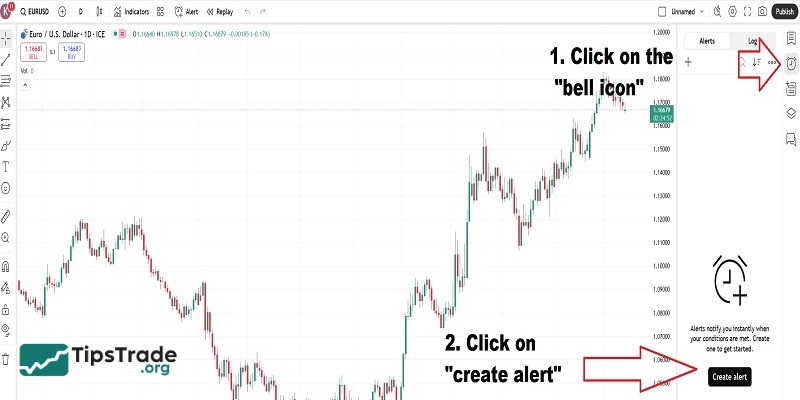
Step 3: Choose the alert type
The alert window will pop up, and you’ll need to select the type of alert you wish. Traders can have it set up for price action, technical indicators like RSI or MACD, or even associate it with drawing tools you’ve added to your chart.
Step 4: Set the condition
Now traders will specify the exact trigger for your alert. Maybe you want to be notified when BTCUSD crosses above $50,000, or when RSI is below 30. TradingView has several options like “crossing,” “greater than,” “less than,” etc.
Step 5: Personalize your alert settings
Select how you would like to be notified when your alert fires. You have many options:
- Pop-up on your screen
- Email notifications
- Text messages (if you are Pro+ or Premium)
- Webhook URL if you want something to occur automatically
You can also name your alert or provide a custom message so you’re certain what is happening when it activates.
Step 6: Save and manage alerts
Hit “Create” when you’re all set with everything, and your alert will go live. In order to keep track of all your alerts, pending, active, or expired, look towards the “Alerts Log” panel. You should find it at the bottom of your TradingView setup most of the time.
How to set notifications for your TradingView alerts
TradingView alerts setup need not be in-form notifications. Here’s how you set up different methods of receiving alerts so that you won’t miss important signals when you are not stuck in front of the charts:
- A push notification in the TradingView mobile app: You’ll get a visual and audio notice on your phone, depending on the device and app’s notification settings.
- A toast notification in the corner of the page: A pop-up message will show up on your computer, regardless of if you’re in another tab. Remember though, you need to allow TradingView to show desktop notifications for this one to work outside of TradingView.
- An email: Whatever email address is linked to your TradingView profile will receive an email alert.
- A webhook: You can have your alert send a POST request, which is essentially an real-time one-way communication, to a URL of your choosing when your set condition is triggered. These are as quick as it gets, as they don’t require HTTP requests due to their automated nature. Also a perfect way to push alerts to your Discord channel.
- An audio cue: This method’s simple enough — a sound will play to alert you.
- A plain text sent to an alternate email address: Instead of your TradingView profile email, you can input any email address in which to get a plain text notification message.
Current plan limitations on TradingView alerts
TradingView offers different alert capabilities based on your subscription level.
| Plan | Alert Types Available | Active Alerts |
|---|---|---|
| Basic | Price-based only | 2 |
| Pro | Price, indicator, and drawing alerts | 10 |
| Premium | All alerts, including strategies & watchlists | 400 |
As of 2026, Free (Basic) plan users can only set two active price alerts and cannot create indicator-based alerts. For full alert functionality, users must upgrade to a paid plan.
Common mistakes in TradingView alerts setup
TradingView’s alert system generally works reliably most of the time, but occasional issues can still occur. Below are the most common problems that traders often encounter, along with quick solutions to resolve them.
Why am I not getting alerts?
If alerts are no longer showing up, start with these basics:
- Check your notification settings: Go to Settings > Notifications and make sure email, SMS, and push notifications are turned on and set up properly.
- Browser and app permissions: Your browser might be blocking pop-ups, or your phone might have notifications turned off. Check these settings first.
- Plan limits: You can only have a limited number of alerts using free accounts, and you don’t get SMS notifications. If you’ve reached your limit, older alerts won’t work.
- Expired alerts: Alerts sometimes expire once they’re sent. Look at your Alerts Log to see what’s happening with each one.
Alerts are delayed or not triggering at all
If your alerts are showing up late or not at all
- Incorrect conditions: Double-check your alert setting. “Crossing” and not “greater than” might cause you to miss minute price movements.
- Chart timeframe problems: Alerts depend on the timeframe you have them set up on. An alert that you’ve set up on a 1-hour chart won’t behave like an alert that you’ve set up on a 5-minute chart.
- Platform delays: Sometimes, TradingView clogs up when it’s open trading hours. Look at their status page if you think there’s an issue on a larger scale.
How do I change or remove an alert?
To change an alert:
- Open the Alerts Log (tap on the bell icon at the bottom)
- Tap on the gear icon to the side of the alert you want to change
- Alter the conditions, notification types, or when it expires
To remove an alert:
- Right-click the alert on your chart, or go to the Alerts Log and click the trash can icon
- Confirm that you want to delete it
Pro tip: You can also mute alerts instead of deleting them if you only need to silence them for a while.
Conclusion
Mastering TradingView alerts setup can significantly enhance your trading efficiency by automating market monitoring and reducing emotional decision-making. Whether you are using price alerts, technical indicator alerts, or custom strategy alerts, setting them up correctly will help you catch key market signals in real time. Start optimizing your TradingView alerts setup today to stay ahead of market trends and manage your trades more professionally.
See more: