
Forex Factory dark mode is one of the features that many traders are interested in, especially those who frequently follow news and economic calendars for extended periods. In this article, we will guide you through the simplest ways to activate Forex Factory dark mode to protect your vision and enhance focus.
Why should traders use Forex Factory dark mode?
Switching to a Forex Factory dark mode is not just an aesthetic preference; it offers several practical benefits for your trading workflow:
- Protect your eyesight during night trading
Most major market volatility (such as Non-Farm Payrolls or FOMC meetings) often occurs during late hours for many traders globally. Using a Forex Factory dark mode reduces blue light exposure, minimizing eye fatigue and headaches during long hours of screen time.
>>See more:
- What is Forex Factory? A Comprehensive Guide for 2026
- How To Use The Forex Factory Calendar For Trading
- What is Forex Factory Trade Explorer? Detailed installation guide in just 4 steps
- Forex Factory vs Investing comparison: Which platform is better for tracking news?
- Enhance focus on data
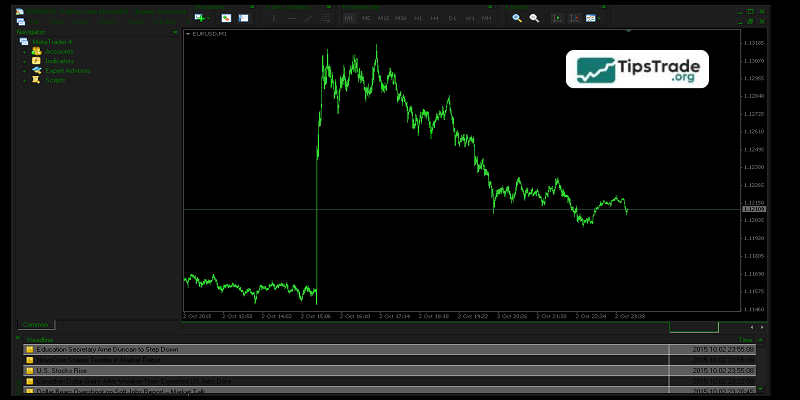
On a dark background, Forex Factory’s color-coded impact icons such as Red (High Impact), Orange (Medium Impact), and Yellow (Low Impact) become more vibrant and easier to distinguish. This allows traders to quickly assess news importance without being distracted by surrounding white glare.
- Save battery on mobile devices
If you frequently check the economic calendar on a smartphone with an OLED or AMOLED screen, Forex Factory dark mode can significantly save battery life, ensuring your device is ready for critical trading signals.
3 simplest ways to enable Forex Factory dark mode
Since Forex Factory does not currently offer an official “Dark Mode” toggle in its settings, we can use these highly effective workarounds:
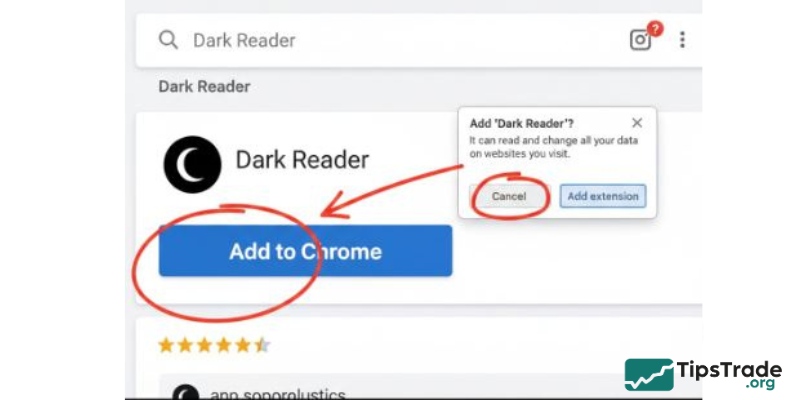
Method 1: Using the Dark Reader Extension
This is the best method because it handles colors intelligently, preserving the contrast of news impact icons.
- Visit the Chrome Web Store.
- Search for “Dark Reader”.
- Click “Add to Chrome.”
- Navigate to forexfactory.com. The extension will automatically convert the interface into a perfect dark theme.
Method 2: Use “Force Dark Mode” in Browser Settings
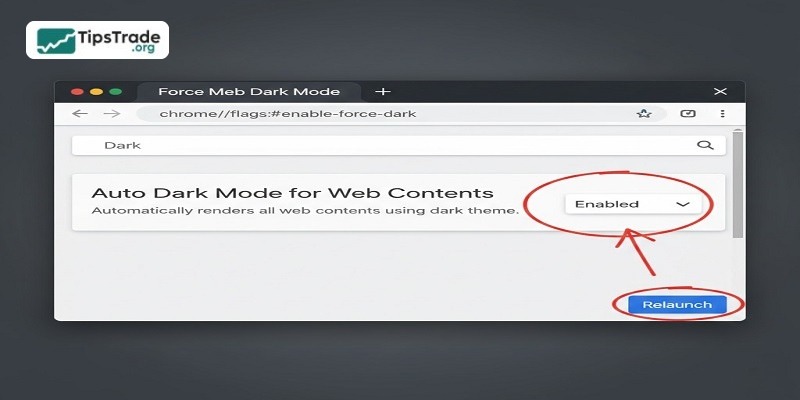
If you prefer not to install third-party extensions, you can force Chrome to render all sites in dark mode:
- Open Chrome and type the following into the address bar: chrome://flags/#enable-force-dark.
- Find Auto Dark Mode for Web Contents and change the setting from Default to Enabled.
- Restart your browser (Relaunch). Note: This method may occasionally invert the colors of certain charts or images.
Method 3: Enable Dark Mode on Mobile (iOS and Android)
- For iPhone (Safari): You can install the “Dark Reader” extension directly from the App Store for Safari.
- For Android: Use the Chrome browser and enable “Dark Theme” under Settings -> Theme.
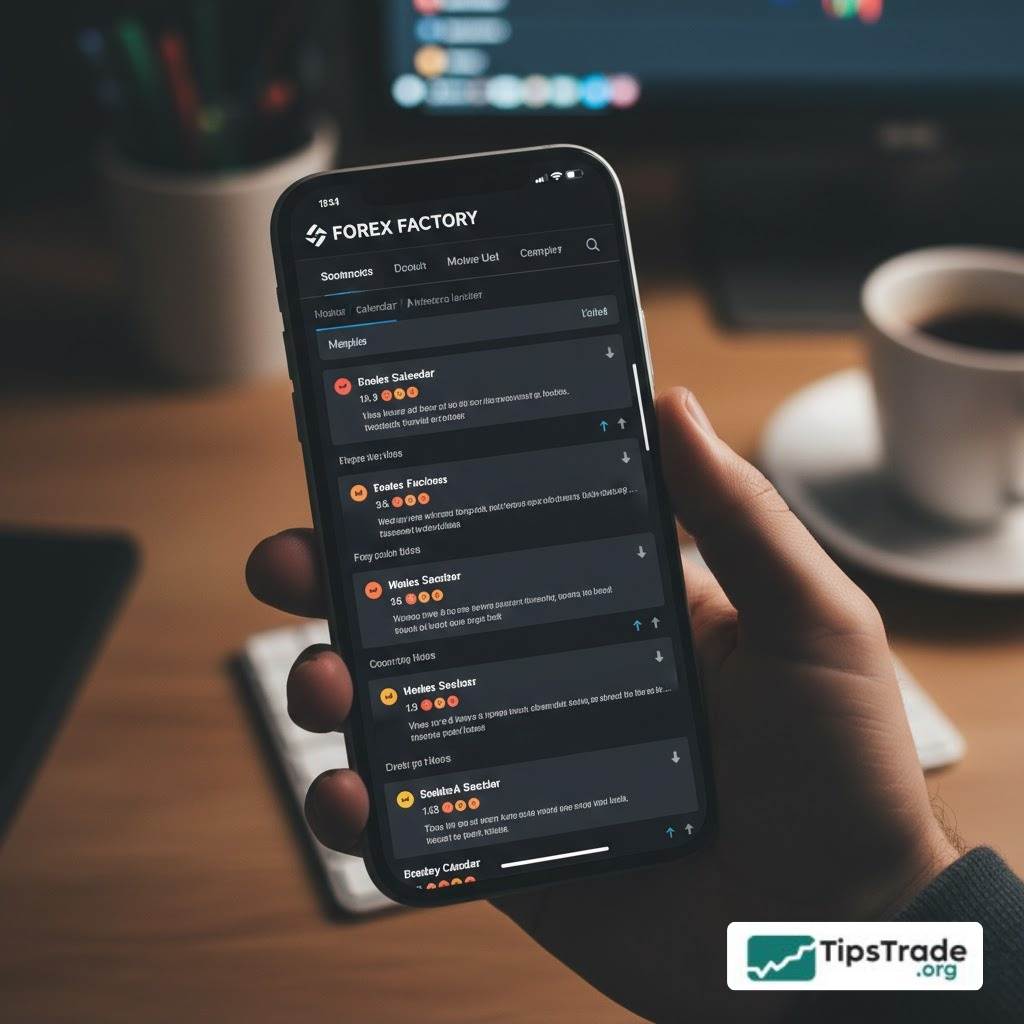
Important note when enabling Forex Factory dark mode
When using third-party tools to enable Forex Factory dark mode, keep the following in mind:
- Verify News Impact Colors: Ensure that the red and orange icons are still clearly distinguishable so you don’t misinterpret market volatility levels.
- Adjust Contrast: Within the Dark Reader extension, you can adjust the “Contrast” and “Brightness” sliders to find the most comfortable level for your eyes.
- Technical Charts: Some technical charts posted on the forums might have inverted background colors. You can add forexfactory.com to the “Site List” in your extension if you wish to toggle it off for specific pages.
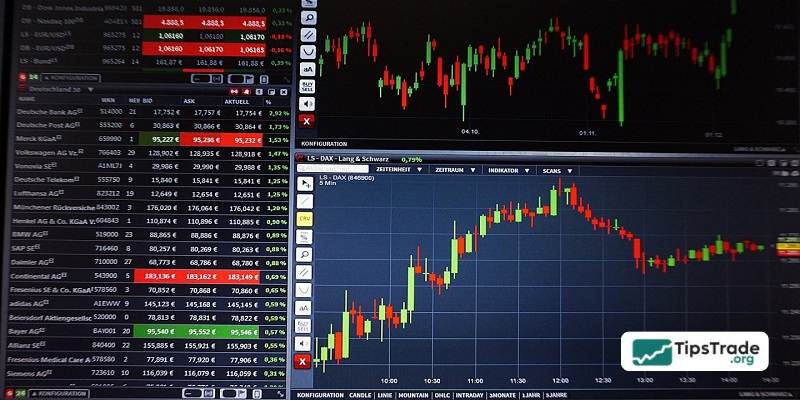
Other dark mode tools for traders
To create a professional “Full Dark Mode” workspace, you should also consider:
- TradingView: Go to Chart Settings and select the Dark Color Theme.
- MetaTrader 4/5: Right-click on the chart -> Properties -> Color Scheme -> Select Yellow on Black or customize your own dark background.
Frequently asked questions about Forex Factory dark mode
Below are frequently asked questions about Forex Factory dark mode:
- Does Forex Factory have an official dark mode button? Currently, the Forex Factory management team maintains its traditional interface and has not made any official announcements regarding a built-in Dark Mode feature.
- Does Dark Reader slow down my browser? No, the extension is very lightweight and has a negligible impact on page load speeds or computer performance.
- How do I turn off Forex Factory dark mode if needed? Simply click the Dark Reader icon on your browser toolbar and toggle it to “Off,” or use the shortcut Alt + Shift + D.
- Does Dark mode change the time zone on the economic calendar? No. Dark Mode only changes the visual layer (CSS). All time settings and economic data remain exactly as configured in your account settings.
Conclusion
Enabling Forex Factory dark mode is a simple yet highly effective way to improve your trading experience, especially when tracking the market at night or for extended periods. With the instructions provided in this article, you can easily activate dark mode on Forex Factory and customize the interface to suit your preferences. Don’t forget to combine Forex Factory dark mode with other analytical tools to enhance your overall trading performance.
See more: