

Add indicator to MT4 is an essential skill that every trader needs to master in order to analyze the market effectively and make informed trading decisions. MetaTrader 4 (MT4) offers a wide range of built-in technical indicators, along with the flexibility to install custom indicators that suit different trading strategies. In this article, you will learn exactly how to add indicators to MT4, customize their settings, and use them efficiently to improve your market analysis and overall trading performance.
What are MT4 indicators and why use them?
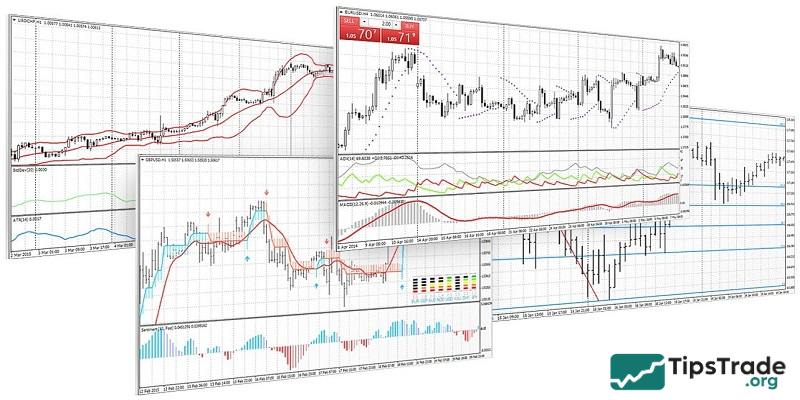
How to add indicator to MT4? The indicators in MetaTrader 4 are powerful and useful technical analysis tools that help traders identify market trends and provide relatively accurate confirmation for their forecasts of future price movements. Each indicator or add-on you apply in MT4 serves a specific purpose, and you can freely combine several of them to build your own ideal trading strategy.
Why use them? Besides making things easier, indicators can seriously level up your trading strategy. They help you:
- Identify trends: Spotting the direction of the market is crucial. Indicators can show you if the market is trending up, down, or sideways.
- Confirm signals: Indicators can back up your trading ideas. They help you decide whether to enter or exit a trade.
- Manage risk: Using indicators to set stop-loss orders and profit targets is crucial for protecting your capital.
- Gain a competitive edge: Indicators provide you with a more complete understanding of market conditions. This allows you to trade with more confidence and hopefully improve your results.
See more:
- What is MT4? A detailed guide on how to download and use MT4
- How To Install EA Into MT4? A Step-By-Step Guide
- Detailed guide on how to install MT4 on Macbook (MacOS)
- How to Place an Order in MT4: A Detailed and Easy-to-Understand Guide
How to add indicator to MT4
indicators MT4 are your allies in the quest for trading success. They give you the edge you need to navigate the market with confidence. So, let’s explore how to add indicator to MT4!
Using built-in indicators
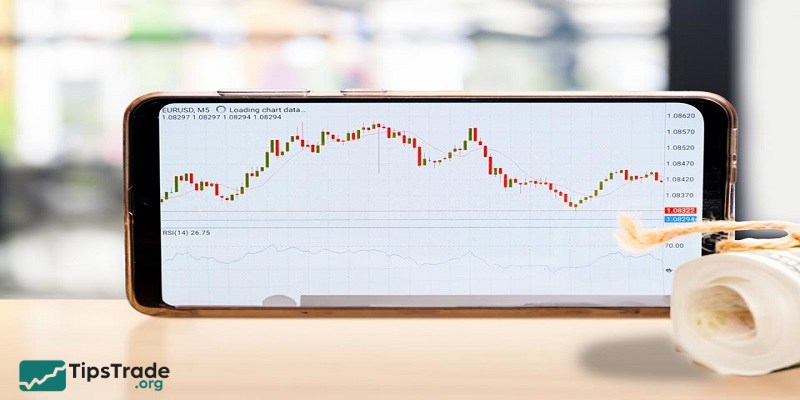
MT4 comes equipped with a variety of built-in indicators that can be easily added to your charts. Here’s how to do it:
- Open the Insert Menu: Launch MT4 and navigate to the top menu bar. Click on Insert to access the dropdown options.
- Select Indicators: From the Insert menu, hover over Indicators. This will reveal a list of categories, including Trend, Oscillators, and Volumes.
- Choose Your Desired Indicator:
- Click on one of the categories to view the available indicators within that group. For example, if you select Trend, you might see indicators like Moving Averages or Bollinger Bands.
- Once you find the indicator you want to use, click on it.
- Configure Its Parameters:
- After selecting an indicator, a configuration window will appear. Here, you can adjust various parameters such as period length, color settings, and other specific options depending on the indicator.
- Once you have customized the settings to your liking, click OK to apply the indicator to your chart.
Adding custom indicators
Custom indicators allow traders to enhance their analysis further by using tools tailored to their specific needs. Follow these steps to add custom indicators:
- Downloading Custom Indicators: Visit trusted websites or forums where Forex traders share their custom indicators. Ensure that you download from reputable sources to avoid malware or unreliable tools.
- Installing Custom Indicators:
- After downloading the indicator file (usually in .ex4 or .mq4 format), locate your MT4 installation directory.
- Navigate to the MQL4/Indicators folder within this directory and save the downloaded file there.
- Refreshing the Platform:
- To load new custom indicators into MT4, you can either restart the platform or refresh the Navigator pane.
- To refresh without restarting, simply right-click in the Navigator window and select Refresh. This action will load any new indicators that have been added.
How to adjust indicator settings on MT4
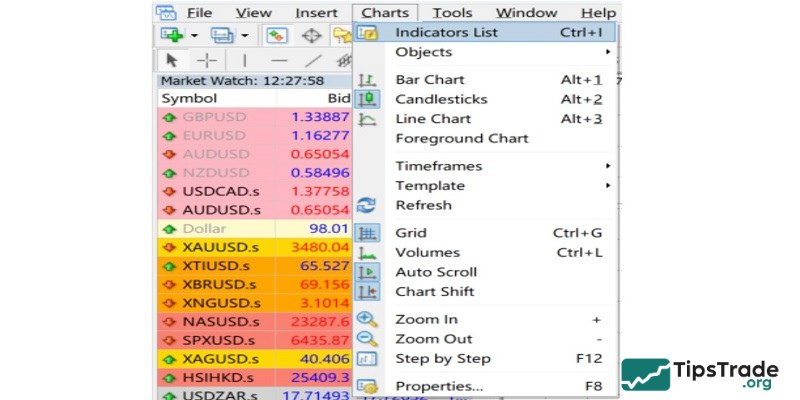
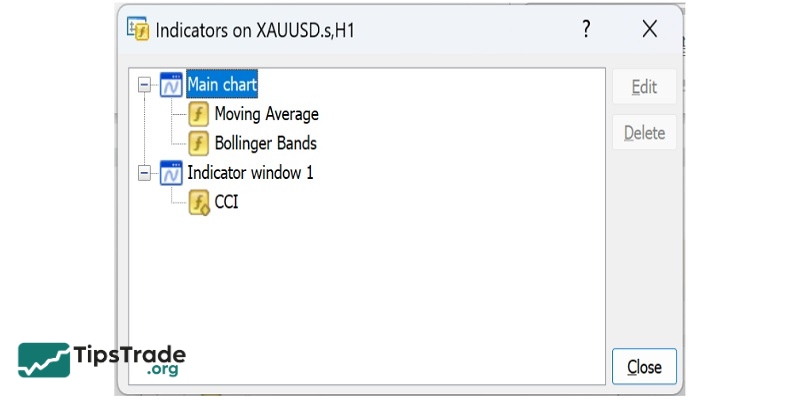
Step 1: On the Menu bar, go to Chart > Indicators List.
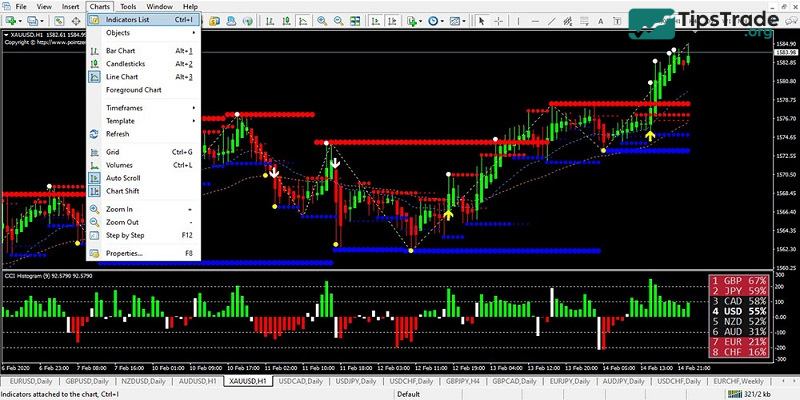
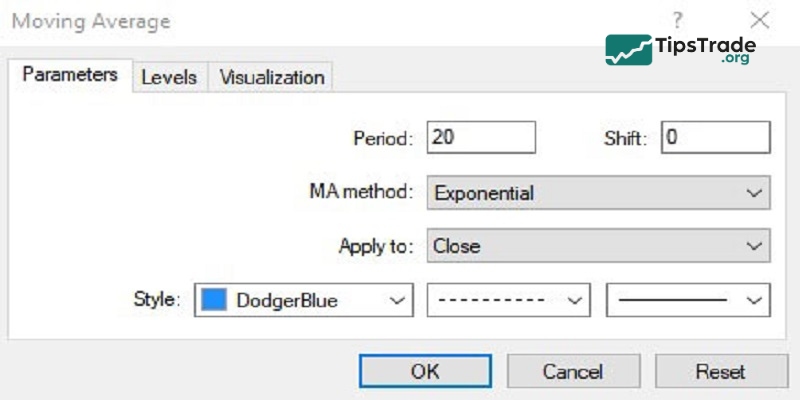
Step 2: In the Main chart, select the indicator you want to edit. Press Edit. For example: Choose the Moving Average indicator.
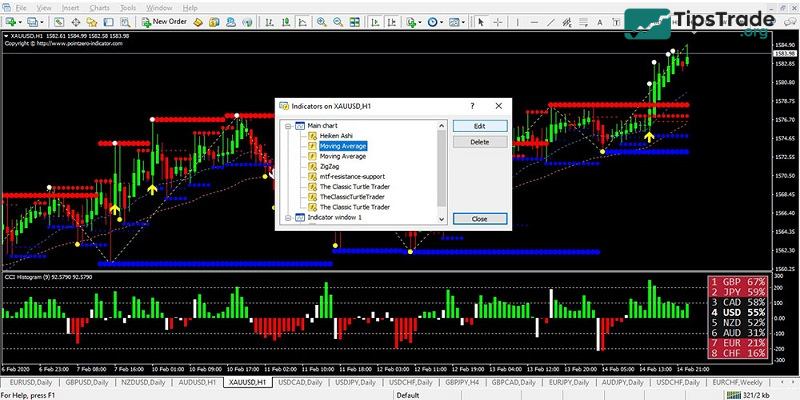
Step 3: Adjust the parameters of the Moving Average indicator.
In the Parameters section, you can modify the following settings:
- Period: the number of candlesticks used to calculate the moving average. For example, Period 20 means the moving average is calculated based on the last 20 candles.
- MA method: the calculation method used to draw the moving average.
- Apply to: the price level that the moving average is applied to. For example, Close refers to the candle’s closing price.
- Style: choose the color and line style of the moving average.
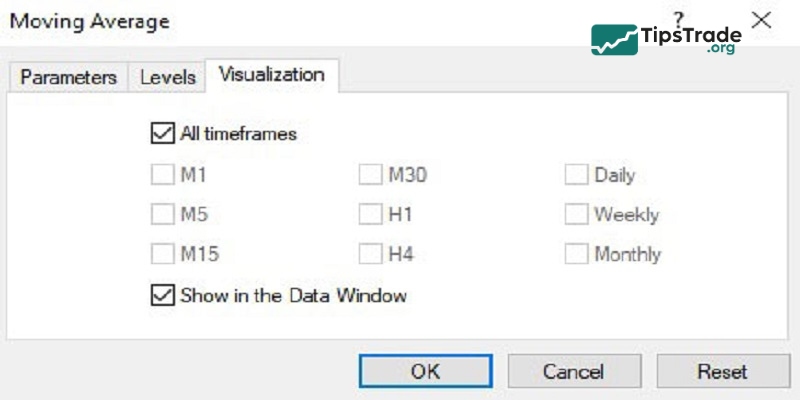
In Visualization, you can select the appropriate timeframes to apply this indicator or tick “All timeframes” to apply it to all timeframes. Press OK.
How to remove indicators in MT4
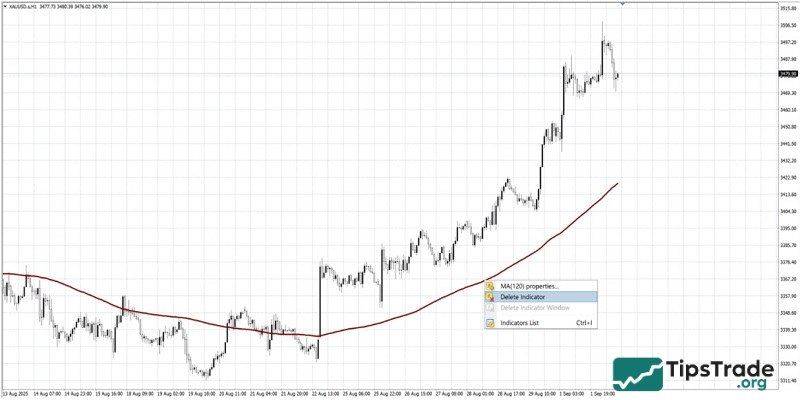
Indicators can be taken off just as easily as they’re added. The simplest method is to right-click on the indicator itself and remove it.
If you’d like to clear several indicators at once, there’s a quicker way.
Open the Indicators List and you’ll see every indicator currently applied to your candlestick chart. From the menu on the right, you can edit, adjust, or delete them as needed.
Common errors when adding indicators to MT4 and how to fix them
When you add indicator to MT4, many traders (especially beginners) encounter issues that prevent the indicator from displaying or functioning properly. Below are the most common problems and their detailed solutions.
- Indicator not loading – May require compilation in MetaEditor or the indicator may be coded for MT5. In the latter case, there’s not much traders can do other than find a different indicator.
- Crash or lag – Likely an issue with a poorly coded indicator. Reinstalling the trading online platform, MT4, may help, but the issue may persist.
- Indicators not refreshing – Often caused by inefficient looping logic or OnCalculate() function insufficiency. Removing and reattaching the indicator may help, but if the issue persists, it’s best to replace the indicator.
- Template not applying – Templates often include custom indicators, and if the trader hasn’t installed the indicator, the template can’t work. Check the list of required indicators for the template and download any that may be missing.
- Template looks blank – Usually an issue with backgrounds and zoom settings. Zoom in or change the colour settings and re-save the template. If the issue persists, the template may simply be faulty.
Tips for using indicators on MT4 effectively
Indicators are only effective when used correctly. Below are practical tips to help traders maximize performance when using indicators on MT4.
- Avoid overcrowding your chart: Too many indicators can lead to conflicting signals. Stick to 2–3 complementary indicators.
- Backtest your strategy: Test your indicator settings on historical data using the MT4 Strategy Tester.
- Use indicators as tools, not guarantees: Indicators provide insights but are not foolproof. Always combine them with sound risk management.
Conclusion
In conclusion, knowing how to Add indicator to MT4 correctly allows traders to fully leverage the platform’s powerful technical analysis capabilities. Whether you are using default indicators or installing custom tools, combining and adjusting indicators properly can help you identify trends, confirm signals, and manage risk more effectively. By following this guide, you can confidently add indicators to MT4 and build a trading setup that aligns perfectly with your personal strategy and trading goals.
See more: